How to Compress Video for Email: The Complete 2026 Guide
Learn how to compress video for email in minutes. Shrink files under Gmail's 25MB or Outlook's 20MB limit using free tools. Try our step-by-step guide now.
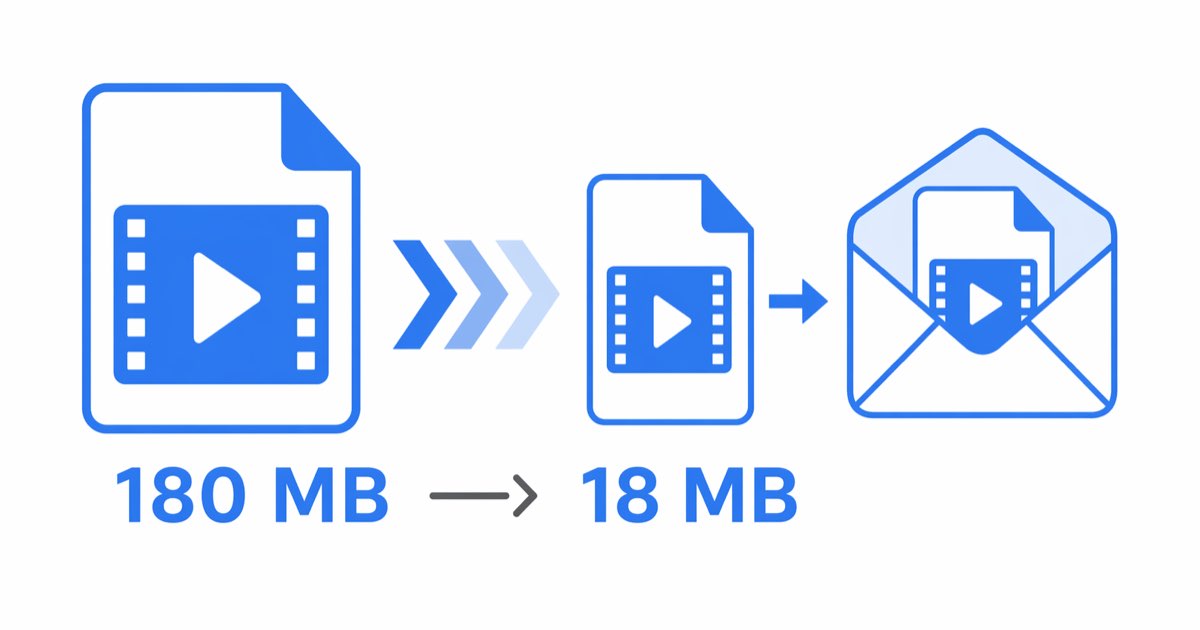
Need to know how to compress video for email without losing quality? Most email providers cap attachments at 20-25MB, but a one-minute 1080p clip often exceeds 100MB. This guide shows three proven methods to shrink any video file under the limit in under five minutes, whether you use Gmail, Outlook, or Yahoo Mail.
Why You Need to Compress Videos Before Emailing
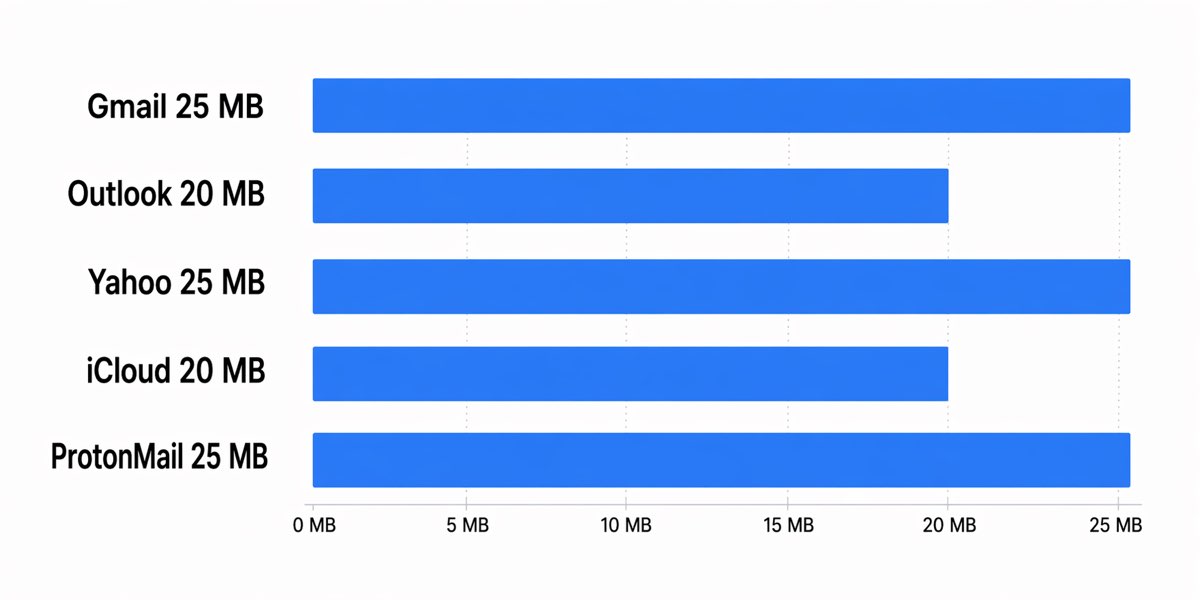
Modern smartphones record in 4K at 60fps, producing files that balloon past 400MB per minute. Email servers reject oversized attachments to protect bandwidth and storage. Here are the current hard limits for major providers:
- Gmail: 25MB attachment cap (receiving up to 50MB)
- Outlook.com: 20MB for standard accounts, 33MB for Microsoft 365
- Yahoo Mail: 25MB per message
- Apple iCloud Mail: 20MB (Mail Drop extends to 5GB via link)
- ProtonMail: 25MB total message size
Exceeding these limits bounces your message or forces providers like Gmail to auto-upload to Drive, creating a link instead of a true attachment. Compression keeps your video as a real inline file, preserving the recipient's workflow and avoiding cloud-sharing permissions headaches.
[TOOL: Free browser-based compressor that reduces MP4, MOV, and AVI files by up to 90% while preserving HD clarity—no signup, no watermark]
The Fastest Way to Compress Video for Email
If you need a clip sent in the next ten minutes, skip desktop software. A web-based compressor handles the job directly in Chrome, Safari, or Edge.
Three-step process:
- Drag your video into the browser uploader
- Select the "Email-friendly" preset (targets ~20MB output)
- Download the compressed MP4 and attach it to your message
This approach works on Windows, macOS, ChromeOS, Linux, and even iPad. The server re-encodes using H.264 at a lower bitrate, typically cutting a 150MB file down to 18-22MB with minimal visible quality loss at 720p playback. Processing a three-minute clip takes roughly 45-90 seconds on a decent connection.
Online tools like Clideo, VEED, and FreeConvert all offer similar pipelines, though free tiers often impose 500MB upload ceilings or add watermarks. Verify the output file size before closing the tab—some services default to "medium" quality, which may still exceed Outlook's 20MB threshold.
Manual Methods: HandBrake and FFmpeg
For recurring compression jobs or sensitive footage you would rather not upload, offline tools give you surgical control.
HandBrake (GUI, beginner-friendly)
HandBrake is free, open-source, and runs on Windows, macOS, and Linux.
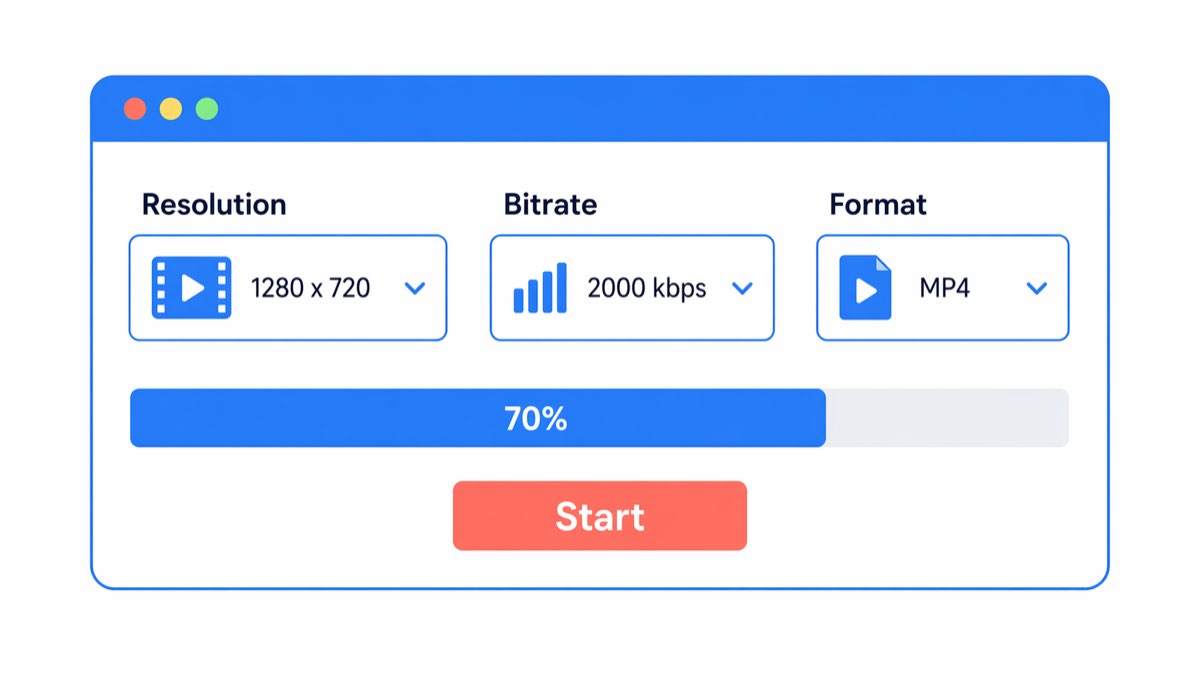
- Open HandBrake and drag in your source video
- Choose the Fast 720p30 preset under "General"
- Set Video Codec to H.264 (x264)
- Lower Average Bitrate to 1500-2000 kbps
- Click Start Encode
A one-minute 4K clip typically shrinks from 350MB to around 15MB using these settings.
[TOOL: Cloud compressor with drag-and-drop email presets for Gmail, Outlook, and Yahoo—processes files up to 2GB without installing software]
FFmpeg (command-line, maximum flexibility)
Power users prefer FFmpeg because a single command delivers predictable results. To target roughly 20MB output:
ffmpeg -i input.mp4 -c:v libx264 -crf 28 -preset medium -c:a aac -b:a 128k output.mp4
A Constant Rate Factor (CRF) of 28 produces visibly acceptable quality at aggressive compression. Bump to CRF 32 for even smaller files or drop to CRF 23 for archive-grade clarity. For strict size targets, use two-pass encoding with -b:v set to your target bitrate.
Real Scenarios: Matching File Size to Email Provider
Scenario 1: Gmail 25MB — Product demo for a client
A 2-minute screen recording at 1080p originally weighs 180MB. Using H.264 at 1800 kbps with AAC audio at 128 kbps yields a 24MB file that attaches cleanly.
Scenario 2: Outlook 20MB — Interview clip for HR
A 3-minute phone-shot video at 4K hits 420MB. Downscale to 720p and apply CRF 30. Expected output: 17-19MB.
Scenario 3: Yahoo 25MB — Birthday message to family
A 90-second iPhone clip at 4K60 runs about 270MB. Convert to 1080p30 at 2000 kbps for a 22MB result that preserves skin tones well.
Scenario 4: iCloud 20MB — Real estate walkthrough
A 5-minute property tour at 1080p weighs 600MB. Cut bitrate to 500 kbps and strip to 30fps. The trade-off is softer motion, but the file lands near 19MB.
Scenario 5: Corporate Outlook 33MB — Training snippet
With Microsoft 365's higher ceiling, you can retain 1080p at 2200 kbps for a cleaner 30MB deliverable.
[TOOL: Smart compressor that auto-detects your email client's size limit and optimizes output accordingly—supports batch processing for multiple clips]
Frequently Asked Questions
How do I compress a video to send via Gmail?
Upload the file to an online compressor, select a preset under 25MB, then download and attach. HandBrake's "Fast 720p30" preset with a 1500 kbps bitrate also reliably hits Gmail's cap for clips under four minutes.
What is the best video format for email?
MP4 with H.264 video and AAC audio. It plays natively on Windows, macOS, iOS, Android, and inside Outlook's web preview—no codec downloads required.
Can I compress a video on iPhone without an app?
Yes. Open the Photos app, tap the video, then Edit, then reduce length with the timeline trimmer. For real compression, use iMovie: export as "Email" resolution (540p), which targets roughly 10MB per minute.
Why is my compressed video still too large?
Check three things: resolution (drop to 720p), bitrate (aim for 1500-2000 kbps), and audio (128 kbps AAC is plenty). Also trim dead footage—cutting 30 seconds off a clip often saves more megabytes than re-encoding.
Does compression reduce video quality?
Yes, but often imperceptibly at normal viewing sizes. H.264 at CRF 23-28 retains excellent detail for email recipients viewing on phones or laptops. Avoid compressing the same file twice—each pass compounds artifacts.
Wrapping Up
Learning how to compress video for email saves time, bounced messages, and awkward "please resend" replies. Start with a browser compressor for one-off clips, graduate to HandBrake for weekly use, and master FFmpeg if you compress dozens of files monthly. Pick the H.264 MP4 format, aim for 720p at 1500-2000 kbps, and your recipient will open the file without complaint.
Related reading:
- How to Convert MOV to MP4 for Free
- Best Video Formats for Gmail Attachments
- How to Send Large Files Through Outlook
Try it yourself — free in your browser
No upload, no signup, no watermark — these tools run on FFmpeg WebAssembly locally.