在线更改视频分辨率,免费
更改视频分辨率——把 4K 降到 1080p、720p 或 480p。为社交平台、邮件或网页调整尺寸,全部在浏览器里处理。
把视频拖到这里,或点击选择文件
文件上限约 2 GB(取决于内存)
使用方法
Upload your video
Drag and drop any video file (MP4, WebM, MOV, AVI) or click to browse. The video loads locally in your browser.
Select target resolution
Choose from presets (4K, 1080p, 720p, 480p) or enter a custom resolution. Aspect ratio is preserved automatically.
Resize and download
Click "Change Resolution" to process. The video is re-encoded at the new resolution. Download when complete.
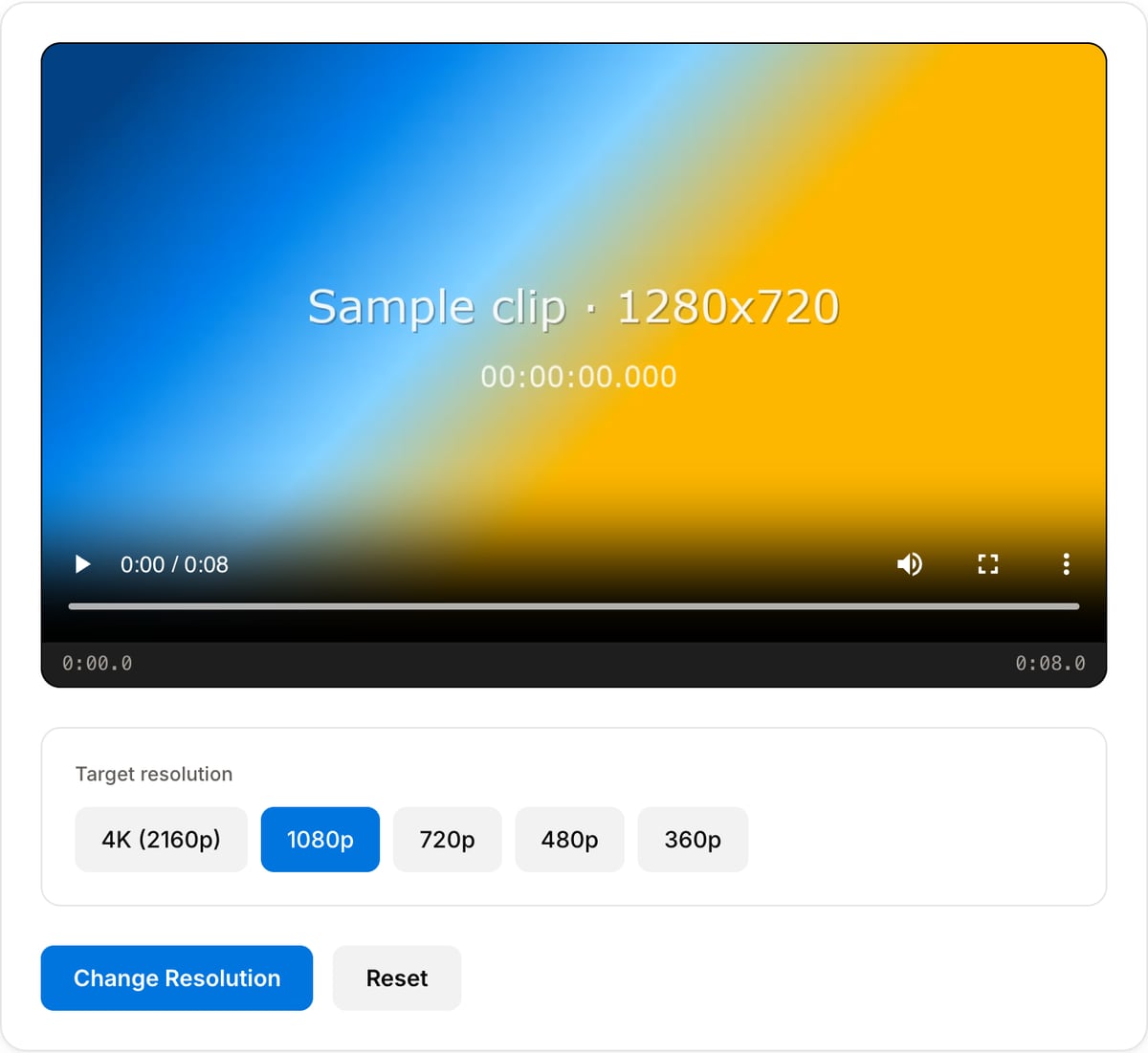
What the tool looks like
Popular task presets
Best for / not for
Best for
- Changing pixel dimensions while keeping the same basic clip content and aspect ratio.
- Downscaling 4K to 1080p or 720p for faster upload, email, LMS, and client review.
- Making screen recordings, camera exports, and phone footage lighter before compression.
Not for
- Changing composition from horizontal to vertical. Use Video Crop or Video Resizer for aspect-ratio changes.
- Creating real detail from a blurry or low-resolution source.
- Platform-safe padding or crop decisions; those belong in the social resizer.
When to change video resolution
- Downscale a 4K export to 1080p for faster uploads without visible quality loss at normal viewing distances.
- Scale up a small clip to match the project resolution in your editor.
- Shrink a screen recording to make it lighter for documentation.
Supported formats & limits
| Input containers | MP4, MOV, WebM, MKV, AVI, FLV, WMV, M4V |
|---|---|
| Input codecs | H.264, H.265, VP8, VP9, MPEG-4, MJPEG. Not AV1 — this WebAssembly build has no software AV1 decoder. |
| Output container | MP4 (default) — interoperable with iOS, Android, YouTube, Instagram, X |
| Output codec | H.264 video + AAC audio |
| Max file size | Uploader limit: 2048 MiB (about 2 GB). Processing needs additional memory; smaller files may fail on low-memory devices. |
| Max duration | Depends on file size, the operation and available memory. Long files can fail or take a long time. |
| Cost | Free for any use. No signup. No watermark. |
Video Resolution Changer vs. the usual alternatives
| Feature | This tool | VEED (free) | Kapwing (free) | CapCut Online |
|---|---|---|---|---|
| Processing model | Runs locally in your browser | Upload-based project editor | Upload-based project editor | Upload-based online editor |
| File limits | Tool-specific file limits apply; available memory can require smaller files | Free: up to 1 GB per uploaded file | Free: up to 250 MB per uploaded file; exports up to 4 minutes | Limits depend on the feature, account and selected assets |
| Watermark on output | No watermark added | Watermark on free or signed-out exports | Watermark on Free-plan exports | Standard edits can be watermark-free; template branding and Pro assets need checking |
| Signup / account | No account for tools | Workspace/account flow | Workspace/account flow | CapCut account flow |
| Connection | Initial page and processing-engine downloads require internet; offline use is not guaranteed | Online project editor | Online project editor | Online project editor |
| Best for | Private one-step file operations | Full editor, templates, AI tools | Collaboration, templates, AI tools | Social templates and timeline editing |
Comparison covers the web editors and the linked help pages. Plans, export settings and asset restrictions can change; check the source before starting a project.
Checked . Sources: VEED upload limits · VEED watermarks · Kapwing Free plan · CapCut watermarks · CapCut Pro assets
Why resize online
- 100% private — your files never leave your browser, so nothing is uploaded to our servers.
- Free to use, with no signup and no added watermark. File-size and device-memory limits still apply.
- Processes supported files on your device; check this tool's format and export options before starting.
- Use a modern browser. Available memory, browser features and the selected operation affect device compatibility.
常见问题
4K vs 1080p vs 720p — what should I choose?
4K for large displays and future-proofing. 1080p is the standard for most content — sharp up to 27-inch screens. 720p for mobile viewing and smaller file sizes.
Upscaling vs downscaling — which is better?
Downscaling (4K to 1080p) always looks great — you discard detail the smaller display cannot show. Upscaling (720p to 4K) cannot add real detail and may look softer. Always prefer downscaling.
Best resolution for social media?
YouTube: 1080p or 4K. Instagram/TikTok: 1080x1920 vertical. Twitter: 1280x720 minimum. For most platforms, 1080p is the best balance of quality and upload speed.
Is the aspect ratio preserved?
Yes. The tool maintains the original aspect ratio by default, preventing stretching. Use the Video Crop tool first if you need a different aspect ratio.
What resolution should I use for sharing?
Use 1080p for a clean review copy and 720p when attachment size or upload speed matters more.
Should I lower resolution before compression?
Usually yes. Downscaling first reduces the amount of detail the compressor has to encode.
Can upscaling improve an old video?
Upscaling only increases pixel dimensions. It cannot restore detail that was not present in the source.