在线剪切视频——不重新编码,不上传
在浏览器中剪切 MP4、MOV、WebM 和 MKV,不重新编码。切点受关键帧限制,导出片段可能比所选时间更早开始,请下载后检查。
把视频拖到这里,或点击选择文件
文件上限约 2 GB(取决于内存)
使用方法
Choose your video
Choose a local MP4, WebM, MOV, AVI or MKV file. The upload control accepts up to 2048 MiB (about 2 GB); available memory may require a smaller file.
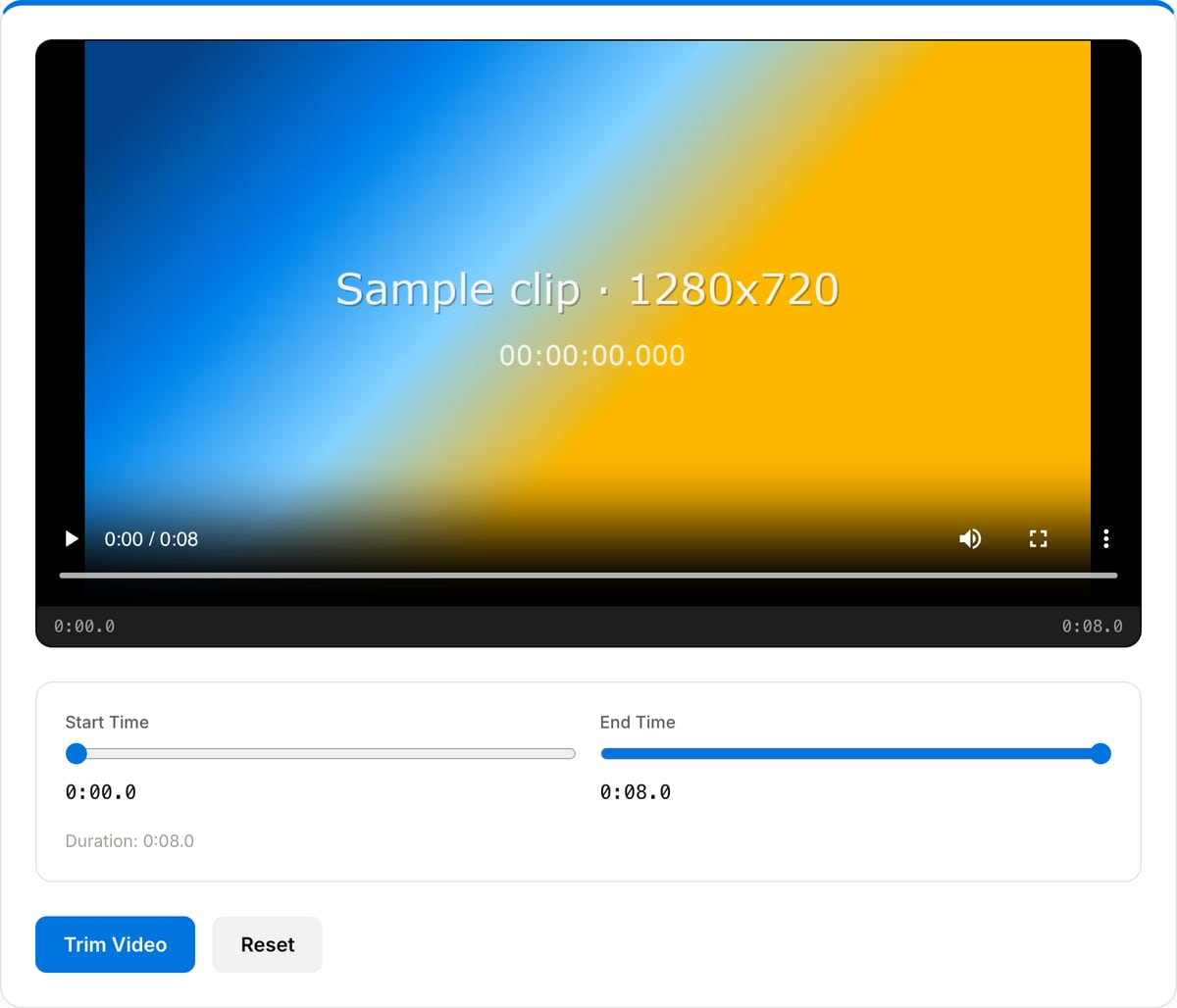
Set start and end time
Use the sliders to choose the range. Stream-copy cuts depend on source keyframes, so the exported start can differ from your selection.
Trim and download
Click "Trim Video" and wait for local processing. Download the result and check its start and end in playback.
What the tool looks like
Popular task presets
Best for / not for
Best for
- Fast start/end cuts where you only need one clean range from a longer clip.
- Shortening social clips, screen recordings, lessons, demos, webinars, and interviews.
- Privacy-sensitive files that should not be uploaded to an online editor.
Not for
- Multi-clip timeline edits, transitions, color grading, or multi-track audio work.
- Frame-perfect narrative edits when the source requires exact cuts between non-keyframes.
- Repairing corrupted media or changing codec/container by itself.
Best use cases for the video trimmer
- Cut the dead air before a screen recording, webinar, lesson, podcast video, or phone clip without opening a full editor.
- Pull one clean highlight from a longer interview, gaming capture, class recording, or meeting export.
- Extract a short highlight for social posts or a landing-page demo, then check the exported boundaries.
Trim settings that matter
| Best for | Start/end cuts, removing dead air, extracting one clip, and shortening social videos. |
|---|---|
| Quality | Uses stream-copy without re-encoding. There is no accurate re-encode mode in this tool. |
| Accuracy | The start can move to an earlier keyframe. Check the exported clip; use a re-encode workflow for frame-perfect cuts. |
| Max file size | Uploader limit: 2048 MiB (about 2 GB). Processing can require a smaller file, especially on phones. |
| Privacy | No server upload. The source file is opened, previewed, trimmed, and downloaded inside your browser. |
Video Trimmer vs. the usual alternatives
| Feature | This tool | VEED (free) | Kapwing (free) | CapCut Online |
|---|---|---|---|---|
| Processing model | Runs locally in your browser | Upload-based project editor | Upload-based project editor | Upload-based online editor |
| File limits | Tool-specific file limits apply; available memory can require smaller files | Free: up to 1 GB per uploaded file | Free: up to 250 MB per uploaded file; exports up to 4 minutes | Limits depend on the feature, account and selected assets |
| Watermark on output | No watermark added | Watermark on free or signed-out exports | Watermark on Free-plan exports | Standard edits can be watermark-free; template branding and Pro assets need checking |
| Signup / account | No account for tools | Workspace/account flow | Workspace/account flow | CapCut account flow |
| Connection | Initial page and processing-engine downloads require internet; offline use is not guaranteed | Online project editor | Online project editor | Online project editor |
| Best for | Private one-step file operations | Full editor, templates, AI tools | Collaboration, templates, AI tools | Social templates and timeline editing |
Comparison covers the web editors and the linked help pages. Plans, export settings and asset restrictions can change; check the source before starting a project.
Checked . Sources: VEED upload limits · VEED watermarks · Kapwing Free plan · CapCut watermarks · CapCut Pro assets
Why this trimmer is different
- Designed for one job: pick a start and end time, preview the range, and export the kept section without timeline complexity.
- Stream-copy trimming is much faster than full re-encoding for long files and avoids generation loss.
- Useful for private or client footage because the raw file never leaves the device.
Tutorials covering this tool
Made for one job
常见问题
Is this video trimmer really free?
Yes. There is no charge, signup or added watermark. File size and available browser memory still limit what can be processed.
Are my videos uploaded to a server?
No. All processing happens locally in your browser using FFmpeg WebAssembly. Your files never leave your device.
Is there a file size limit?
Yes. The upload control accepts up to 2048 MiB (about 2 GB). Processing needs additional memory, so a smaller file may be necessary on your device, especially on a phone.
What video formats are supported?
Common inputs include MP4, WebM, MOV, AVI and MKV. The output uses the original container and copies the selected streams; browser preview support and codec compatibility vary. Check the downloaded result before sharing.
Will trimming reduce video quality?
The trimmer uses stream copy (-c copy), so the kept video stream is not re-encoded. Cut boundaries depend on keyframes; this is not an exact-frame trimming mode.
Why does a fast trim sometimes start a little before my chosen time?
The tool seeks to a keyframe before the chosen start and copies the streams. It does not provide a frame-accurate re-encode mode; use an editor that re-encodes if the exact cut matters.
Should I trim before compressing?
Yes. Removing unused seconds first is the cleanest way to reduce file size before using the compressor.