在线视频转换——MOV、MKV、WebM 转 MP4
用 FFmpeg WASM 在本地转换 MOV、MKV、AVI、WebM 和 MP4。选你的剪辑软件、手机或网站需要的封装格式。
把视频拖到这里,或点击选择文件
文件上限约 2 GB(取决于内存)
使用方法
Upload your video
Drag and drop any video file (MP4, WebM, MOV, AVI, MKV) or click to browse. The video loads locally in your browser.
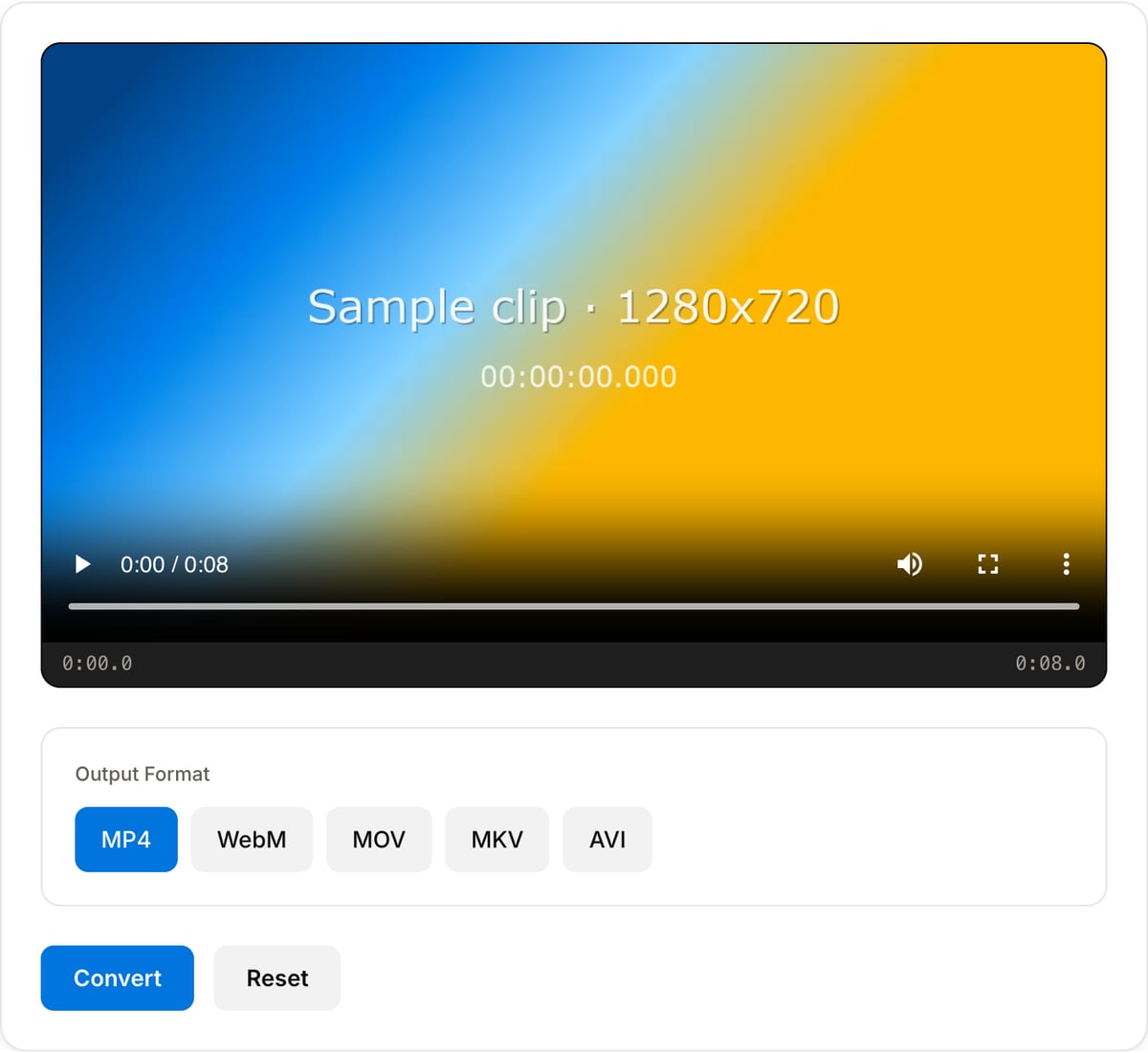
Choose your target format
Select MP4 for maximum compatibility, WebM for web efficiency, MOV for Apple workflows, or AVI for legacy systems.
Convert and download
Click "Convert" to process. FFmpeg WebAssembly handles the transcoding locally. Download your converted file when done.
What the tool looks like
Popular task presets
Best for / not for
Best for
- Changing container/codec for compatibility with phones, editors, browsers, LMS portals, and clients.
- Converting MOV, MKV, AVI, WebM, M4V, or WMV into a practical MP4 copy.
- Files that are private enough to avoid upload-based conversion sites.
Not for
- Professional mezzanine transcodes requiring ProRes, DNxHR, alpha channels, or color-managed deliverables.
- Batch encoding hundreds of files; a desktop FFmpeg script is better for that.
- Fixing visual quality problems that already exist in the source.
Best use cases for video conversion
- Convert iPhone MOV or HEVC footage to MP4 for Windows, Android, PowerPoint, editors, LMS platforms, and client portals.
- Turn MKV, AVI, FLV, WMV, or M4V files into modern MP4 or WebM containers that upload cleanly.
- Create WebM versions for websites when file size matters and your audience uses modern browsers.
Format choices
| Choose MP4 | Best for phones, YouTube, Instagram, PowerPoint, LMS uploads, client review, and broad compatibility. |
|---|---|
| Choose WebM | Best for websites, browser playback, and smaller web assets when Safari compatibility is not the main constraint. |
| Choose MOV | Best for Apple-centric workflows and editors that expect QuickTime containers. |
| Transcoding note | Changing codec/container can reduce quality slightly. Keep a source master if the clip will be edited again. |
Video Converter vs. the usual alternatives
| Feature | This tool | VEED (free) | Kapwing (free) | CapCut Online |
|---|---|---|---|---|
| Processing model | Runs locally in your browser | Upload-based project editor | Upload-based project editor | Upload-based online editor |
| File limits | Tool-specific file limits apply; available memory can require smaller files | Free: up to 1 GB per uploaded file | Free: up to 250 MB per uploaded file; exports up to 4 minutes | Limits depend on the feature, account and selected assets |
| Watermark on output | No watermark added | Watermark on free or signed-out exports | Watermark on Free-plan exports | Standard edits can be watermark-free; template branding and Pro assets need checking |
| Signup / account | No account for tools | Workspace/account flow | Workspace/account flow | CapCut account flow |
| Connection | Initial page and processing-engine downloads require internet; offline use is not guaranteed | Online project editor | Online project editor | Online project editor |
| Best for | Private one-step file operations | Full editor, templates, AI tools | Collaboration, templates, AI tools | Social templates and timeline editing |
Comparison covers the web editors and the linked help pages. Plans, export settings and asset restrictions can change; check the source before starting a project.
Checked . Sources: VEED upload limits · VEED watermarks · Kapwing Free plan · CapCut watermarks · CapCut Pro assets
Why this converter is different
- Built for direct file conversion, not a full online editor: open file, choose target format, export.
- Uses FFmpeg WASM locally, so sensitive source footage is not sent to an upload-based converter.
- Provides practical target formats instead of a long confusing codec list.
Made for one job
常见问题
What is the difference between MP4 and WebM?
MP4 is widely supported by phones, editors and browsers. This tool exports WebM with VP8 video and Vorbis audio. Choose WebM when your destination accepts it and keep an MP4 fallback for broader compatibility.
What format is best for YouTube?
YouTube recommends MP4 with H.264 codec. It processes fastest and gives the cleanest starting point since YouTube re-encodes all uploads.
Does converting lose quality?
Re-encoding introduces minimal generation loss. The tool uses high-quality settings (CRF 23) so the difference is imperceptible for most content.
Which format is the smallest?
It depends on your source. WebM output here uses VP8 and Vorbis and can be larger than the original. Compare the results, or use Video Compressor when reducing file size is the goal.
What format should I choose for maximum compatibility?
Choose MP4 with H.264 video and AAC audio. It works across iPhone, Android, Windows, macOS, browsers, and most editors.
Will conversion reduce quality?
Any re-encode can introduce a small quality loss. Use a high-quality preset and keep the original source file if you will edit again.
Why convert HEVC to H.264?
HEVC is efficient but less universally supported. H.264 MP4 opens more reliably in browsers, PowerPoint, Windows, Android, and older editors.