从视频提取音频——MP3、WAV、AAC
从 MP4、MOV、WebM 和 MKV 里抽出音乐、人声、对白或播客音轨,导出 MP3、WAV 或 AAC,文件不用上传。
把视频拖到这里,或点击选择文件
文件上限约 2 GB(取决于内存)
使用方法
Upload video
Drag and drop any video file (MP4, WebM, MOV, AVI, MKV) or click "Choose File" to browse. Works with files up to ~2 GB (memory permitting).
Select output format
Choose your desired audio format — MP3 for small files, WAV or FLAC for lossless quality, AAC for Apple devices, OGG for open source.
Extract audio
Click "Extract" — processing happens in your browser using FFmpeg WebAssembly. No server upload required.
Download audio
Download your extracted audio file instantly. No watermarks, no signup needed.
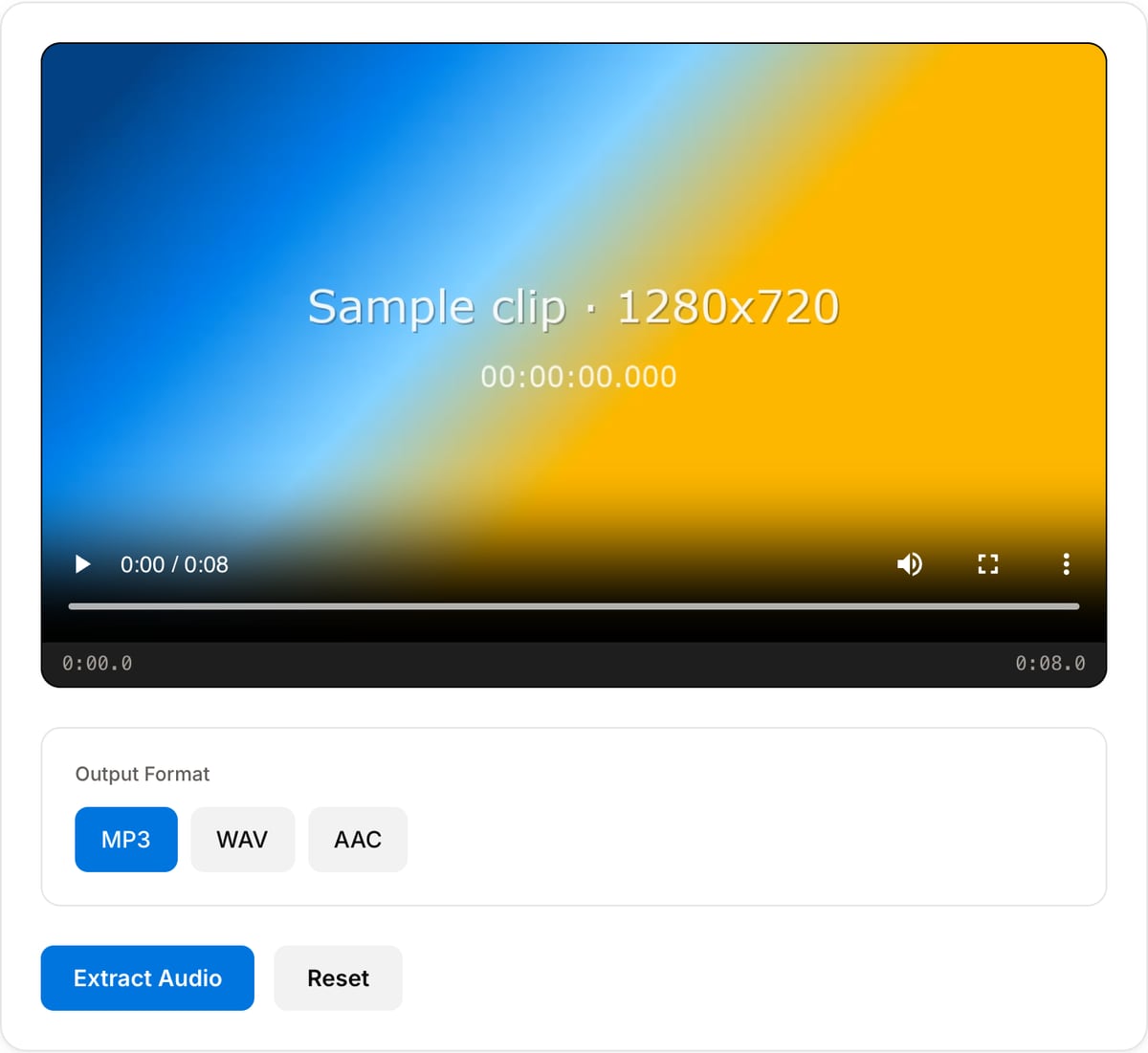
What the tool looks like
Popular task presets
Best for / not for
Best for
- Pulling voice, dialogue, lecture, podcast, meeting, or music audio out of video files.
- Creating MP3/AAC sharing copies or WAV files for editing in a DAW.
- Sensitive recordings that should stay local.
Not for
- Separating vocals from background music or splitting stems.
- Improving noisy audio by itself; use denoise/normalization tools after extraction.
- Downloading audio from a remote URL directly.
Best use cases for extracting audio
- Turn a video podcast, webinar, lecture, meeting, or interview into an MP3 for publishing or transcription.
- Pull clean dialogue from screen recordings, phone videos, or camera footage before editing audio separately.
- Save music, ambience, or reference sound from a video clip for a remix, rough cut, or sound-design pass.
Audio extraction choices
| MP3 output | Best for podcasts, voice notes, transcription tools, email attachments, and quick sharing. |
|---|---|
| WAV output | Best when the audio will be edited, cleaned, or mixed in a DAW. |
| AAC/M4A output | Best for Apple devices and smaller high-quality speech/music files. |
| Privacy | Useful for interviews, legal recordings, classes, and client calls because the source video stays local. |
Audio Extractor vs. the usual alternatives
| Feature | This tool | VEED (free) | Kapwing (free) | CapCut Online |
|---|---|---|---|---|
| Processing model | Runs locally in your browser | Upload-based project editor | Upload-based project editor | Upload-based online editor |
| File limits | Tool-specific file limits apply; available memory can require smaller files | Free: up to 1 GB per uploaded file | Free: up to 250 MB per uploaded file; exports up to 4 minutes | Limits depend on the feature, account and selected assets |
| Watermark on output | No watermark added | Watermark on free or signed-out exports | Watermark on Free-plan exports | Standard edits can be watermark-free; template branding and Pro assets need checking |
| Signup / account | No account for tools | Workspace/account flow | Workspace/account flow | CapCut account flow |
| Connection | Initial page and processing-engine downloads require internet; offline use is not guaranteed | Online project editor | Online project editor | Online project editor |
| Best for | Private one-step file operations | Full editor, templates, AI tools | Collaboration, templates, AI tools | Social templates and timeline editing |
Comparison covers the web editors and the linked help pages. Plans, export settings and asset restrictions can change; check the source before starting a project.
Checked . Sources: VEED upload limits · VEED watermarks · Kapwing Free plan · CapCut watermarks · CapCut Pro assets
Why this audio extractor is different
- Focused on audio extraction rather than full video conversion, so the path from video to usable audio is shorter.
- Lets you choose an output format that matches the next step: edit, transcribe, publish, or archive.
- Runs in-browser for private recordings that should not be uploaded to a generic converter.
Tutorials covering this tool
常见问题
What audio formats can I extract to?
You can extract audio as MP3, WAV, AAC, OGG, or FLAC. Choose the format that best suits your needs — MP3 for small files, WAV/FLAC for lossless quality.
How do I extract audio from a video?
Upload your video, select the desired output format, click Extract, and download the audio file. All processing happens in your browser.
Is the audio quality preserved?
Yes. When extracting to lossless formats (WAV, FLAC), the original quality is fully preserved. For lossy formats (MP3, AAC), high bitrate settings are used.
Does it work with all video formats?
Yes. MP4, WebM, MOV, AVI, MKV, and most other common video formats are supported. The tool extracts the audio track regardless of the container.
Is extracting audio the same as converting video to MP3?
Usually yes for sharing workflows. Extract Audio gives more output choices, while Video to MP3 is a faster default path for MP3 specifically.
Should I export MP3 or WAV?
Use MP3 for sharing and transcription. Use WAV if you plan to edit, clean, or mix the audio afterward.
Can this extract multiple audio tracks?
The browser tool targets the primary/default audio track. Complex multi-track extraction is better handled with desktop FFmpeg.