在线 GIF 制作——可选时间段、帧率、调色板(不上传)
从任意视频里选一段做成 GIF。可调帧率、宽度,并用两遍调色板让颜色更锐利。不上传。
把视频拖到这里,或点击选择文件
文件上限约 2 GB(取决于内存)
What the tool looks like
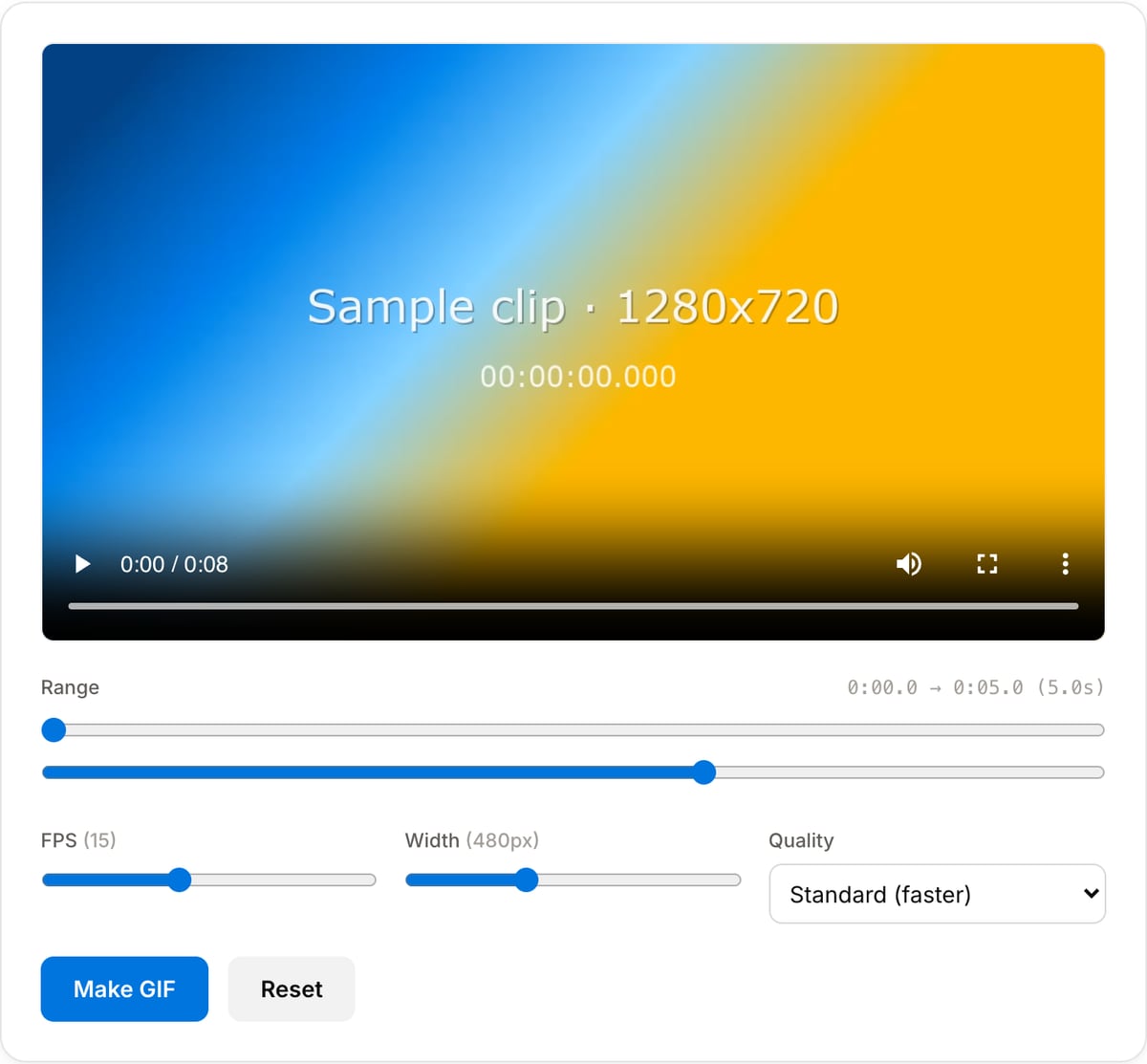
Popular task presets
Best for / not for
Best for
- Short silent animations for docs, GitHub issues, chat, reactions, and UI demos.
- Creating a GIF from a selected range rather than converting an entire long video.
- Cases where a self-contained image animation is easier to embed than MP4.
Not for
- Long videos, high-motion footage, or rich gradients; MP4/WebM will usually be smaller and cleaner.
- Audio, because GIF has no sound track.
- High-fidelity animation with millions of colors.
Best use cases for GIF making
- Create a product demo, bug reproduction, tutorial snippet, or reaction loop from a short video range.
- Export a silent animation for README files, documentation pages, forums, Slack, Discord, or X.
- Make a GIF when the destination does not support autoplay MP4 or embedded video.
GIF settings that matter
| Best duration | 2-8 seconds. GIF file size grows quickly as duration increases. |
|---|---|
| Best FPS | 8-12 FPS for documentation and reactions; 15 FPS only for smoother motion. |
| Best width | 320-640 px for chat, docs, and bug reports. |
| Use MP4 instead | For long, colorful, or high-motion animation, MP4/WebM is usually much smaller. |
GIF Maker vs. the usual alternatives
| Feature | This tool | VEED (free) | Kapwing (free) | CapCut Online |
|---|---|---|---|---|
| Processing model | Runs locally in your browser | Upload-based project editor | Upload-based project editor | Upload-based online editor |
| File limits | Tool-specific file limits apply; available memory can require smaller files | Free: up to 1 GB per uploaded file | Free: up to 250 MB per uploaded file; exports up to 4 minutes | Limits depend on the feature, account and selected assets |
| Watermark on output | No watermark added | Watermark on free or signed-out exports | Watermark on Free-plan exports | Standard edits can be watermark-free; template branding and Pro assets need checking |
| Signup / account | No account for tools | Workspace/account flow | Workspace/account flow | CapCut account flow |
| Connection | Initial page and processing-engine downloads require internet; offline use is not guaranteed | Online project editor | Online project editor | Online project editor |
| Best for | Private one-step file operations | Full editor, templates, AI tools | Collaboration, templates, AI tools | Social templates and timeline editing |
Comparison covers the web editors and the linked help pages. Plans, export settings and asset restrictions can change; check the source before starting a project.
Checked . Sources: VEED upload limits · VEED watermarks · Kapwing Free plan · CapCut watermarks · CapCut Pro assets
Why this GIF maker is different
- Range, FPS, width, and palette are exposed because they decide whether the GIF is usable or huge.
- The tool is built for short task-based animations, not vague full-video conversion.
- No upload means private UI captures and unreleased product demos stay on your machine.
Made for one job
常见问题
What makes this different from Video-to-GIF?
This tool lets you pick the exact start/end, tune the frame rate, and choose a two-pass palette for sharper colors. Video-to-GIF is the simpler full-video converter.
Why does "High quality" take longer?
High quality runs FFmpeg’s palettegen + paletteuse in two passes, producing a custom 256-color palette from your clip’s colors. Standard mode uses the default palette for speed.
What FPS and width should I pick?
For general purpose, 15 FPS at 480px width hits the sweet spot between smoothness and file size. For smaller files use 10 FPS / 320px. For posts requiring high motion fidelity, 24 FPS / 720px.
Why is my GIF so large?
GIFs are inefficient compared to video. A 10-second 480p GIF at 24 FPS easily exceeds 10 MB. Lower FPS or width, or consider a silent MP4 instead.
What FPS should I use for a demo GIF?
Start at 10 or 12 FPS. Use 8 FPS for very small files and 15 FPS only when motion smoothness matters.
Should I use GIF Maker or Video to GIF?
They serve the same core workflow; use whichever entry point matches your task, then tune range, FPS, and width.