把字幕烧进画面——支持 SRT、VTT、ASS 硬字幕
把字幕硬编码进画面,适用于 TikTok、Reels、Shorts、网课,以及那些会丢掉字幕轨的播放器。支持 SRT、VTT 和 ASS。
把视频拖到这里,或点击选择文件
文件上限约 2 GB(取决于内存)
使用方法
Load video + subtitles
Drop your video (MP4/MOV/WebM/MKV) and pick an SRT, VTT, or ASS file. Both stay on your device.
Adjust style
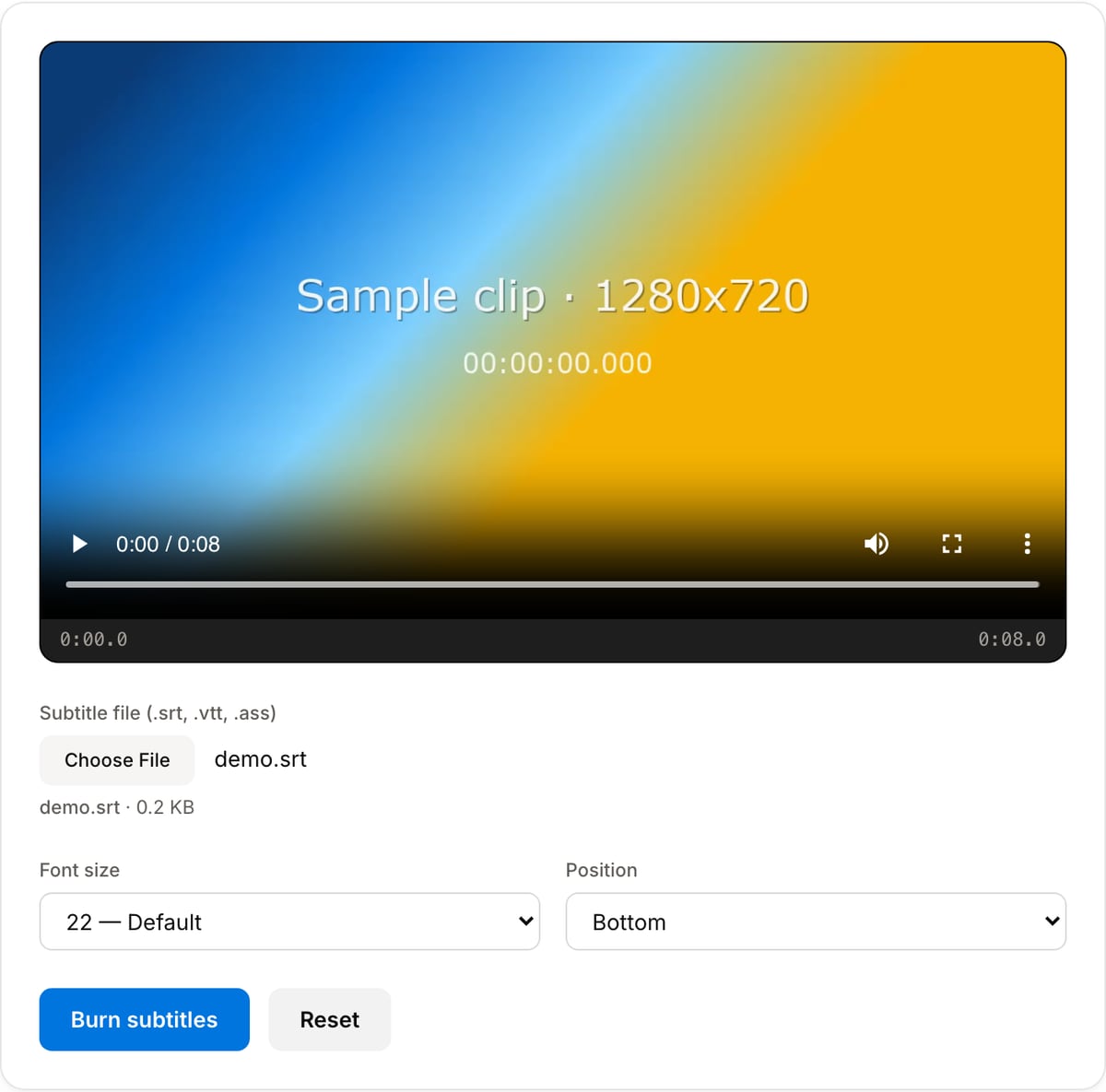
Choose font size and placement. For fully custom look (font family, color, outline), author an ASS file — your styling is preserved.
Burn and download
Click Burn Subtitles. Output is MP4 with captions baked into the pixels — will show on Instagram, TikTok, X, YouTube Shorts, and anywhere else.
What the tool looks like
Popular task presets
Best for / not for
Best for
- Permanent subtitles for TikTok, Reels, Shorts, courses, demos, ads, and LMS uploads.
- SRT/VTT captions that need quick size/position control.
- ASS/SSA files where styling must survive platform uploads.
Not for
- Selectable multi-language subtitle tracks; hardsubs are always visible.
- Editing subtitle timing manually line by line.
- Cases where viewers must be able to turn captions off.
Best use cases for burned-in subtitles
- Publish to TikTok, Instagram Reels, YouTube Shorts, X, LinkedIn, or LMS players where separate subtitle tracks can be ignored or stripped.
- Make tutorials, sales demos, training videos, and course modules readable with sound off.
- Deliver translated or compliance captions that must remain visible regardless of the player, device, or upload platform.
Subtitle input and styling details
| Use SRT | Best for simple captions with timestamps and plain text. The tool can apply size and placement quickly. |
|---|---|
| Use VTT | Best when your subtitle source comes from web captions or browser-based tools. |
| Use ASS/SSA | Best for styled subtitles: colors, outlines, karaoke timing, position, and advanced typesetting. |
| Output behavior | Captions become part of the video pixels, so they cannot be turned off or lost by the destination platform. |
Subtitle Burner vs. the usual alternatives
| Feature | This tool | VEED (free) | Kapwing (free) | CapCut Online |
|---|---|---|---|---|
| Processing model | Runs locally in your browser | Upload-based project editor | Upload-based project editor | Upload-based online editor |
| File limits | Tool-specific file limits apply; available memory can require smaller files | Free: up to 1 GB per uploaded file | Free: up to 250 MB per uploaded file; exports up to 4 minutes | Limits depend on the feature, account and selected assets |
| Watermark on output | No watermark added | Watermark on free or signed-out exports | Watermark on Free-plan exports | Standard edits can be watermark-free; template branding and Pro assets need checking |
| Signup / account | No account for tools | Workspace/account flow | Workspace/account flow | CapCut account flow |
| Connection | Initial page and processing-engine downloads require internet; offline use is not guaranteed | Online project editor | Online project editor | Online project editor |
| Best for | Private one-step file operations | Full editor, templates, AI tools | Collaboration, templates, AI tools | Social templates and timeline editing |
Comparison covers the web editors and the linked help pages. Plans, export settings and asset restrictions can change; check the source before starting a project.
Checked . Sources: VEED upload limits · VEED watermarks · Kapwing Free plan · CapCut watermarks · CapCut Pro assets
Why this subtitle burner is different
- Designed for hardsubs, not subtitle preview: the output is ready for platforms that do not preserve soft subtitle tracks.
- Preserves ASS styling for professional captions while still offering quick controls for simple SRT/VTT jobs.
- Runs locally with FFmpeg WASM, so unreleased courses, legal clips, and internal training videos do not need to be uploaded.
Tutorials covering this tool
常见问题
What is the difference between burned (hardcoded) and soft subtitles?
Burned subtitles are drawn directly onto the video pixels — they always show, on any player, but cannot be turned off or translated. Soft subtitles are a separate track stored inside the file; players can toggle them. Use burned subtitles for social media (Instagram, TikTok, X) where soft subtitle tracks are stripped.
Which subtitle formats are supported?
SRT (SubRip), VTT (WebVTT), and ASS/SSA (Advanced Substation Alpha). SRT is the most common — one exported from YouTube, Premiere, or auto-captioning tools will work directly.
Can I customise the font size and position?
Yes. Choose font size (18–36) and position (top/middle/bottom) before burning. For full styling control (custom font, color, outline width) use an ASS file — the tool will honor its styling.
Does the tool upload my video?
No. Both your video and the subtitle file stay on your device. Subtitle burning runs locally using FFmpeg compiled to WebAssembly. Open DevTools → Network tab to verify zero uploads.
Why are my subtitles not showing after burning?
Most common causes: (1) SRT timestamps are out of sync — use the SRT Offset tool to shift them. (2) The SRT encoding is non-UTF-8 (older Chinese/Japanese files are often GBK/Shift-JIS). Re-save as UTF-8 in a text editor. (3) Font size is too small for the video resolution; increase it.
When should I burn subtitles instead of uploading an SRT file?
Burn subtitles when the destination might strip tracks, ignore styling, or play without captions by default.
Can I remove burned subtitles later?
No. Hardsubs become part of the pixels. Keep an original clean master and a separate subtitle file.
Why use ASS instead of SRT?
ASS supports positioning, outlines, colors, fonts, and advanced styling. SRT is best for simple captions.