在线给视频加水印,免费
给视频加上文字或图片水印。位置、透明度和大小都可调——保护内容或打上自己的标识,全在浏览器里完成。
把视频拖到这里,或点击选择文件
文件上限约 2 GB(取决于内存)
使用方法
Upload your video
Drag and drop any video file (MP4, WebM, MOV, AVI) or click to browse. Your video stays on your device.
Configure your watermark
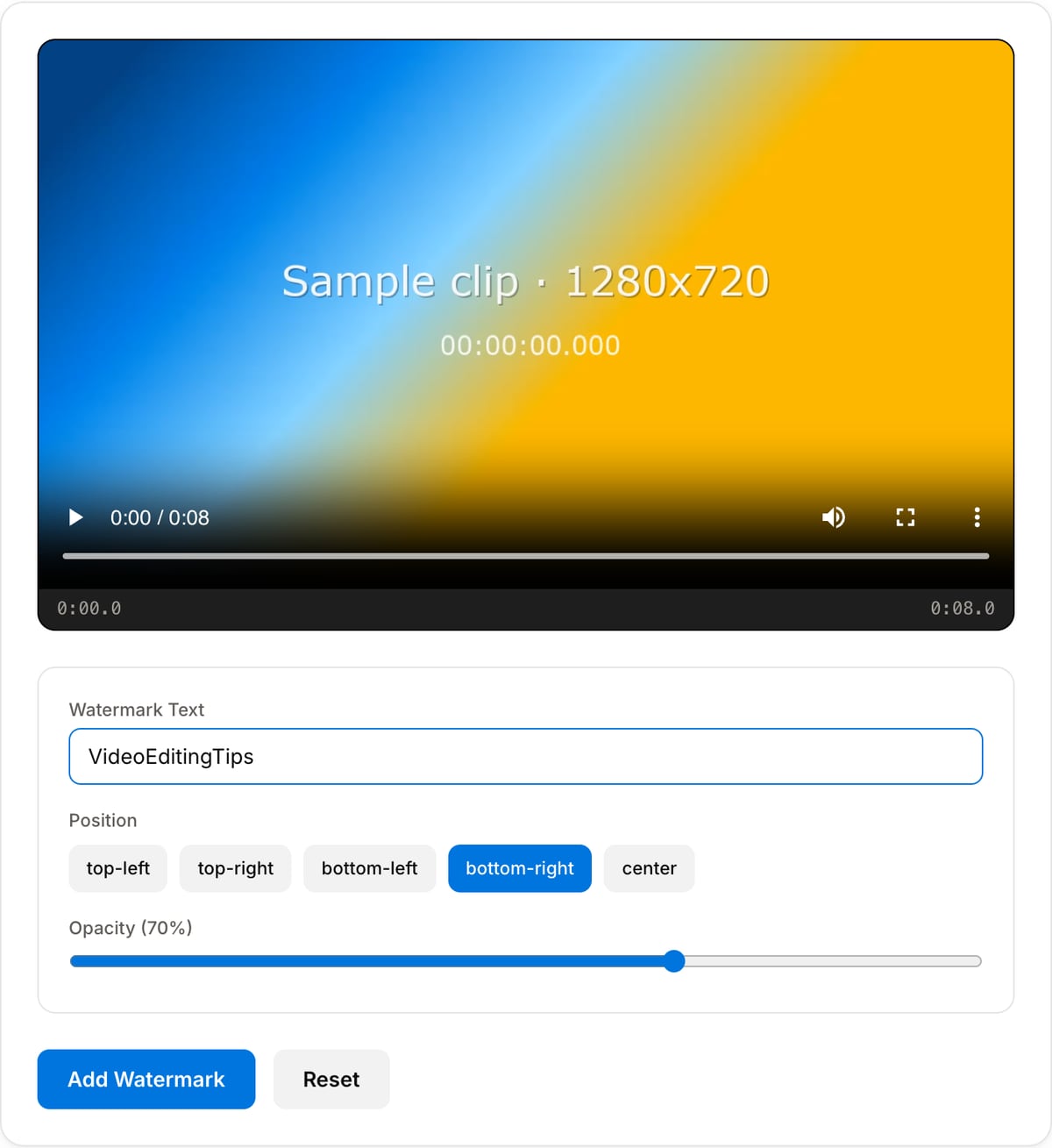
Enter text or upload a logo image. Choose position (top-left, top-right, bottom-left, bottom-right, center) and adjust opacity.
Apply and download
Click "Add Watermark" to burn the watermark into every frame. Download the watermarked video when processing is complete.
What the tool looks like
Popular task presets
Best for / not for
Best for
- Adding a visible logo, handle, credit, preview label, or ownership mark to a finished clip.
- Draft review copies, course videos, tutorials, product demos, and social reposts.
- Simple corner or center overlays where a full motion-graphics editor is unnecessary.
Not for
- Removing another person or company watermark from a video.
- Animated logo reveals, tracked overlays, lower thirds, or keyframed motion graphics.
- Legal proof of ownership by itself. Visible marks can be cropped or edited out.
When to add a watermark
- Brand a tutorial, demo, or course video with your logo or handle.
- Mark draft footage sent to clients with a visible "preview" badge.
- Credit the original creator when reposting allowed content.
Supported formats & limits
| Input containers | MP4, MOV, WebM, MKV, AVI, FLV, WMV, M4V |
|---|---|
| Input codecs | H.264, H.265, VP8, VP9, MPEG-4, MJPEG. Not AV1 — this WebAssembly build has no software AV1 decoder. |
| Output container | MP4 (default) — interoperable with iOS, Android, YouTube, Instagram, X |
| Output codec | H.264 video + AAC audio |
| Max file size | Uploader limit: 2048 MiB (about 2 GB). Processing needs additional memory; smaller files may fail on low-memory devices. |
| Max duration | Depends on file size, the operation and available memory. Long files can fail or take a long time. |
| Cost | Free for any use. No signup. No watermark. |
Watermark Tool vs. the usual alternatives
| Feature | This tool | VEED (free) | Kapwing (free) | CapCut Online |
|---|---|---|---|---|
| Processing model | Runs locally in your browser | Upload-based project editor | Upload-based project editor | Upload-based online editor |
| File limits | Tool-specific file limits apply; available memory can require smaller files | Free: up to 1 GB per uploaded file | Free: up to 250 MB per uploaded file; exports up to 4 minutes | Limits depend on the feature, account and selected assets |
| Watermark on output | No watermark added | Watermark on free or signed-out exports | Watermark on Free-plan exports | Standard edits can be watermark-free; template branding and Pro assets need checking |
| Signup / account | No account for tools | Workspace/account flow | Workspace/account flow | CapCut account flow |
| Connection | Initial page and processing-engine downloads require internet; offline use is not guaranteed | Online project editor | Online project editor | Online project editor |
| Best for | Private one-step file operations | Full editor, templates, AI tools | Collaboration, templates, AI tools | Social templates and timeline editing |
Comparison covers the web editors and the linked help pages. Plans, export settings and asset restrictions can change; check the source before starting a project.
Checked . Sources: VEED upload limits · VEED watermarks · Kapwing Free plan · CapCut watermarks · CapCut Pro assets
Why watermark here
- Position the watermark in any corner or place it as centered text.
- Adjustable opacity so the watermark is visible without dominating the frame.
- Nothing leaves your browser — safe for unreleased content.
Tutorials covering this tool
常见问题
Text vs image watermark — which is better?
Text: sharp at any size, great for copyright notices and channel names. Image: more visual flexibility, better for logos and branding. Text is simpler; image looks more professional.
What is the best position?
Bottom-right is most common — least distracting. Top-right for always-visible logos. Center for draft/review copies. Avoid bottom-left on YouTube (progress bar covers it).
What opacity should I use?
Subtle branding: 20-30%. Clear copyright: 50-70%. Draft/review: 80-100%. The sweet spot for most use cases is 30-40% — visible but not distracting.
Does it re-encode the video?
Yes — watermarking modifies every frame, requiring re-encoding. This introduces minimal quality loss. The tool uses high-quality settings to minimize impact.
Where should I place a watermark?
Use a corner for branding and a centered translucent label for client preview or draft review copies.
Will the watermark be removable?
The watermark is burned into the pixels. Someone could still crop or edit around it, so keep source files and contracts for real protection.
Can I use text instead of a logo image?
Yes. A text watermark works well for preview labels, handles, credits, and internal review notes.