去掉音视频里的背景噪声
清掉录音里的电流声、嗡嗡声、风扇声和车流声。三档强度,可选切低频轰鸣和人声聚焦——视频画面完全不动。
把视频拖到这里,或点击选择文件
MP3, WAV, M4A · MP4, MOV, WebM
使用方法
Upload the recording
Drop in an audio file (MP3, WAV, M4A, FLAC) or a video (MP4, MOV, WebM). Nothing is uploaded — the file stays in your browser.
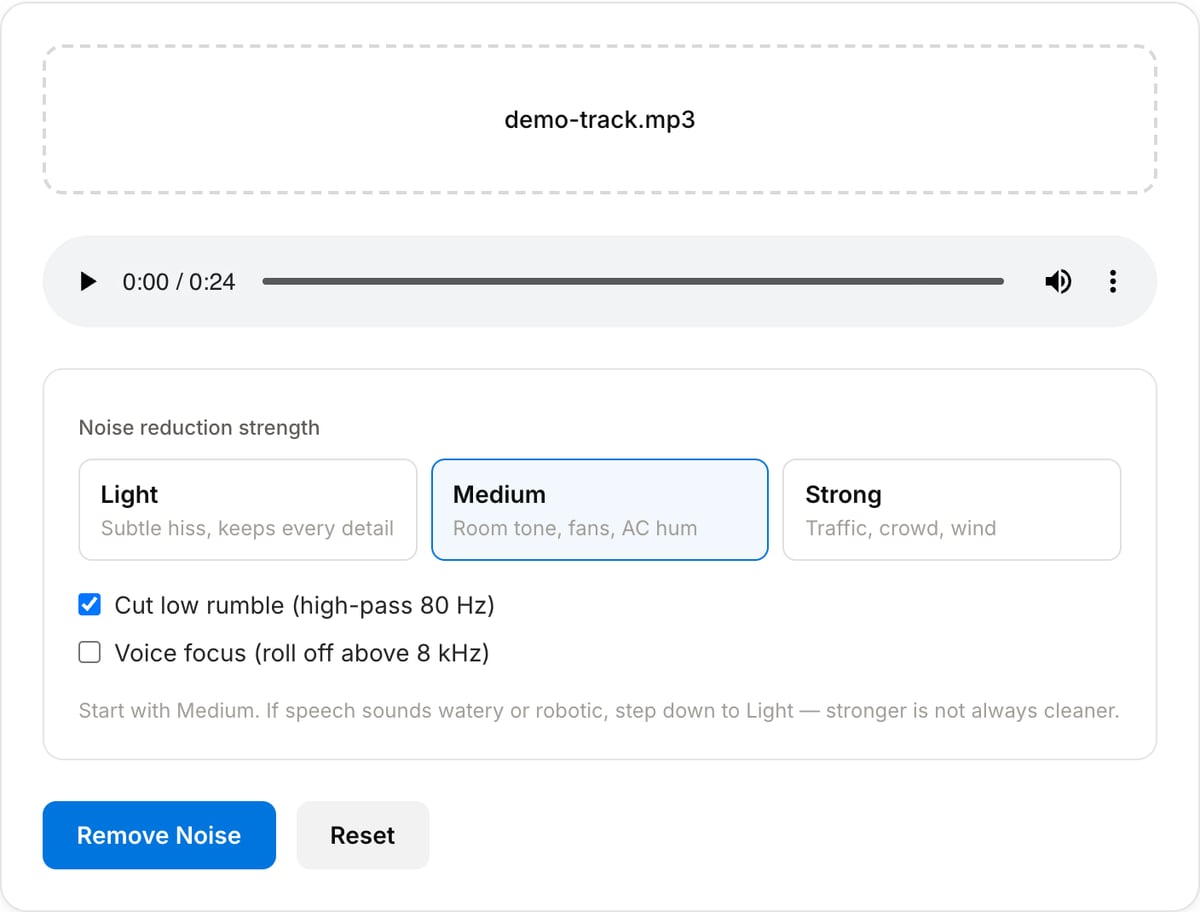
Pick a strength
Light for faint hiss, Medium for room tone, fans and air conditioning, Strong for traffic, crowds or wind. Leave "cut low rumble" on for handling noise and desk thumps.
Remove noise and download
Preview the cleaned audio next to the original. Video files keep their picture untouched — only the audio track is re-encoded.
What the tool looks like
Best use cases for the noise remover
- Clean up podcast and interview recordings made in untreated rooms — fridge hum, air conditioning, laptop fans.
- Rescue phone or camera footage shot outdoors: wind rumble, traffic and crowd wash under a voice.
- Prepare a voiceover or lecture recording before normalizing and publishing it.
- Strip tape hiss and turntable noise from digitised cassettes and vinyl rips.
- Fix Zoom, Teams and screen-recorder audio that picked up keyboard noise and room tone.
Supported formats & limits
| Audio input | MP3, WAV, AAC/M4A, OGG, FLAC, Opus — output keeps the same format |
|---|---|
| Video input | MP4, MOV, WebM, MKV — video stream copied untouched, audio track re-encoded (AAC 192 kbps, Opus for WebM) |
| Strengths | Light (−8 dB), Medium (−14 dB), Strong (−22 dB) of estimated noise floor; optional 80 Hz high-pass and 8 kHz voice low-pass |
| Noise types | Stationary broadband noise: hiss, hum, fans, HVAC, traffic, wind rumble. Not voices, music or transients. |
| Max file size | Up to ~2 GB (limited by browser memory) |
| Cost | Free for any use. No signup. No watermark. |
Noise Remover vs. the usual alternatives
| Feature | This tool | VEED (free) | Kapwing (free) | CapCut Online |
|---|---|---|---|---|
| Processing model | Runs locally in your browser | Upload-based project editor | Upload-based project editor | Upload-based online editor |
| File limits | Tool-specific file limits apply; available memory can require smaller files | Free: up to 1 GB per uploaded file | Free: up to 250 MB per uploaded file; exports up to 4 minutes | Limits depend on the feature, account and selected assets |
| Watermark on output | No watermark added | Watermark on free or signed-out exports | Watermark on Free-plan exports | Standard edits can be watermark-free; template branding and Pro assets need checking |
| Signup / account | No account for tools | Workspace/account flow | Workspace/account flow | CapCut account flow |
| Connection | Initial page and processing-engine downloads require internet; offline use is not guaranteed | Online project editor | Online project editor | Online project editor |
| Best for | Private one-step file operations | Full editor, templates, AI tools | Collaboration, templates, AI tools | Social templates and timeline editing |
Comparison covers the web editors and the linked help pages. Plans, export settings and asset restrictions can change; check the source before starting a project.
Checked . Sources: VEED upload limits · VEED watermarks · Kapwing Free plan · CapCut watermarks · CapCut Pro assets
Why this noise remover is different
- Nothing is uploaded — the recording is filtered by FFmpeg WebAssembly in your browser, which matters for interviews and client audio.
- No 10-minute cap, no "pro" tier for long files: a two-hour podcast episode processes the same way as a 30-second clip.
- Video keeps its exact picture quality because only the audio track is touched.
- Three honest presets instead of an "AI magic" button: you hear the trade-off and pick the one that keeps the voice natural.
Tutorials covering this tool
常见问题
How does the noise removal work without uploading?
It runs FFmpeg's afftdn filter compiled to WebAssembly. The filter looks at the spectrum of the recording, estimates the constant noise floor and subtracts it frame by frame — the same processing a desktop FFmpeg install would do, executed on your own CPU.
Will it remove a barking dog or someone talking in the background?
No. Spectral denoising handles steady, broadband noise — hiss, hum, fans, traffic, wind, room tone. Non-stationary sounds (voices, dogs, doors slamming) share the same frequencies as speech and are not separable this way.
Why does my voice sound underwater after cleaning?
That is the classic sign of too much reduction. Step down from Strong to Medium or Light — a little residual noise almost always sounds better than artefacts. For very noisy sources, clean once at Medium and then normalize instead of pushing the strength higher.
Does it change the video quality?
No. For video input the picture is stream-copied bit-for-bit; only the audio track is decoded, filtered and re-encoded (AAC 192 kbps for MP4/MOV, Opus for WebM).
Which format does the cleaned audio come out in?
The same as the input — MP3 stays MP3, WAV stays WAV (lossless), FLAC stays FLAC. Use the Audio Converter afterwards if you need a different format.
Is this as good as Adobe Podcast Enhance or Krisp?
Different tools. Those use trained speech models that reconstruct the voice and can remove non-stationary noise; this tool subtracts a measured noise floor. For hiss, hum and fans the result is comparable; for a dog barking or a second voice, the AI services win — but they upload your file.
Should I remove noise before or after cutting?
Before. The filter estimates the noise floor from the whole file, so keep the quiet lead-in and pauses in while you clean; then trim, remove silence and normalize.
Can I clean just the audio out of a video and put it back?
Simply upload the video — the tool does exactly that internally and gives you the same MP4/MOV back with the cleaned track, picture untouched.