视频音量增强——把视频调响
把视频或音频的音量调到 10% 至 400%。画质完全不动,只重新编码音轨。
把视频拖到这里,或点击选择文件
MP4, MOV, WebM · MP3, WAV, M4A
使用方法
Upload a video or audio file
MP4, MOV, WebM for video; MP3, WAV, M4A for audio. The file never leaves your device.
Choose how loud
Use the 150% / 200% / 300% presets or the slider (10%–400%). 100% keeps the original level; below 100% makes it quieter.
Boost and download
The audio is re-encoded at the new level while the video stream is copied untouched, so it finishes fast with no quality loss.
What the tool looks like
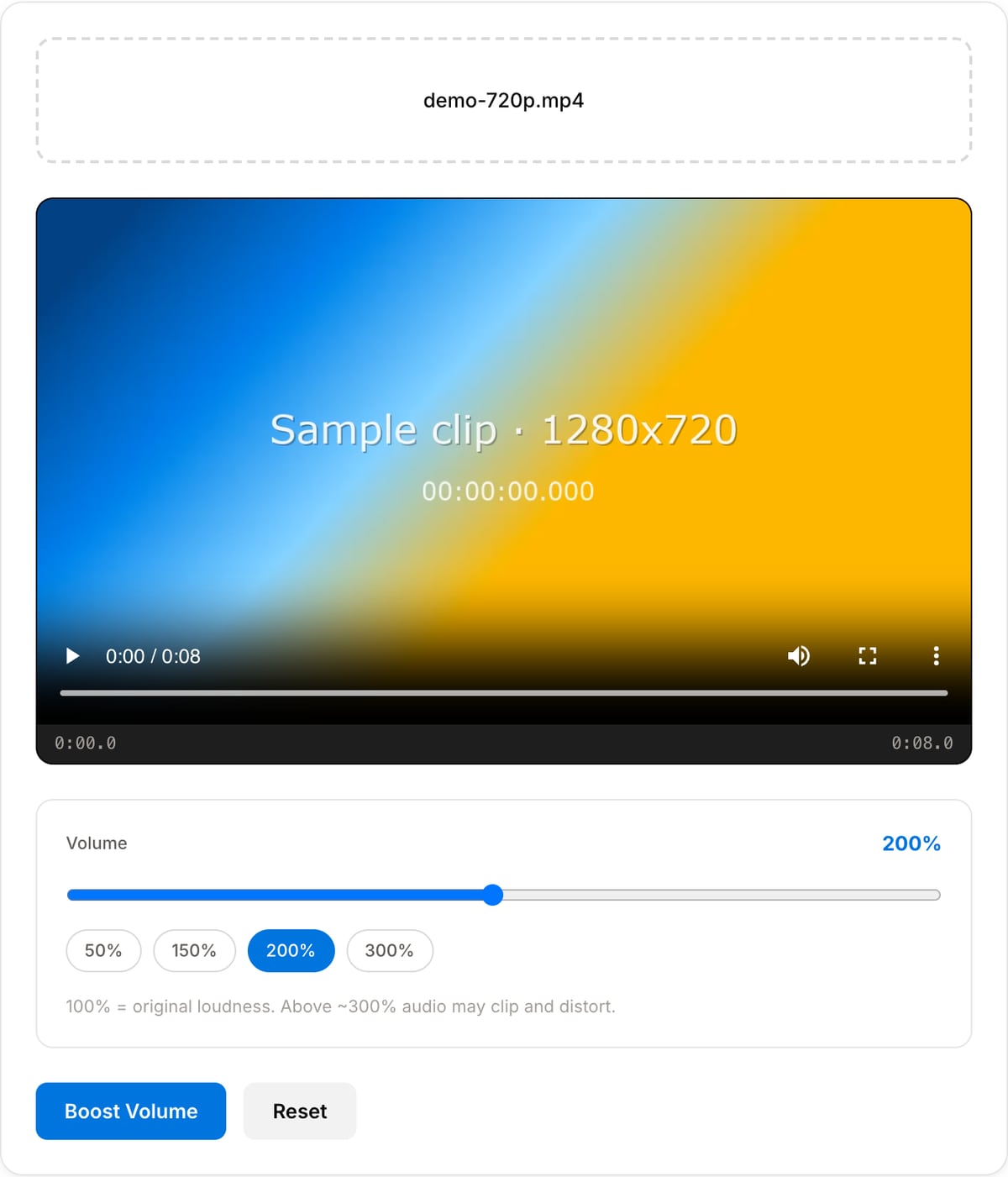
Popular task presets
Best for / not for
Best for
- A recording that is simply too quiet to hear on a laptop or a phone speaker.
- Bringing a clip down when it was recorded far too hot for the edit it is going into.
- A quick fix before uploading, where a proper mix is not worth the time.
Not for
- A clip whose loudness swings — boosting the whole track raises the loud parts too and they will clip.
- Matching several clips to a consistent level, which is what normalisation is for.
- Rescuing audio that is quiet because of noise; boosting raises the noise with it.
When to change a video’s volume
- A phone recording made across a room that is inaudible without headphones.
- A screen recording where the microphone gain was left at its default and the narration is a whisper.
- A clip recorded far too loud that needs to come down before it sits alongside other footage.
- Preparing a clip for a platform that plays muted by default, where the first audible second has to actually be audible.
Supported formats & limits
| Input containers | MP4, MOV, WebM, MKV, AVI, FLV, WMV, M4V |
|---|---|
| Input codecs | H.264, H.265, VP8, VP9, MPEG-4, MJPEG. Not AV1 — this WebAssembly build has no software AV1 decoder. |
| Output container | MP4 (default) — interoperable with iOS, Android, YouTube, Instagram, X |
| Output codec | H.264 video + AAC audio |
| Max file size | Uploader limit: 2048 MiB (about 2 GB). Processing needs additional memory; smaller files may fail on low-memory devices. |
| Max duration | Depends on file size, the operation and available memory. Long files can fail or take a long time. |
| Cost | Free for any use. No signup. No watermark. |
Video Volume Booster vs. the usual alternatives
| Feature | This tool | VEED (free) | Kapwing (free) | CapCut Online |
|---|---|---|---|---|
| Processing model | Runs locally in your browser | Upload-based project editor | Upload-based project editor | Upload-based online editor |
| File limits | Tool-specific file limits apply; available memory can require smaller files | Free: up to 1 GB per uploaded file | Free: up to 250 MB per uploaded file; exports up to 4 minutes | Limits depend on the feature, account and selected assets |
| Watermark on output | No watermark added | Watermark on free or signed-out exports | Watermark on Free-plan exports | Standard edits can be watermark-free; template branding and Pro assets need checking |
| Signup / account | No account for tools | Workspace/account flow | Workspace/account flow | CapCut account flow |
| Connection | Initial page and processing-engine downloads require internet; offline use is not guaranteed | Online project editor | Online project editor | Online project editor |
| Best for | Private one-step file operations | Full editor, templates, AI tools | Collaboration, templates, AI tools | Social templates and timeline editing |
Comparison covers the web editors and the linked help pages. Plans, export settings and asset restrictions can change; check the source before starting a project.
Checked . Sources: VEED upload limits · VEED watermarks · Kapwing Free plan · CapCut watermarks · CapCut Pro assets
Why use this volume booster
- From 10% to 400% in one step, with presets for the common cases rather than a decibel figure to work out.
- Only the audio is re-encoded. The video stream is copied, so the picture is untouched and the file finishes quickly.
- Works on audio files as well as video, so the same control covers a voice memo and a clip.
- Runs in your browser, so a recording that has not been published yet is not uploaded to fix its level.
常见问题
How much louder can it go?
Up to 400% of the original. Past ~300% most recordings clip and distort — raise gradually and listen to the result.
Does it hurt video quality?
No. Only the audio track is re-encoded; the video stream is stream-copied bit-for-bit.
Can I boost MP3 files?
Yes — audio files (MP3, WAV, M4A, AAC, OGG, FLAC) work directly and keep their format.
Still too quiet at 400%?
Use the Audio Normalizer instead — EBU R128 loudness normalization brings quiet speech to a standard level automatically.
How much can I boost before it distorts?
It depends on how close the loudest parts already are to the ceiling. If a clip is quiet throughout, 200-300% is usually safe. If it has loud peaks, even 150% can clip them — normalisation is the better tool there.
Why does boosting make the hiss worse?
Because the boost is applied to everything. Noise that was below the threshold of notice comes up with the voice. Remove the noise first, then raise the level.
Is this the same as normalising?
No. This multiplies the whole track by a fixed amount. Normalising measures the loudness and adjusts it to a target, which is what you want when several clips have to match.