在线翻转视频——水平、垂直与 180°(免费)
把画面水平或垂直镜像,或旋转 180°。声音完全不动。不上传、无水印,在浏览器里运行。
把视频拖到这里,或点击选择文件
文件上限约 2 GB(取决于内存)
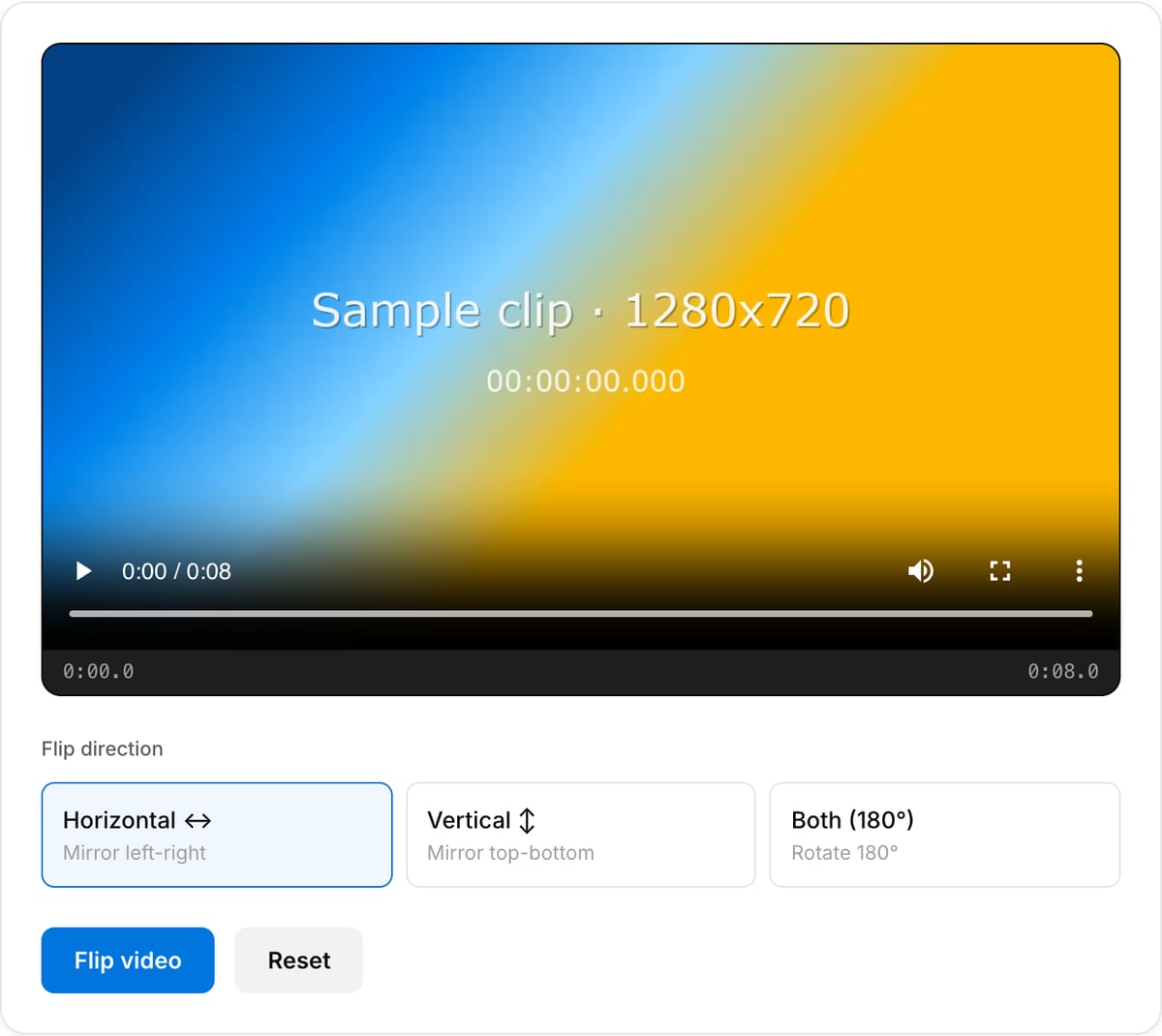
What the tool looks like
Popular task presets
Best for / not for
Best for
- Mirrored webcam captures, reversed text on screen recordings, and front-camera clips that look backwards.
- Horizontal or vertical flip corrections where the frame size should stay the same.
- Quick visual fixes before adding captions, replacing audio, or publishing.
Not for
- Sideways orientation problems. Use Video Rotator for 90-degree fixes.
- Correcting lens distortion, perspective, or tilted horizons.
- Creative mirror effects with masks, transitions, or split-screen layouts.
Best use cases for flipping video
- Correct mirrored webcam, selfie, or screen-recorded footage where text and gestures appear backwards.
- Flip vertical video when the source came from a front camera or mirrored capture app.
- Create a simple reflection-style effect for a short social clip without opening a timeline editor.
Supported formats & limits
| Input containers | MP4, MOV, WebM, MKV, AVI, FLV, WMV, M4V |
|---|---|
| Input codecs | H.264, H.265, VP8, VP9, MPEG-4, MJPEG. Not AV1 — this WebAssembly build has no software AV1 decoder. |
| Output container | MP4 (default) — interoperable with iOS, Android, YouTube, Instagram, X |
| Output codec | H.264 video + AAC audio |
| Max file size | Uploader limit: 2048 MiB (about 2 GB). Processing needs additional memory; smaller files may fail on low-memory devices. |
| Max duration | Depends on file size, the operation and available memory. Long files can fail or take a long time. |
| Cost | Free for any use. No signup. No watermark. |
Video Flipper vs. the usual alternatives
| Feature | This tool | VEED (free) | Kapwing (free) | CapCut Online |
|---|---|---|---|---|
| Processing model | Runs locally in your browser | Upload-based project editor | Upload-based project editor | Upload-based online editor |
| File limits | Tool-specific file limits apply; available memory can require smaller files | Free: up to 1 GB per uploaded file | Free: up to 250 MB per uploaded file; exports up to 4 minutes | Limits depend on the feature, account and selected assets |
| Watermark on output | No watermark added | Watermark on free or signed-out exports | Watermark on Free-plan exports | Standard edits can be watermark-free; template branding and Pro assets need checking |
| Signup / account | No account for tools | Workspace/account flow | Workspace/account flow | CapCut account flow |
| Connection | Initial page and processing-engine downloads require internet; offline use is not guaranteed | Online project editor | Online project editor | Online project editor |
| Best for | Private one-step file operations | Full editor, templates, AI tools | Collaboration, templates, AI tools | Social templates and timeline editing |
Comparison covers the web editors and the linked help pages. Plans, export settings and asset restrictions can change; check the source before starting a project.
Checked . Sources: VEED upload limits · VEED watermarks · Kapwing Free plan · CapCut watermarks · CapCut Pro assets
Why this flipper is different
- Exports a real flipped file instead of relying on player transforms that disappear after upload.
- Keeps the workflow focused: choose horizontal or vertical flip, preview, export.
- Local processing is useful for private webcam recordings, classes, demos, and client captures.
常见问题
What is the difference between flip and rotate?
Flip mirrors the pixels along an axis (text becomes reversed). Rotate turns the whole frame 90° or 180° without mirroring. If your video came out flipped from a front camera, use Flip. If it came out sideways, use the Rotator tool.
Does flipping reduce quality?
No. The video is re-encoded at visually-lossless quality, but no upscaling or filtering is applied beyond the flip itself. The output looks identical to the input, just mirrored.
Can I flip only part of the video?
Not in this tool. Trim the section you want with the Trimmer tool first, flip it here, then merge it back using the Merger tool.
Is the audio affected?
No. Audio is stream-copied (untouched). Only the video track is transformed.
Should I use flip or rotate?
Use flip when the image is mirrored left-to-right or top-to-bottom. Use rotate when the whole video is sideways.
Will flipping change video dimensions?
No. Horizontal and vertical flips keep the same width and height.
Can flipping fix reversed text?
Yes, if the text appears mirrored because of webcam or capture settings.