在线更改视频帧率,免费
更改视频帧率——在 24fps、30fps、60fps 和自定义帧率之间转换。满足平台要求,或用高帧率素材做出顺滑的慢动作。
把视频拖到这里,或点击选择文件
文件上限约 2 GB(取决于内存)
使用方法
Upload your video
Drag and drop any video file (MP4, WebM, MOV, AVI) or click to browse. The file stays on your device.
Select target frame rate
24fps for cinematic look, 30fps for standard video, 60fps for ultra-smooth playback, or enter any custom FPS value.
Convert and download
Click "Change FPS" to re-encode at the new frame rate. Download the result when processing is complete.
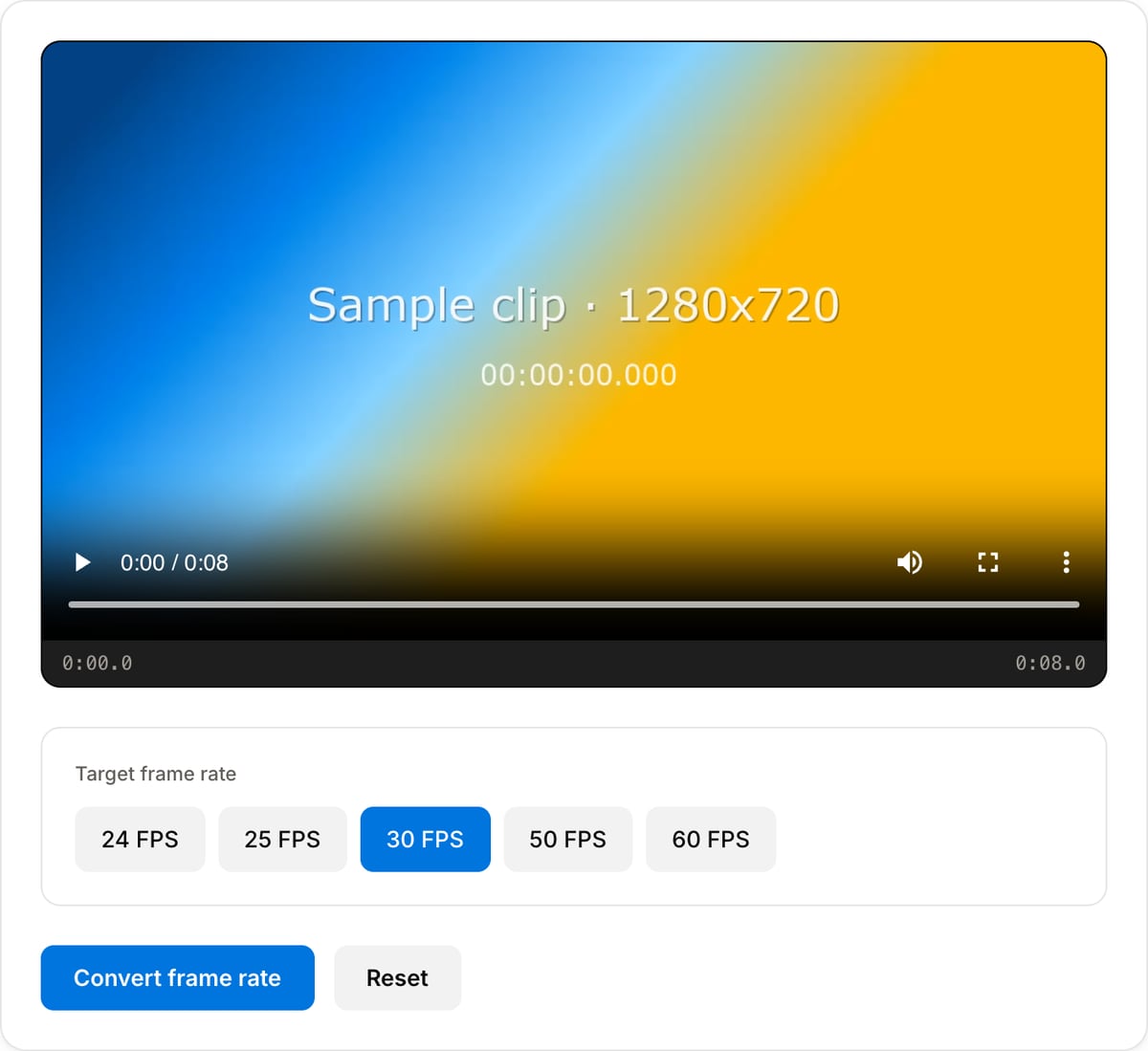
What the tool looks like
Popular task presets
Best for / not for
Best for
- Changing frame rate for upload compatibility, consistent playback, smaller files, or project matching.
- Converting screen recordings, phone clips, camera exports, and mixed-source footage to 24, 25, 30, or 60 fps.
- Preparing a simple file before importing into another editor.
Not for
- High-end motion interpolation or generating realistic new frames for slow motion.
- Broadcast compliance workflows requiring strict cadence checks.
- Fixing stutter caused by bad source footage or dropped frames.
Best use cases for FPS conversion
- Normalize a phone clip, screen recording, or camera export to 30 fps before posting or editing.
- Create a 24 fps or 25 fps copy to match an existing project timeline.
- Reduce 60 fps footage to 30 fps when file size and compatibility matter more than ultra-smooth motion.
Supported formats & limits
| Input containers | MP4, MOV, WebM, MKV, AVI, FLV, WMV, M4V |
|---|---|
| Input codecs | H.264, H.265, VP8, VP9, MPEG-4, MJPEG. Not AV1 — this WebAssembly build has no software AV1 decoder. |
| Output container | MP4 (default) — interoperable with iOS, Android, YouTube, Instagram, X |
| Output codec | H.264 video + AAC audio |
| Max file size | Uploader limit: 2048 MiB (about 2 GB). Processing needs additional memory; smaller files may fail on low-memory devices. |
| Max duration | Depends on file size, the operation and available memory. Long files can fail or take a long time. |
| Cost | Free for any use. No signup. No watermark. |
FPS Converter vs. the usual alternatives
| Feature | This tool | VEED (free) | Kapwing (free) | CapCut Online |
|---|---|---|---|---|
| Processing model | Runs locally in your browser | Upload-based project editor | Upload-based project editor | Upload-based online editor |
| File limits | Tool-specific file limits apply; available memory can require smaller files | Free: up to 1 GB per uploaded file | Free: up to 250 MB per uploaded file; exports up to 4 minutes | Limits depend on the feature, account and selected assets |
| Watermark on output | No watermark added | Watermark on free or signed-out exports | Watermark on Free-plan exports | Standard edits can be watermark-free; template branding and Pro assets need checking |
| Signup / account | No account for tools | Workspace/account flow | Workspace/account flow | CapCut account flow |
| Connection | Initial page and processing-engine downloads require internet; offline use is not guaranteed | Online project editor | Online project editor | Online project editor |
| Best for | Private one-step file operations | Full editor, templates, AI tools | Collaboration, templates, AI tools | Social templates and timeline editing |
Comparison covers the web editors and the linked help pages. Plans, export settings and asset restrictions can change; check the source before starting a project.
Checked . Sources: VEED upload limits · VEED watermarks · Kapwing Free plan · CapCut watermarks · CapCut Pro assets
Why this FPS converter is different
- Frame-rate targets are direct and practical instead of exposing a long FFmpeg filter chain.
- Useful before merging clips because mixed frame rates can create playback or sync surprises.
- No upload queue, watermark, or account requirement.
Tutorials covering this tool
常见问题
24fps vs 30fps vs 60fps — which should I use?
24fps for cinematic, dreamy look. 30fps for vlogs, TV, and general online video. 60fps for sports, gaming, and fast action. Higher fps = smoother but larger files.
Does changing FPS affect quality?
Re-encoding introduces minimal loss. Dropping frames (60 to 30) is clean. Increasing FPS (24 to 60) duplicates frames and may cause slight stuttering in fast motion.
Can I get smooth slow-mo from 60fps footage?
Yes! Convert 60fps to 30fps or 24fps for 2x or 2.5x smooth slow-motion using real frames — much better than slowing down 30fps which needs frame duplication.
What FPS is best for YouTube?
YouTube supports 24, 25, 30, 48, 50, and 60fps. 30fps is the sweet spot for most content. Use 60fps for gaming/sports. 24fps for cinematic work.
Should I use 30 fps or 60 fps?
Use 30 fps for broad sharing and smaller files. Use 60 fps when smooth motion matters, such as sports, gaming, or fast UI demos.
Does converting FPS make slow motion smoother?
Not by itself. This tool changes frame rate; it does not create high-quality interpolated slow-motion frames.
Can FPS conversion affect audio sync?
Standard frame-rate conversion should preserve duration, but always preview the export when working with long or variable-frame-rate sources.