在线幻灯片制作——图片转视频,支持交叉淡化和缓慢推拉(免费)
把照片做成像样的幻灯片视频,可选交叉淡化或缓慢推拉运镜。能调整顺序、选择分辨率。不上传。
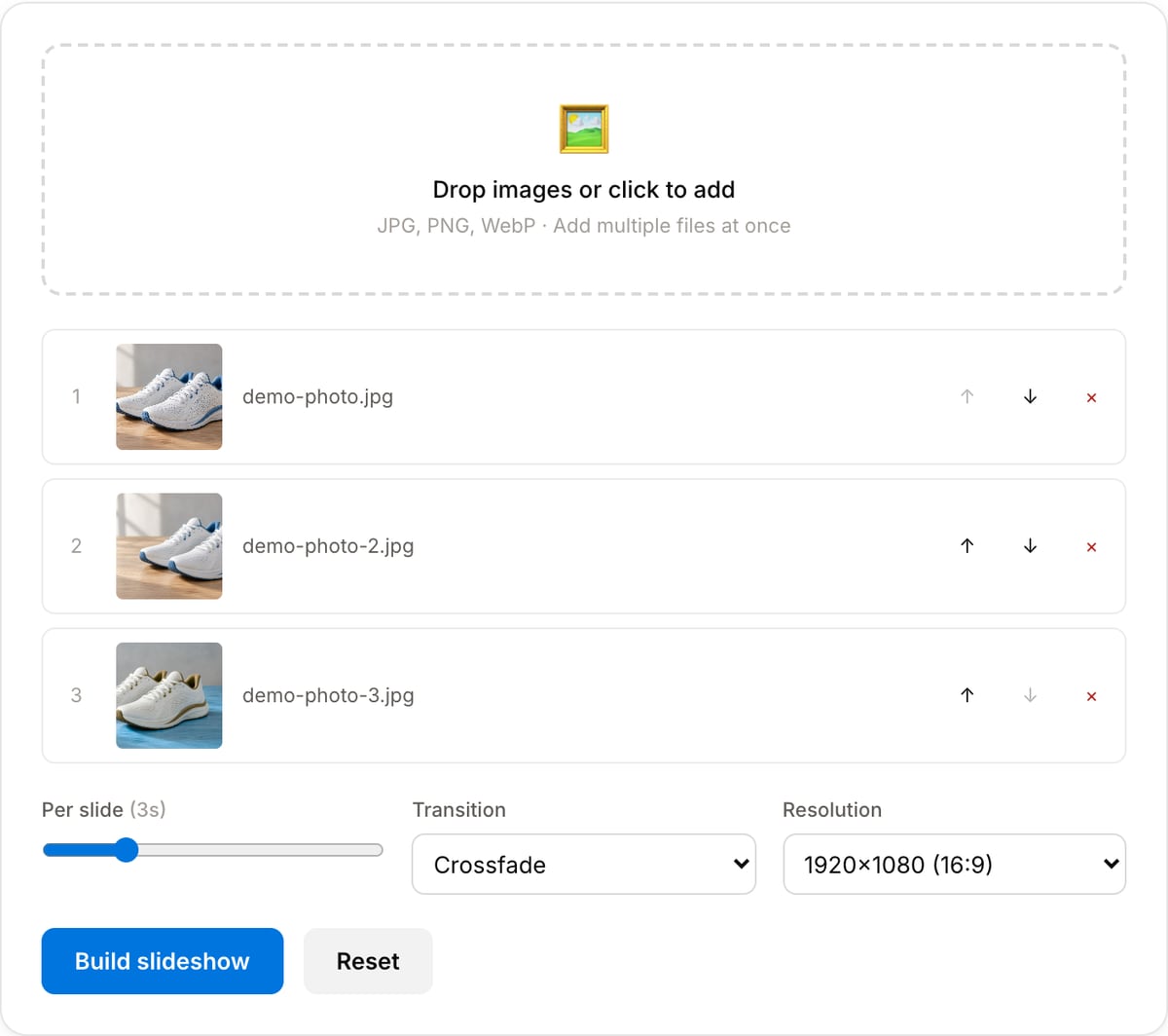
Drop images or click to add
JPG, PNG, WebP · Add multiple files at once
What the tool looks like
Popular task presets
Best for / not for
Best for
- Turning photos, screenshots, product images, or event stills into a simple video.
- Course recaps, portfolio reels, memorial/event videos, product showcases, and social posts.
- Slideshows where ordering, duration, and transitions matter more than complex timeline editing.
Not for
- Full presentation authoring with charts, speaker notes, and animated layouts.
- Complex multi-track edits with timed captions, B-roll, or nested sequences.
- Batch-generating hundreds of videos from a catalog.
Best use cases for slideshow videos
- Create a product showcase, class recap, photo montage, event highlight, or portfolio reel from still images.
- Combine screenshots into a walkthrough when a live screen recording is unnecessary.
- Make a lightweight social or landing-page video from a sequence of edited images.
Slideshow settings
| Slide duration | Use 2-4 seconds for quick social videos and 5-8 seconds when viewers need to read text. |
|---|---|
| Transitions | Simple crossfades keep attention on the images; heavy transitions can distract from product or course content. |
| Resolution | Use 1080p for most sharing workflows; 720p when file size matters more. |
| Audio | Render the slideshow first, then attach music or narration with Audio Replacer. |
Slideshow Maker vs. the usual alternatives
| Feature | This tool | VEED (free) | Kapwing (free) | CapCut Online |
|---|---|---|---|---|
| Processing model | Runs locally in your browser | Upload-based project editor | Upload-based project editor | Upload-based online editor |
| File limits | Tool-specific file limits apply; available memory can require smaller files | Free: up to 1 GB per uploaded file | Free: up to 250 MB per uploaded file; exports up to 4 minutes | Limits depend on the feature, account and selected assets |
| Watermark on output | No watermark added | Watermark on free or signed-out exports | Watermark on Free-plan exports | Standard edits can be watermark-free; template branding and Pro assets need checking |
| Signup / account | No account for tools | Workspace/account flow | Workspace/account flow | CapCut account flow |
| Connection | Initial page and processing-engine downloads require internet; offline use is not guaranteed | Online project editor | Online project editor | Online project editor |
| Best for | Private one-step file operations | Full editor, templates, AI tools | Collaboration, templates, AI tools | Social templates and timeline editing |
Comparison covers the web editors and the linked help pages. Plans, export settings and asset restrictions can change; check the source before starting a project.
Checked . Sources: VEED upload limits · VEED watermarks · Kapwing Free plan · CapCut watermarks · CapCut Pro assets
Why this slideshow maker is different
- It focuses on making a clean video from images, not on presentation templates or stock assets.
- Local rendering keeps personal photos, client mockups, and product screenshots private.
- The output fits directly into compression, audio replacement, and watermark workflows.
Tutorials covering this tool
常见问题
How many images can I add?
No hard limit — browser memory is the ceiling. For most setups 50+ images work fine at 1080p.
What is Ken Burns?
Slow zoom/pan over each still image — gives a cinematic feel. Named after the documentary filmmaker who popularised the technique.
Can I add music?
Not in this tool. Build the slideshow here, then use the Audio Replacer tool to attach a music track.
Why is the render slow?
Each slide becomes a short video clip and everything is re-encoded with H.264. 20 slides at 3 seconds each is ~1 minute of output — expect 30-60 seconds on an M-series Mac, longer on older hardware.
What image size should I use?
Use images at least as large as the target video resolution. For 1080p, 1920x1080 or larger sources are safest.
Should I use 16:9 or 9:16?
Use 16:9 for YouTube, websites, and presentations. Use 9:16 when the slideshow is for Reels, TikTok, or Shorts.