Split Video into Parts Online Free
Cut a long video into equal parts, into 15/30/60-second clips for Stories, Reels and TikTok, or at exact timestamps. Lossless and instant — no re-encoding unless you ask for frame-exact cuts.
Drag & drop your video here, or click to browse
MP4, MOV, WebM, MKV
How to Use — Split Video into Parts Online Free
Upload the video
Drop an MP4, MOV, WebM or MKV file. It is processed locally with FFmpeg WebAssembly — nothing leaves your device, so a 1 GB screen recording is fine.
Choose how to split
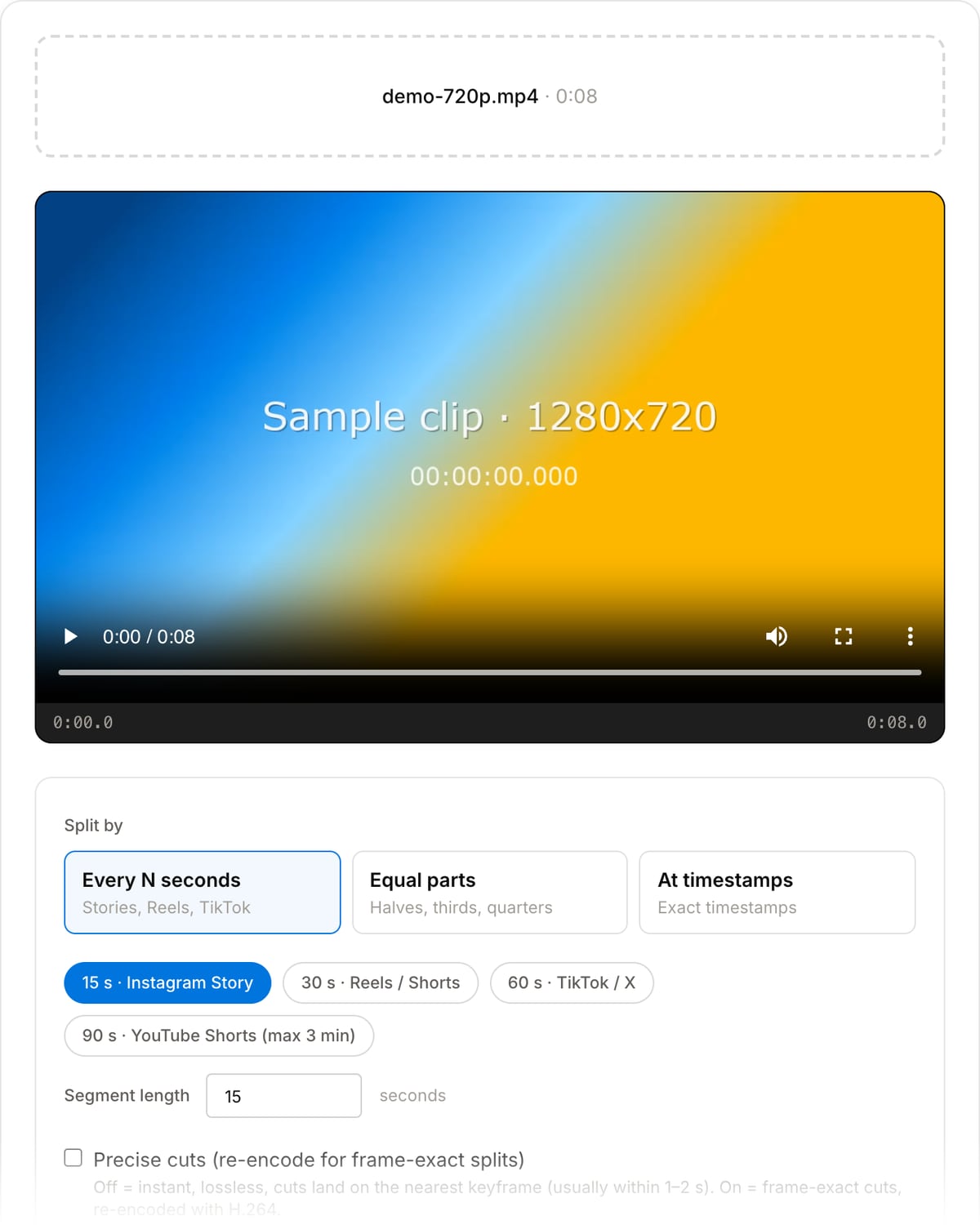
"Every N seconds" for Stories (15 s), Reels/Shorts (30–60 s) or TikTok; "Equal parts" for halves, thirds and quarters; "At timestamps" for exact cut points like 0:30, 1:45.
Split and download the parts
Fast mode copies the streams without re-encoding — instant and lossless, cuts land on the nearest keyframe. Turn on precise cuts for frame-exact splits. Download each part or all at once.
What the tool looks like
Best use cases for the video splitter
- Cut a long vlog into 15-second pieces for Instagram Stories, or 60-second pieces for TikTok and Reels.
- Break a 2-hour screen recording or lecture into chapters at exact timestamps.
- Split a wedding, concert or match recording into halves or quarters that fit an email or WhatsApp limit.
- Separate a multi-topic tutorial into standalone clips before uploading each to YouTube.
- Chop dashcam or security footage into short segments so only the relevant part gets shared.
Supported formats & limits
| Stream-copy containers | MP4, MOV, M4V → MP4 parts; WebM → WebM; MKV → MKV (instant, lossless, keyframe-aligned) |
|---|---|
| Other containers | AVI, FLV, WMV, MTS are re-encoded to H.264 MP4 parts automatically |
| Split modes | Every N seconds (1–3600 s), 2–20 equal parts, or any list of timestamps |
| Precise mode | H.264 CRF 23 + AAC 160 kbps with a forced keyframe at every cut — frame-exact |
| Max file size | Up to ~2 GB (limited by browser memory) |
| Cost | Free for any use. No signup. No watermark. |
Video Splitter vs. the usual alternatives
| Feature | This tool | VEED (free) | Kapwing (free) | CapCut Online |
|---|---|---|---|---|
| Processing model | Runs locally in your browser | Upload-based project editor | Upload-based project editor | Upload-based online editor |
| File limits | No upload cap; practical limit is browser memory | Plan-specific upload limits | Plan-specific upload and export limits | Feature- and account-specific limits |
| Watermark on output | No watermark added | Free exports include a VEED watermark | Free exports include a Kapwing watermark | Standard edits can be watermark-free; templates/assets may add branding |
| Signup / account | No account for tools | Workspace/account flow | Workspace/account flow | CapCut account flow |
| Works offline | Yes after cache, subject to browser support | No | No | No |
| Best for | Private one-step file operations | Full editor, templates, AI tools | Collaboration, templates, AI tools | Social templates and timeline editing |
Vendor plan limits were checked on April 29, 2026 and can change by region, account state, and export option. Verify critical limits on the vendor pricing/help page before relying on them.
Why this splitter is different
- True lossless splitting — the default mode never re-encodes, so a 1 GB file is split in seconds and every part is pixel-identical to the source.
- Runs locally: the video is never uploaded, which is why there is no 500 MB limit and no queue.
- Social presets (15 s, 30 s, 60 s, 90 s) are built in, and the part count is shown before you commit.
- Frame-exact cuts are one checkbox away when you need them, instead of a paid "pro" feature.
Task-focused FAQ
What is the difference between splitting and trimming?
Trimming keeps one section and discards the rest; splitting keeps everything but writes it out as several files. Use the Video Trimmer for one clip, the splitter when you need all the pieces.
Why did I get fewer parts than expected?
In fast mode a part cannot end before the next keyframe, so long-GOP screen recordings (keyframes every 5–10 s) produce fewer, longer parts. Turn on precise cuts to force keyframes at the exact split points.
Can I split by file size, e.g. 25 MB for email?
Not directly — split by time instead: divide the file size by the duration to get MB per second, then pick a segment length that lands under the limit. Or compress first with the Video Compressor and send one file.
Frequently Asked Questions
Why are my parts a second or two longer than I asked for?
In fast mode the video is not re-encoded, so a cut can only happen on a keyframe — typically every 1–2 seconds in phone footage, up to 10 seconds in some screen recordings. Enable "precise cuts" to re-encode with a keyframe forced at every split point; the parts are then frame-exact.
Does splitting reduce the quality?
Not in fast mode — the video and audio streams are copied bit-for-bit into the new files. Precise mode re-encodes with H.264 at CRF 23, which is visually transparent for social uploads but is a second generation of compression.
How do I split a long video for Instagram Stories?
Pick "Every N seconds" and the 15 s preset. Each part comes out as a separate MP4 you can upload in sequence; Instagram plays them back to back. For Reels, TikTok or YouTube Shorts use 60 s (or 90 s for Shorts).
Can I split a video in half?
Yes — choose "Equal parts" and set the slider to 2. The tool reads the duration from the file and cuts at the midpoint (nearest keyframe in fast mode, exact with precise cuts).
Is there a limit on file size or number of parts?
No paywall or hard cap. The practical limit is your browser memory — files around 2 GB work on a typical laptop. Up to 20 equal parts, or as many timestamps as you type.