Trim Video Online — Precise Cuts, No Upload
Cut MP4, MOV, WebM, and MKV clips by start/end time. Preview the range, stream-copy when possible, and keep the original quality locally.
Drag & drop your video here, or click to browse
Max file size: ~2 GB (memory permitting)
How to Use — Trim Video Online — Precise Cuts, No Upload
Upload your video
Drag and drop any video file (MP4, WebM, MOV, AVI, MKV) or click "Choose File" to browse. Works with files up to ~2 GB (memory permitting).
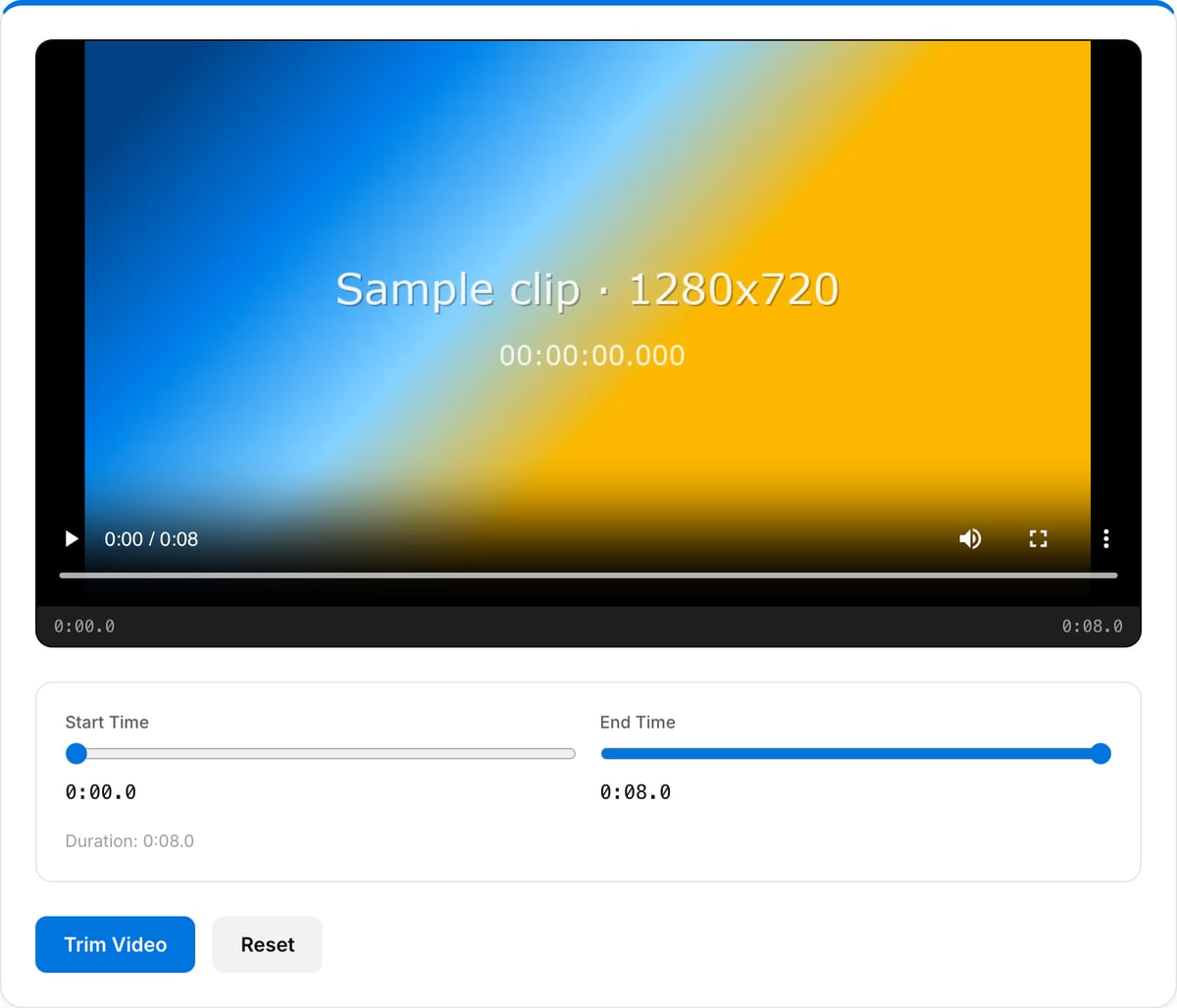
Set start and end time
Use the sliders to select the exact portion of the video you want to keep. Preview your selection with the built-in player.
Trim and download
Click "Trim Video" — processing happens in your browser using FFmpeg WebAssembly. Download the trimmed clip instantly, no quality loss.
What the tool looks like
Popular task presets
Best for / not for
Best for
- Fast start/end cuts where you only need one clean range from a longer clip.
- Shortening social clips, screen recordings, lessons, demos, webinars, and interviews.
- Privacy-sensitive files that should not be uploaded to an online editor.
Not for
- Multi-clip timeline edits, transitions, color grading, or multi-track audio work.
- Frame-perfect narrative edits when the source requires exact cuts between non-keyframes.
- Repairing corrupted media or changing codec/container by itself.
Best use cases for the video trimmer
- Cut the dead air before a screen recording, webinar, lesson, podcast video, or phone clip without opening a full editor.
- Pull one clean highlight from a longer interview, gaming capture, class recording, or meeting export.
- Create an exact short from a long clip for Shorts, Reels, TikTok, X, Discord, or a landing-page demo.
Trim settings that matter
| Best for | Start/end cuts, removing dead air, extracting one clip, and shortening social videos. |
|---|---|
| Quality | Uses stream-copy where possible, so the kept range is not re-encoded and quality stays intact. |
| Accuracy | Fast copy cuts can snap to nearby keyframes; re-encode workflows are better when frame-perfect cuts are required. |
| Privacy | No server upload. The source file is opened, previewed, trimmed, and downloaded inside your browser. |
Video Trimmer vs. the usual alternatives
| Feature | This tool | VEED (free) | Kapwing (free) | CapCut Online |
|---|---|---|---|---|
| Processing model | Runs locally in your browser | Upload-based project editor | Upload-based project editor | Upload-based online editor |
| File limits | No upload cap; practical limit is browser memory | Plan-specific upload limits | Plan-specific upload and export limits | Feature- and account-specific limits |
| Watermark on output | No watermark added | Free exports include a VEED watermark | Free exports include a Kapwing watermark | Standard edits can be watermark-free; templates/assets may add branding |
| Signup / account | No account for tools | Workspace/account flow | Workspace/account flow | CapCut account flow |
| Works offline | Yes after cache, subject to browser support | No | No | No |
| Best for | Private one-step file operations | Full editor, templates, AI tools | Collaboration, templates, AI tools | Social templates and timeline editing |
Vendor plan limits were checked on April 29, 2026 and can change by region, account state, and export option. Verify critical limits on the vendor pricing/help page before relying on them.
Why this trimmer is different
- Designed for one job: pick a start and end time, preview the range, and export the kept section without timeline complexity.
- Stream-copy trimming is much faster than full re-encoding for long files and avoids generation loss.
- Useful for private or client footage because the raw file never leaves the device.
Task-focused FAQ
Will trimming reduce video quality?
For simple start/end cuts the tool uses stream-copy when possible, so the kept audio and video streams are not re-encoded.
Why does a fast trim sometimes start a little before my chosen time?
Fast copy mode cuts at the nearest keyframe. That is much faster and preserves quality, but not always frame-perfect.
Should I trim before compressing?
Yes. Removing unused seconds first is the cleanest way to reduce file size before using the compressor.
Tutorials covering this tool
Made for one job
Frequently Asked Questions
Is this video trimmer really free?
Yes, completely free with no watermarks, no file limits, and no signup required. The tool runs entirely in your browser.
Are my videos uploaded to a server?
No. All processing happens locally in your browser using FFmpeg WebAssembly. Your files never leave your device.
What video formats are supported?
MP4, WebM, MOV, AVI, MKV, and most other common video formats. The output matches your input format.
Will trimming reduce video quality?
No. The trimmer uses stream copy (-c copy), which means no re-encoding — your video quality stays exactly the same.