Video Converter Online — MOV, MKV, WebM to MP4
Convert MOV, MKV, AVI, WebM, and MP4 locally with FFmpeg WASM. Choose the output container your editor, phone, or website needs.
Drag & drop your video here, or click to browse
Max file size: ~2 GB (memory permitting)
How to Use — Video Converter Online — MOV, MKV, WebM to MP4
Upload your video
Drag and drop any video file (MP4, WebM, MOV, AVI, MKV) or click to browse. The video loads locally in your browser.
Choose your target format
Select MP4 for maximum compatibility, WebM for web efficiency, MOV for Apple workflows, or AVI for legacy systems.
Convert and download
Click "Convert" to process. FFmpeg WebAssembly handles the transcoding locally. Download your converted file when done.
What the tool looks like
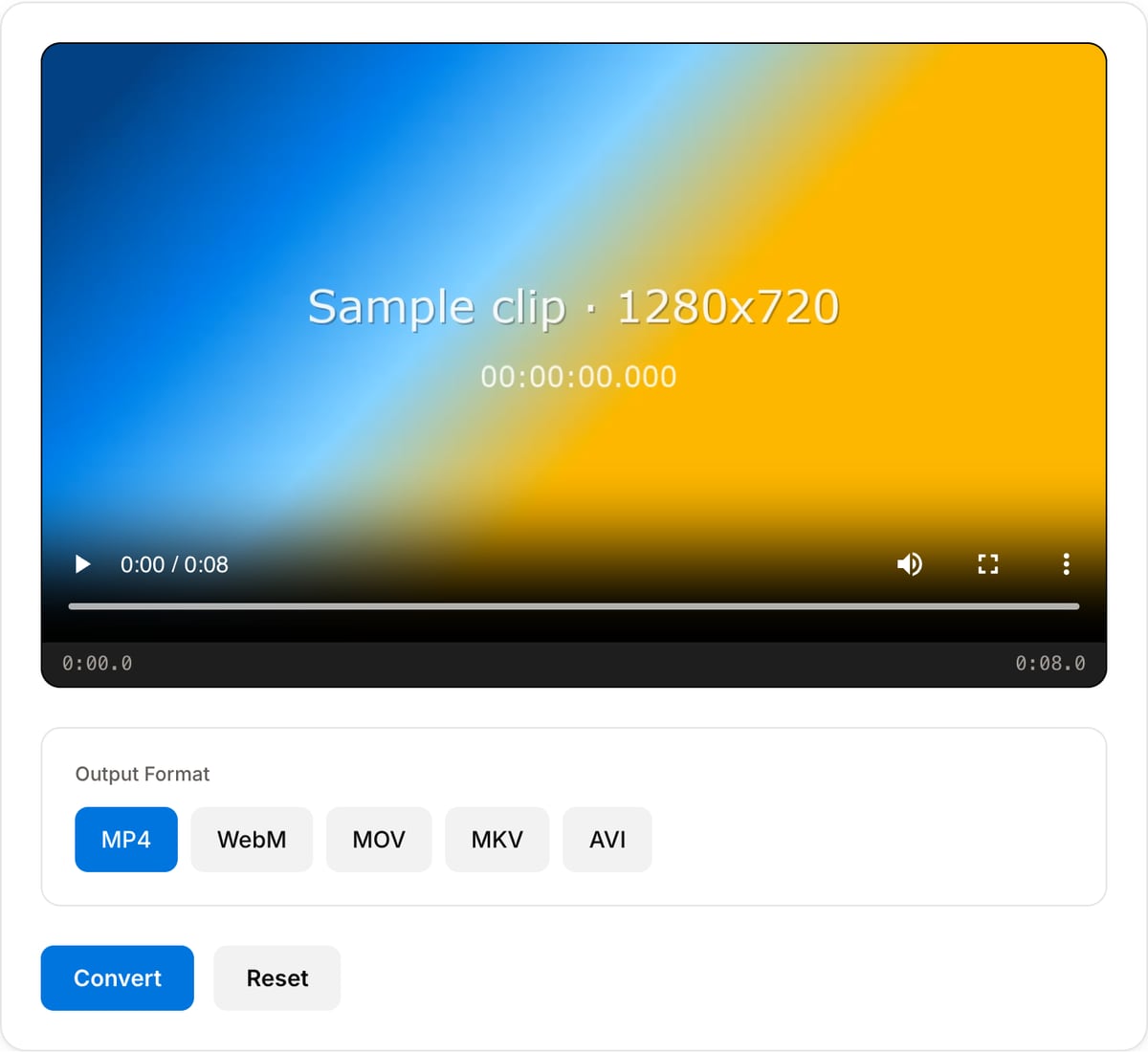
Popular task presets
Best for / not for
Best for
- Changing container/codec for compatibility with phones, editors, browsers, LMS portals, and clients.
- Converting MOV, MKV, AVI, WebM, M4V, or WMV into a practical MP4 copy.
- Files that are private enough to avoid upload-based conversion sites.
Not for
- Professional mezzanine transcodes requiring ProRes, DNxHR, alpha channels, or color-managed deliverables.
- Batch encoding hundreds of files; a desktop FFmpeg script is better for that.
- Fixing visual quality problems that already exist in the source.
Best use cases for video conversion
- Convert iPhone MOV or HEVC footage to MP4 for Windows, Android, PowerPoint, editors, LMS platforms, and client portals.
- Turn MKV, AVI, FLV, WMV, or M4V files into modern MP4 or WebM containers that upload cleanly.
- Create WebM versions for websites when file size matters and your audience uses modern browsers.
Format choices
| Choose MP4 | Best for phones, YouTube, Instagram, PowerPoint, LMS uploads, client review, and broad compatibility. |
|---|---|
| Choose WebM | Best for websites, browser playback, and smaller web assets when Safari compatibility is not the main constraint. |
| Choose MOV | Best for Apple-centric workflows and editors that expect QuickTime containers. |
| Transcoding note | Changing codec/container can reduce quality slightly. Keep a source master if the clip will be edited again. |
Video Converter vs. the usual alternatives
| Feature | This tool | VEED (free) | Kapwing (free) | CapCut Online |
|---|---|---|---|---|
| Processing model | Runs locally in your browser | Upload-based project editor | Upload-based project editor | Upload-based online editor |
| File limits | No upload cap; practical limit is browser memory | Plan-specific upload limits | Plan-specific upload and export limits | Feature- and account-specific limits |
| Watermark on output | No watermark added | Free exports include a VEED watermark | Free exports include a Kapwing watermark | Standard edits can be watermark-free; templates/assets may add branding |
| Signup / account | No account for tools | Workspace/account flow | Workspace/account flow | CapCut account flow |
| Works offline | Yes after cache, subject to browser support | No | No | No |
| Best for | Private one-step file operations | Full editor, templates, AI tools | Collaboration, templates, AI tools | Social templates and timeline editing |
Vendor plan limits were checked on April 29, 2026 and can change by region, account state, and export option. Verify critical limits on the vendor pricing/help page before relying on them.
Why this converter is different
- Built for direct file conversion, not a full online editor: open file, choose target format, export.
- Uses FFmpeg WASM locally, so sensitive source footage is not sent to an upload-based converter.
- Provides practical target formats instead of a long confusing codec list.
Task-focused FAQ
What format should I choose for maximum compatibility?
Choose MP4 with H.264 video and AAC audio. It works across iPhone, Android, Windows, macOS, browsers, and most editors.
Will conversion reduce quality?
Any re-encode can introduce a small quality loss. Use a high-quality preset and keep the original source file if you will edit again.
Why convert HEVC to H.264?
HEVC is efficient but less universally supported. H.264 MP4 opens more reliably in browsers, PowerPoint, Windows, Android, and older editors.
Made for one job
Frequently Asked Questions
What is the difference between MP4 and WebM?
MP4 (H.264) is the most universally compatible format. WebM (VP9) offers better compression for web delivery. MP4 is the safe default; WebM is more efficient for websites.
What format is best for YouTube?
YouTube recommends MP4 with H.264 codec. It processes fastest and gives the cleanest starting point since YouTube re-encodes all uploads.
Does converting lose quality?
Re-encoding introduces minimal generation loss. The tool uses high-quality settings (CRF 23) so the difference is imperceptible for most content.
Which format is the smallest?
WebM (VP9) typically produces the smallest files at equivalent quality. For the smallest MP4, use the Video Compressor tool after converting.