Compress Video Online — CRF Quality Control
Reduce video file size for email, WhatsApp, Drive, or social uploads. Pick a CRF quality preset and compress locally in your browser.
Drag & drop your video here, or click to browse
Max file size: ~2 GB (memory permitting)
How to Use — Compress Video Online — CRF Quality Control
Upload your video
Drag and drop any video file (MP4, WebM, MOV, AVI) or click to browse. Your file stays on your device — nothing is uploaded.
Choose quality level
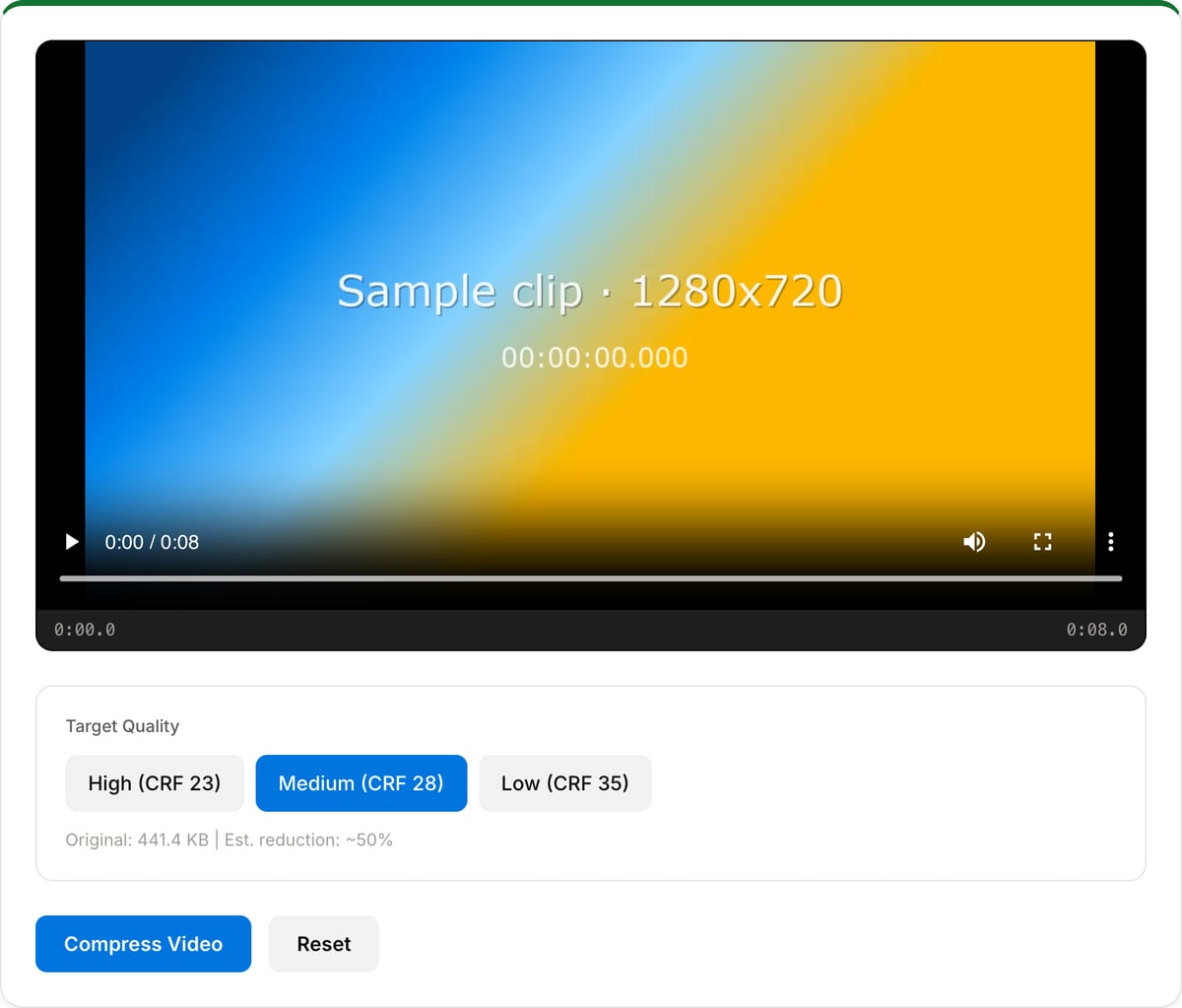
High quality preserves visual fidelity (~30% smaller). Medium is the sweet spot (~50% smaller). Low maximizes compression (~70% smaller).
Compress and download
Click "Compress Video" to re-encode with CRF-based compression. See the before/after file size comparison and download.
What the tool looks like
Popular task presets
Best for / not for
Best for
- Making videos smaller for email, messaging apps, Drive, Notion, LMS uploads, and client review.
- Creating a lightweight copy while keeping the original master unchanged.
- Private footage that should not be uploaded to a cloud compressor.
Not for
- Restoring quality after a clip has already been heavily compressed.
- Archival masters where every pixel matters and file size is not important.
- Precise bitrate-ladder packaging for streaming platforms.
Best use cases for video compression
- Reduce a large screen recording so it can fit in Gmail, Slack, WhatsApp, Discord, LMS portals, or client review tools.
- Make 4K or high-bitrate phone footage easier to upload to Drive, Notion, YouTube, or a CMS.
- Create a lighter review copy while keeping the original master untouched on your machine.
Compression settings explained
| High quality | Lower CRF, larger file. Use for client review, archive copies, and footage with text or UI details. |
|---|---|
| Medium quality | Balanced CRF preset for sharing. Usually the best option for email, Drive, Notion, and social previews. |
| Low quality | Smaller file with visible artifacts. Use only when size matters more than detail. |
| Best input | MP4, MOV, WebM, AVI, or MKV files under the browser memory limit, ideally below ~2 GB. |
Video Compressor vs. the usual alternatives
| Feature | This tool | VEED (free) | Kapwing (free) | CapCut Online |
|---|---|---|---|---|
| Processing model | Runs locally in your browser | Upload-based project editor | Upload-based project editor | Upload-based online editor |
| File limits | No upload cap; practical limit is browser memory | Plan-specific upload limits | Plan-specific upload and export limits | Feature- and account-specific limits |
| Watermark on output | No watermark added | Free exports include a VEED watermark | Free exports include a Kapwing watermark | Standard edits can be watermark-free; templates/assets may add branding |
| Signup / account | No account for tools | Workspace/account flow | Workspace/account flow | CapCut account flow |
| Works offline | Yes after cache, subject to browser support | No | No | No |
| Best for | Private one-step file operations | Full editor, templates, AI tools | Collaboration, templates, AI tools | Social templates and timeline editing |
Vendor plan limits were checked on April 29, 2026 and can change by region, account state, and export option. Verify critical limits on the vendor pricing/help page before relying on them.
Why this compressor is different
- Uses CRF-style quality control instead of a vague "smaller / medium / high" slider, so the tradeoff is predictable.
- Shows before/after size context so you can choose a realistic target before downloading.
- Local processing avoids uploading confidential source footage to a cloud compressor just to make it smaller.
Task-focused FAQ
What CRF should I use for email?
Use the balanced/medium preset first. If the result is still too large, trim the clip or drop resolution before using a harsher compression setting.
Why did my compressed file get larger?
Very small or already-compressed files can grow if they are re-encoded with a higher-quality setting than the source.
Is local compression slower than cloud compression?
It can be slower on old machines, but the tradeoff is privacy: the original file never uploads.
Made for one job
Frequently Asked Questions
How much can you compress a video?
Typically 30-70% depending on quality setting. High (CRF 23) gives ~30% reduction with virtually no visible difference. Medium (CRF 28) gives ~50%. Low (CRF 35) gives ~70% with some visible artifacts.
What is CRF?
CRF (Constant Rate Factor) controls quality vs. size. Lower CRF = higher quality, larger files. CRF 23 is "visually lossless." CRF 28 is the balanced sweet spot. CRF 35+ shows noticeable quality loss.
Quality vs. file size — what should I choose?
High for archiving and professional work. Medium for social media sharing and general use. Low when file size is critical — email attachments, WhatsApp, etc.
Best setting for email and WhatsApp?
Email limits: ~25 MB. WhatsApp: 16 MB (iOS) / 64 MB (Android). Use Medium or Low quality. Also consider reducing resolution — 720p at medium quality is usually under 10 MB/min.