Extract Frames from Video Online Free
Extract individual frames from your video as PNG images. Scrub to any timestamp and capture the perfect still — uses Canvas API, no server processing.
Drag & drop your video here, or click to browse
Max file size: ~2 GB (memory permitting)
How to Use — Extract Frames from Video Online Free
Upload video
Drag and drop any video file (MP4, WebM, MOV, AVI, MKV) or click "Choose File" to browse.
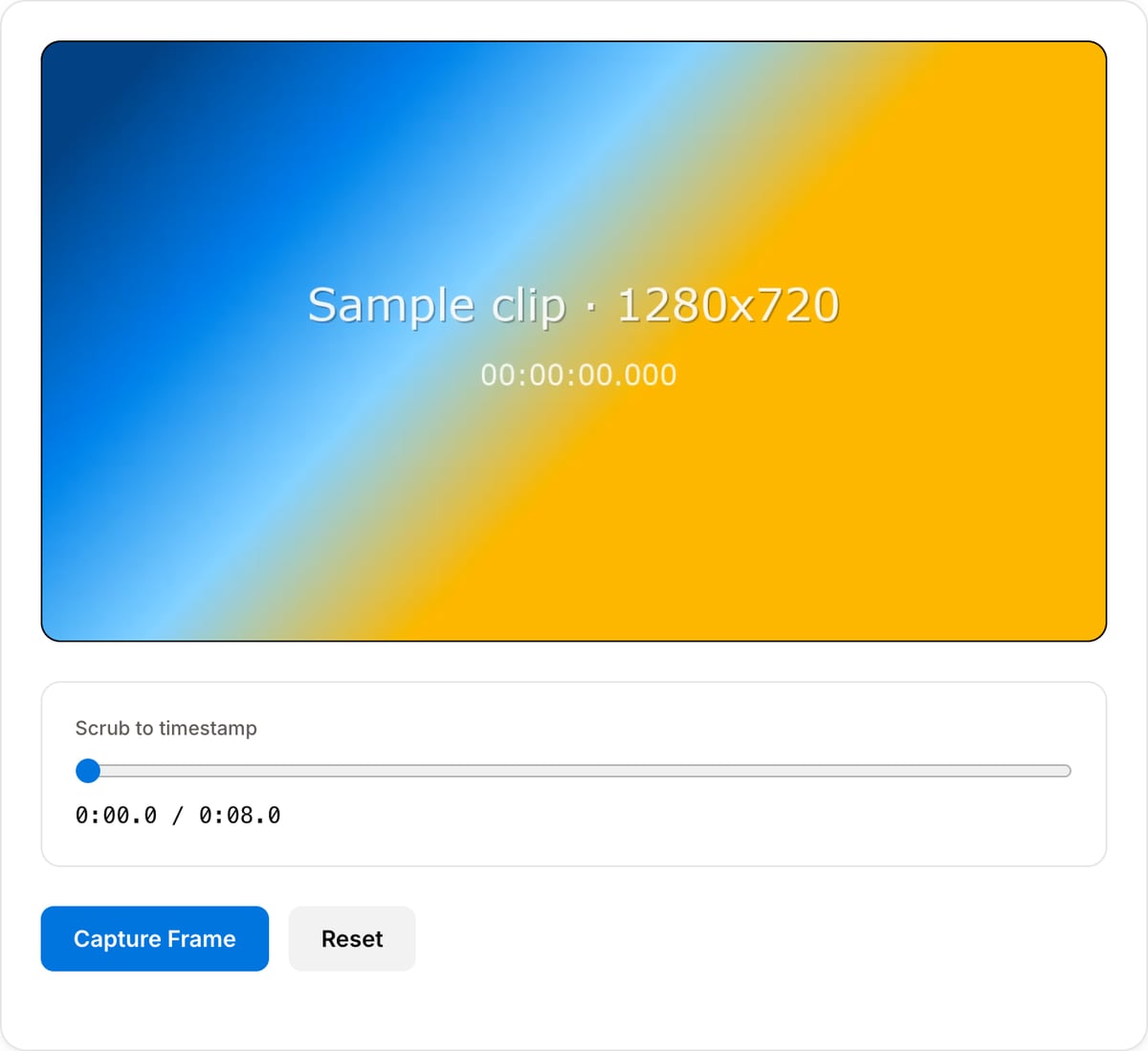
Scrub to timestamp
Use the video player to seek to the exact frame you want to capture. Scrub frame-by-frame for precision.
Capture frame
Click "Capture Frame" to extract the current frame as a high-quality PNG image. Capture as many frames as you need.
Download PNG
Download your captured frames as PNG files. Full original resolution, no quality loss, no watermarks.
What the tool looks like
Popular task presets
Best for / not for
Best for
- Saving exact still frames from video for thumbnails, documentation, bug reports, review notes, and visual references.
- Pulling frames from product demos, lectures, security clips, film analysis, and social videos.
- Private footage where screenshots should not be uploaded to a cloud editor.
Not for
- Batch extracting thousands of frames from long videos.
- Color-managed still export for professional grading workflows.
- Designing a complete thumbnail with text and graphics.
Best use cases for frame extraction
- Grab a clean still from a product demo, screen recording, tutorial, lecture, or camera clip.
- Create visual QA evidence for bug reports, editorial notes, legal review, or client feedback.
- Export reference frames for AI image prompts, storyboard boards, thumbnails, and documentation.
Supported formats & limits
| Input containers | MP4, MOV, WebM, MKV, AVI, FLV, WMV, M4V |
|---|---|
| Input codecs | H.264, H.265, VP8, VP9, MPEG-4, MJPEG. Not AV1 — this WebAssembly build has no software AV1 decoder. |
| Output container | MP4 (default) — interoperable with iOS, Android, YouTube, Instagram, X |
| Output codec | H.264 video + AAC audio |
| Max file size | Up to ~2 GB (limited by browser memory) |
| Max duration | No hard limit — depends on file size |
| Cost | Free for any use. No signup. No watermark. |
Frame Extractor vs. the usual alternatives
| Feature | This tool | VEED (free) | Kapwing (free) | CapCut Online |
|---|---|---|---|---|
| Processing model | Runs locally in your browser | Upload-based project editor | Upload-based project editor | Upload-based online editor |
| File limits | No upload cap; practical limit is browser memory | Plan-specific upload limits | Plan-specific upload and export limits | Feature- and account-specific limits |
| Watermark on output | No watermark added | Free exports include a VEED watermark | Free exports include a Kapwing watermark | Standard edits can be watermark-free; templates/assets may add branding |
| Signup / account | No account for tools | Workspace/account flow | Workspace/account flow | CapCut account flow |
| Works offline | Yes after cache, subject to browser support | No | No | No |
| Best for | Private one-step file operations | Full editor, templates, AI tools | Collaboration, templates, AI tools | Social templates and timeline editing |
Vendor plan limits were checked on April 29, 2026 and can change by region, account state, and export option. Verify critical limits on the vendor pricing/help page before relying on them.
Why this frame extractor is different
- Built around picking the exact moment, not around a full editing timeline.
- Exports stills locally so sensitive footage, product launches, and client videos stay private.
- Pairs with the thumbnail generator when the extracted frame needs a platform-ready canvas.
Task-focused FAQ
What format are extracted frames saved in?
Use PNG when sharp UI details matter, or JPEG/WebP when smaller files are more important.
Can I extract a frame from a private video?
Yes. The video is decoded in the browser and does not need to upload to a server.
Should I use Frame Extractor or Thumbnail Generator?
Use Frame Extractor for an exact still. Use Thumbnail Generator when you need a thumbnail-sized output for publishing.
Tutorials covering this tool
Frequently Asked Questions
How do I extract frames from a video?
Upload your video, scrub to the desired timestamp, and click Capture Frame. The frame is saved as a high-quality PNG image.
What image format are frames saved as?
Frames are saved as PNG images, which provide lossless quality. Every pixel is preserved exactly as it appears in the video.
Can I extract multiple frames?
Yes. Scrub to different timestamps and capture as many frames as you need. All captured frames are listed for individual download.
What is the maximum resolution?
The extracted frame matches the original video resolution. A 4K video produces a 4K PNG. No downscaling is applied.