Crop Image Online — 1:1, 4:5, 9:16, 16:9 (AI-Safe, No Upload)
Crop images to exact dimensions or aspect-ratio presets. Lossless, no re-encoding. Runs in-browser, safe for AI renders and private work.
Drop image (PNG/JPG/WebP/AVIF)
Up to 50 MB
What the tool looks like
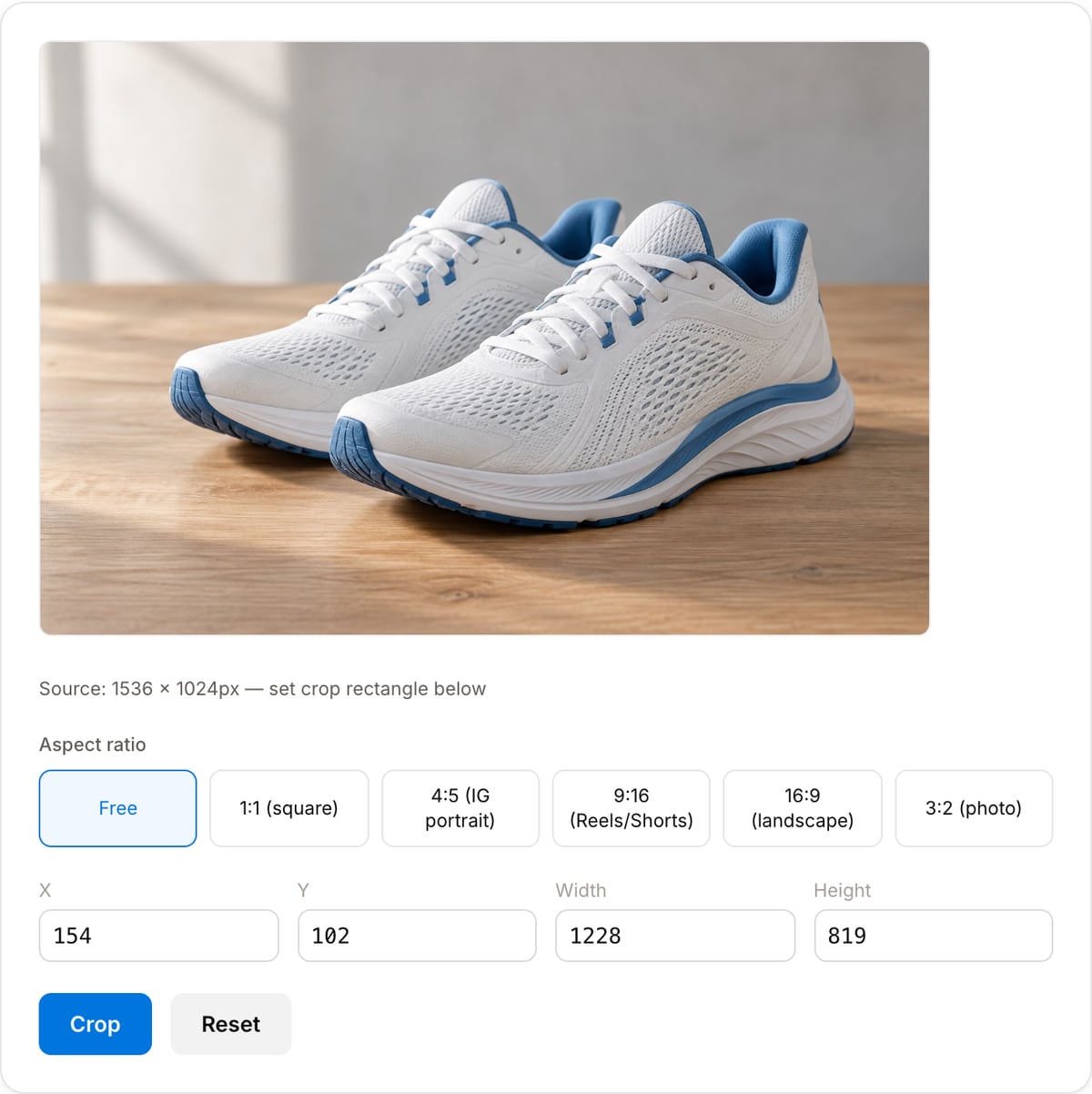
Popular task presets
Best for / not for
Best for
- Cropping photos, screenshots, AI renders, thumbnails, avatars, and product images to a target composition.
- Aspect-ratio presets such as 1:1, 4:5, 9:16, and 16:9 before resizing or compressing.
- Removing unwanted edges while keeping the source image local.
Not for
- Object-aware cutouts, background removal, or smart subject selection.
- Batch cropping large image libraries.
- Vector or layered design files that need editable masks.
Best use cases for image cropping
- Crop an AI render, product shot, screenshot, or photo into a clean social, thumbnail, avatar, or website frame.
- Remove distracting borders, empty canvas, UI chrome, or unwanted background from the image edge.
- Choose composition first, then resize and compress the final image for its destination.
Supported formats & limits
| Input formats | PNG, JPG/JPEG, WebP, AVIF, GIF, BMP, HEIC (Safari), TIFF — anything your browser can decode |
|---|---|
| Output formats | PNG (lossless), JPEG (quality 10-100), WebP (quality 10-100), AVIF on Chrome/Edge 122+ and Safari 16.4+ |
| AI-generator native sizes | 1024×1024 (GPT Image / DALL-E square), 1024×1792 (portrait), 1792×1024 (landscape), 2048×2048 (Midjourney upscale) |
| Max file size | Up to 50 MB per image |
| Privacy | Zero uploads — Canvas API runs fully on-device. Open DevTools Network tab to verify. |
| Cost | Free for any use. No signup, no watermark. |
Image Cropper vs. the usual alternatives
| Feature | This tool | VEED (free) | Kapwing (free) | CapCut Online |
|---|---|---|---|---|
| Processing model | Runs locally in your browser | Upload-based project editor | Upload-based project editor | Upload-based online editor |
| File limits | No upload cap; practical limit is browser memory | Plan-specific upload limits | Plan-specific upload and export limits | Feature- and account-specific limits |
| Watermark on output | No watermark added | Free exports include a VEED watermark | Free exports include a Kapwing watermark | Standard edits can be watermark-free; templates/assets may add branding |
| Signup / account | No account for tools | Workspace/account flow | Workspace/account flow | CapCut account flow |
| Works offline | Yes after cache, subject to browser support | No | No | No |
| Best for | Private one-step file operations | Full editor, templates, AI tools | Collaboration, templates, AI tools | Social templates and timeline editing |
Vendor plan limits were checked on April 29, 2026 and can change by region, account state, and export option. Verify critical limits on the vendor pricing/help page before relying on them.
Why this image cropper is different
- Aspect-ratio presets match real publishing jobs instead of forcing raw coordinate entry.
- Local canvas processing keeps client screenshots, private photos, and AI drafts off upload-based editors.
- It pairs directly with resize, compression, and metadata cleaning workflows.
Task-focused FAQ
Should I crop before resizing?
Yes. Crop to the right composition first, then resize to exact pixel dimensions.
What crop should I use for Instagram feed?
Use 1:1 for square posts or 4:5 for portrait feed posts. Use 9:16 for Stories and Reels covers.
Will cropping remove metadata?
Exporting through the browser may drop some metadata, but use Image Metadata Cleaner when privacy cleanup is required.
Frequently Asked Questions
When should I crop vs resize a GPT Image 2 / Midjourney output?
Crop when you want to keep the subject at native resolution but change aspect ratio or remove unwanted parts (signatures, artifacts, background). Resize when you need specific pixel dimensions for a platform upload. Crop preserves more source detail than a downscale + extend operation.
Can I crop to exact Instagram / TikTok / YouTube aspect ratios?
Yes — preset buttons for 1:1 (square), 4:5 (IG portrait), 9:16 (Reels/TikTok/Shorts), 16:9 (YouTube/landscape), 3:2 (standard photo). Or "Free" for manual ratio.
How do I crop a Midjourney 1:1 render down to 9:16 for Reels?
Upload the 1024×1024 Midjourney output, pick the 9:16 aspect preset, the tool snaps the crop rectangle to that ratio and you can slide it vertically to frame your subject. Output is lossless PNG at whatever pixel dimensions you kept — no upscaling artifacts from a forced resize.
Does the output lose quality?
Cropping is pixel-exact — no re-scaling. Output PNG is lossless. A 1024×1024 GPT Image or DALL-E PNG cropped to 512×512 drops ~4× in file size (area-proportional) with zero quality loss.
Does my AI render upload anywhere?
No. Canvas crop runs in-browser. Open DevTools Network tab — zero requests. Your GPT Image 2 / DALL-E / Midjourney output never leaves your device.