Free Screen Recorder Online — No Install, No Upload (Mic + System Audio)
Record your screen, window, or browser tab with optional mic and system audio. Saves locally. No install, no upload.
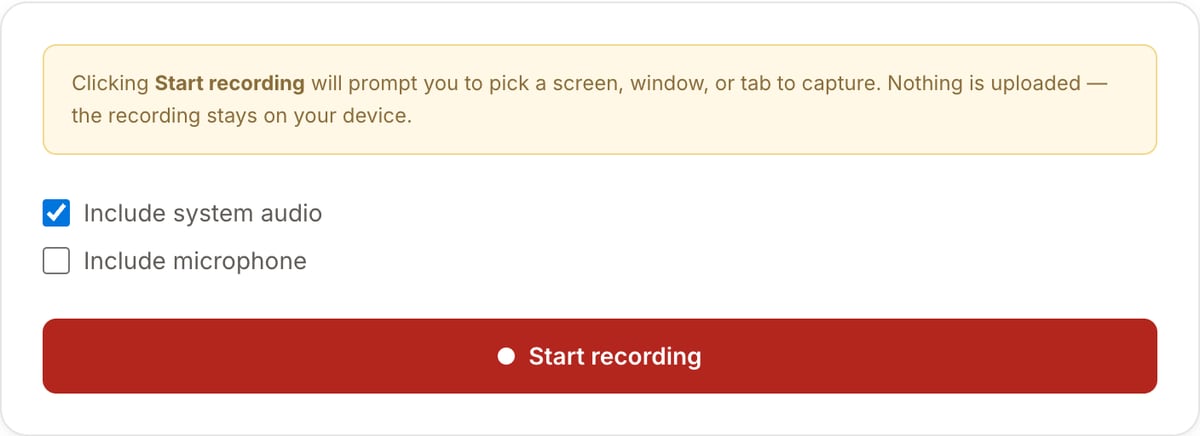
What the tool looks like
Popular task presets
Best for / not for
Best for
- Browser, window, or full-screen recordings for product demos, bug reports, tutorials, and walkthroughs.
- Local capture when you do not want to install a desktop recorder or upload raw footage.
- Quick recordings with optional microphone/system audio depending on browser support.
Not for
- Studio-grade recording with scene switching, overlays, virtual cameras, and live streaming.
- DRM-protected video or apps that block screen capture.
- Long multi-hour capture on low-memory browsers.
Best use cases for screen recording
- Record a product walkthrough, support bug, onboarding flow, lecture snippet, or browser-based tutorial.
- Capture a window or tab with narration for docs, changelogs, training, and async feedback.
- Create a local draft recording before trimming, compressing, or converting it.
Recording details
| Output | Browser-native recording format, commonly WebM. Convert to MP4 afterward if needed. |
|---|---|
| Audio | Microphone capture works in modern browsers; system/tab audio depends on browser and OS. |
| Privacy | Recording is created locally in the browser. Nothing uploads unless you upload the file yourself. |
| Best workflow | Record first, trim mistakes, then compress the review copy. |
Screen Recorder vs. the usual alternatives
| Feature | This tool | VEED (free) | Kapwing (free) | CapCut Online |
|---|---|---|---|---|
| Processing model | Runs locally in your browser | Upload-based project editor | Upload-based project editor | Upload-based online editor |
| File limits | No upload cap; practical limit is browser memory | Plan-specific upload limits | Plan-specific upload and export limits | Feature- and account-specific limits |
| Watermark on output | No watermark added | Free exports include a VEED watermark | Free exports include a Kapwing watermark | Standard edits can be watermark-free; templates/assets may add branding |
| Signup / account | No account for tools | Workspace/account flow | Workspace/account flow | CapCut account flow |
| Works offline | Yes after cache, subject to browser support | No | No | No |
| Best for | Private one-step file operations | Full editor, templates, AI tools | Collaboration, templates, AI tools | Social templates and timeline editing |
Vendor plan limits were checked on April 29, 2026 and can change by region, account state, and export option. Verify critical limits on the vendor pricing/help page before relying on them.
Why this recorder is different
- Built for fast local capture rather than account-based cloud recording.
- Pairs with the trimmer, compressor, GIF maker, and audio extractor for common post-recording tasks.
- Useful for private bugs, internal tools, and unreleased product demos because raw capture stays local.
Task-focused FAQ
Can it record system audio?
Tab or system audio depends on browser and OS support. Chrome tab audio is usually the most reliable browser path.
Why is the output WebM?
Browsers commonly record WebM natively. Use Video Converter if you need an MP4 copy.
Should I compress screen recordings?
Often yes. Screen recordings can be large, especially at high resolution, so trim first and compress the final clip.
Frequently Asked Questions
Do you keep a copy of my recording?
No. Recording happens entirely on your device using the browser’s MediaRecorder API. The file is written to your downloads folder only when you click Download.
Why is output WebM, not MP4?
Browsers can encode WebM (VP9 + Opus) natively. MP4 H.264 in-browser recording is not widely supported. Use our Video Converter to turn the WebM into MP4 — locally too.
Can I record a specific tab or window?
Yes. When you click Start, the browser shows a picker where you choose an entire screen, an app window, or a single Chrome/Edge tab. Tab capture also offers to include that tab’s audio.
Why does my microphone sound out of sync?
Microphone latency depends on your audio driver. If you notice drift, record the mic separately and sync in a timeline. Or narrate while the recording is in progress to keep both tracks on the same clock.
What is the max recording length?
Chunks are flushed every second so the file size grows gradually. Practical cap is browser memory, typically an hour or more at 1080p.