Video Collage Maker — Three or Four Clips in One Frame
Put three or four videos into a single frame: a 2x2 grid, a row, a stack, or one large clip with two beside it. Everything runs in your browser, so nothing is uploaded.
Drop three or four clips here, or click to browse
Select them all at once. MP4, MOV, WebM, MKV.
What the tool looks like
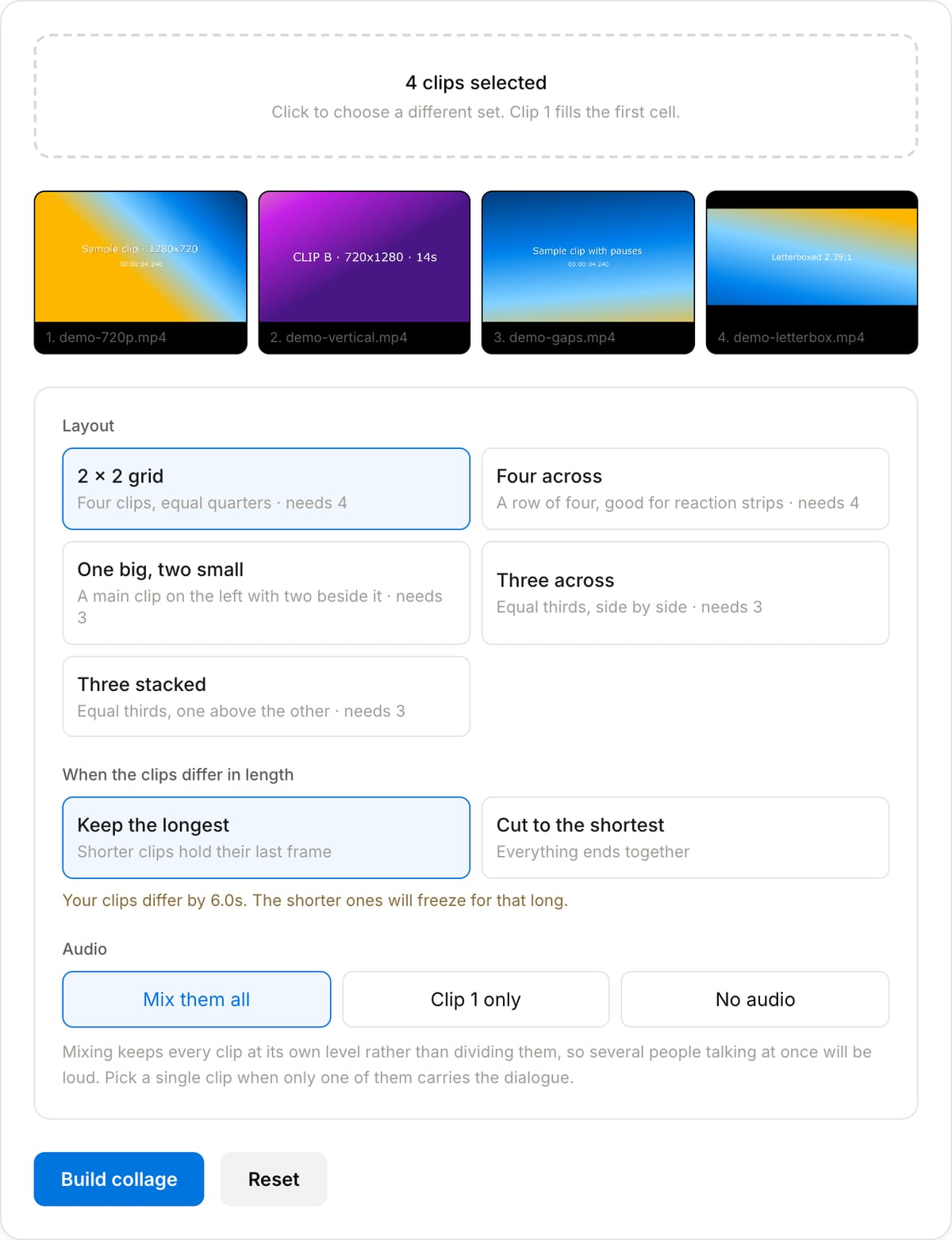
Which layout to pick
The canvas is always 1280×720, so the layout decides how much of that each clip gets. A 2×2 grid gives every clip a 640×360 cell, which is enough to read faces and large text. A row of four leaves each clip 320 pixels wide — fine for a strip of reactions, too narrow for anything with detail in it. Thirds stacked is the one to use when the source clips are portrait, because a tall clip in a wide cell is mostly black bars.
| 2 × 2 grid | 640 × 360 per clip | Four-up comparisons, group calls, multi-angle footage |
|---|---|---|
| Four across | 320 × 720 per clip | Reaction strips where only the faces matter |
| One big, two small | 640 × 720 and 640 × 360 | A main clip with two supporting angles |
| Three across | 426 × 720 per clip | Three portrait clips, or a three-way comparison |
| Three stacked | 1280 × 240 per clip | Wide crops — a timeline, a scoreboard, a ticker |
How to build one
- 1Select three or four clips
Drop them in together. Order matters — clip 1 fills the first cell, and in the feature layout it is the large one.
- 2Pick a layout
A 2x2 grid or a row of four for four clips; thirds across, thirds stacked, or one large clip with two beside it for three.
- 3Decide on length and audio
End with the shortest clip or hold the last frame of the short ones, then choose whether to mix every soundtrack or keep just one.
- 4Build the collage
The clips are combined on your own machine and the finished 1280x720 MP4 downloads straight from the page.
Popular task presets
Best for / not for
Best for
- Four-up comparisons — the same shot at four settings, four takes, four camera angles.
- Reaction strips and group calls where every face needs to stay visible at once.
- Before/after/after grids, sports angles, and A/B tests for a thumbnail or an ad.
Not for
- Moving a clip around the frame, resizing it over time, or animating the layout — the cells are fixed for the whole video.
- More than four clips, or cells with rounded corners, borders, and labels.
- Clips that should play one after another rather than together.
When to use a video collage
- Comparing four renders or settings in one frame — a grid makes the difference obvious in a way four separate clips never do.
- Building a reaction strip from several recordings so each person stays on screen for the whole clip.
- Turning multi-angle footage of one event — phone, action camera, drone — into a single shareable file.
- Making a thumbnail or ad variant test where a reviewer sees all the options playing at once.
Supported formats & limits
| Input containers | MP4, MOV, WebM, MKV, AVI, FLV, WMV, M4V |
|---|---|
| Input codecs | H.264, H.265, VP8, VP9, MPEG-4, MJPEG. Not AV1 — this WebAssembly build has no software AV1 decoder. |
| Output container | MP4 (default) — interoperable with iOS, Android, YouTube, Instagram, X |
| Output codec | H.264 video + AAC audio |
| Max file size | Up to ~2 GB (limited by browser memory) |
| Max duration | No hard limit — depends on file size |
| Cost | Free for any use. No signup. No watermark. |
Video Collage Maker vs. the usual alternatives
| Feature | This tool | Kapwing (free) | Canva (free) | A desktop editor |
|---|---|---|---|---|
| Processing model | Runs locally in your browser | Cloud upload | Cloud upload | Local, after installing |
| Setup | Open a tab, drop four files | Sign up, upload each clip | Sign up, upload each clip | Install, create a project, build the layout |
| Layout control | Five fixed layouts for three or four clips | Free-form canvas | Templates and free-form canvas | Anything, by hand |
| Watermark on output | Never | Free exports are watermarked | Watermark-free on free plan for most elements | No |
| Best for | A quick grid from files you already have | Collaborative editing with templates | Designed social posts | Animated or precise layouts |
Vendor plan limits were checked on September 17, 2026 and change often. Check the vendor pricing page before relying on them.
Why use this collage maker
- Clips are fitted into their cell and padded, never stretched, so a portrait phone clip sitting next to landscape footage keeps its proportions.
- You choose what happens when the clips differ in length: end with the shortest, or hold the last frame of the short ones so nothing is cut. The page tells you how big the difference is before you start.
- Audio is a choice rather than a guess — mix every clip, keep only the first, or drop it. Clips with no audio track are skipped instead of failing the export.
- Nothing is uploaded. Four video files stay on your machine, which also means no upload wait on what is usually several hundred megabytes.
Task-focused FAQ
How many videos can I combine?
Three or four. For two clips use the Split Screen tool, which has layouts made for a pair.
Do the clips have to be the same size or aspect ratio?
No. Each clip is scaled to fit inside its cell and padded with black to fill it, so mixing portrait phone video with landscape footage keeps both shapes intact instead of squashing either one.
What happens if the clips are different lengths?
You decide. "Keep the longest" freezes the last frame of the shorter clips so their cells stay filled until the end; "cut to the shortest" ends everything together and discards the rest. The page shows the size of the difference before you build.
What happens to the audio?
Mixing combines every clip at its own level, which is loud if several people are talking, so pick a single clip when only one of them carries the dialogue. Clips with no audio track are left out of the mix rather than breaking the export.
What resolution is the result?
1280x720. A fixed 16:9 canvas means the file drops straight into a timeline or an upload form without another resize step.
Is anything uploaded?
No. The clips are combined on your own machine with FFmpeg compiled to WebAssembly, so four large files never leave the device.
Frequently Asked Questions
How many videos can I combine?
Three or four. For two clips use the Split Screen tool, which has layouts made for a pair.
Do the clips have to be the same size or aspect ratio?
No. Each clip is scaled to fit inside its cell and padded with black to fill it, so mixing portrait phone video with landscape footage keeps both shapes intact instead of squashing either one.
What happens if the clips are different lengths?
You decide. "Keep the longest" freezes the last frame of the shorter clips so their cells stay filled until the end; "cut to the shortest" ends everything together and discards the rest. The page shows the size of the difference before you build.
What happens to the audio?
Mixing combines every clip at its own level, which is loud if several people are talking, so pick a single clip when only one of them carries the dialogue. Clips with no audio track are left out of the mix rather than breaking the export.
What resolution is the result?
1280x720. A fixed 16:9 canvas means the file drops straight into a timeline or an upload form without another resize step.
Is anything uploaded?
No. The clips are combined on your own machine with FFmpeg compiled to WebAssembly, so four large files never leave the device.