Picture-in-Picture Video Maker — Free, No Upload
Overlay a second video (webcam or reaction) on a corner of your main video. Choose the corner and size. Runs 100% in your browser.
Drag & drop your video here, or click to browse
Max file size: ~2 GB (memory permitting)
What the tool looks like
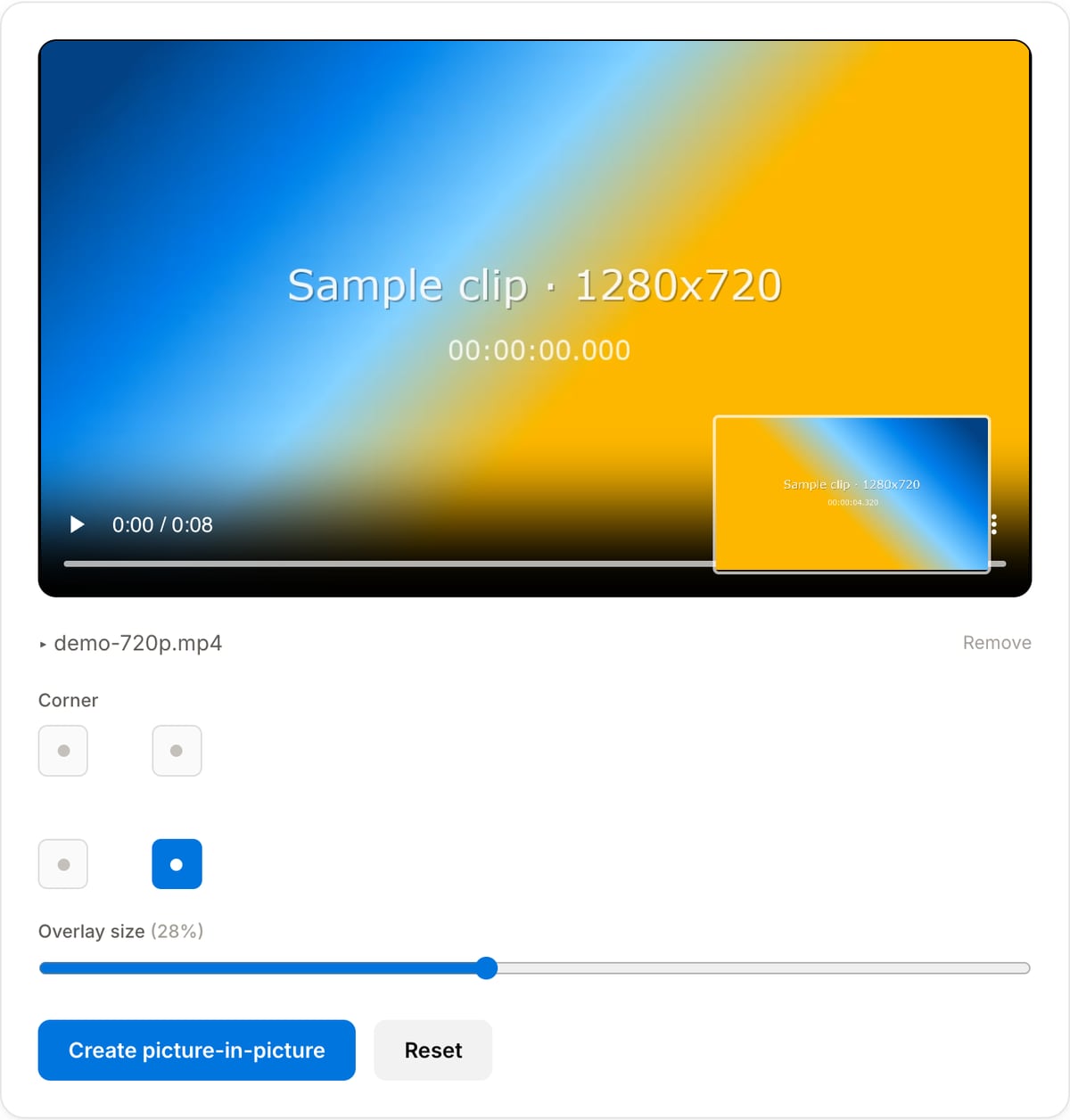
Popular task presets
Best for / not for
Best for
- Webcam commentary over gameplay, a screen recording, or a slide deck.
- Reaction videos where the reaction should stay small and the content stay readable.
- Adding a talking head to a demo without giving it half the frame.
Not for
- Moving the inset around, or showing and hiding it at different points in the video.
- Circular or rounded insets, drop shadows, or a border around the overlay.
- Two clips that deserve equal space — that is a split screen.
When to use picture-in-picture
- Gameplay with a webcam corner — the format every streaming clip uses, without opening a streaming app to make one.
- Screen recordings that need a face: a software demo, a walkthrough, a bug report where tone matters.
- Lecture or conference recordings where the slides fill the frame and the speaker sits in a corner.
- Adding a sign-language or commentary track to a video that is already edited.
Supported formats & limits
| Input containers | MP4, MOV, WebM, MKV, AVI, FLV, WMV, M4V |
|---|---|
| Input codecs | H.264, H.265, VP8, VP9, MPEG-4, MJPEG. Not AV1 — this WebAssembly build has no software AV1 decoder. |
| Output container | MP4 (default) — interoperable with iOS, Android, YouTube, Instagram, X |
| Output codec | H.264 video + AAC audio |
| Max file size | Up to ~2 GB (limited by browser memory) |
| Max duration | No hard limit — depends on file size |
| Cost | Free for any use. No signup. No watermark. |
Why use this picture-in-picture maker
- Pick the corner and the size, see where it lands before you export, and get a plain MP4 out — no timeline, no project file.
- The main video keeps its own resolution; the overlay is scaled to it, so a 1080p screen recording stays 1080p.
- Free with no watermark. Most online PiP tools add their own logo to exactly the corner you were trying to use.
- Both files are processed on your own machine. Screen recordings often contain things that should not be uploaded anywhere.
Task-focused FAQ
How big should the inset be?
Around a fifth of the frame width reads well on a phone without covering much. Go smaller only if the overlay is decorative, and larger only if the face is the point.
Can the overlay move or appear partway through?
No. The position and size are fixed for the whole video. Trim the overlay clip first if it should only cover part of the runtime.
Which audio ends up in the result?
The main video’s audio. Mix in the second clip’s sound first with the Add Music tool if you need both.
Frequently Asked Questions
What is picture-in-picture good for?
Reaction videos (your webcam over gameplay or a match), tutorials (your face over a screen recording), and commentary clips — anywhere you want a second video in a corner.
Which video should I upload first?
Upload the main / background video first, then add the smaller overlay video (for example your webcam). The overlay sits in the corner you choose.
Whose audio is kept?
The main video keeps its audio. If you need to mix both, record commentary into one of the clips first, or combine audio in a dedicated editor.
Does anything upload to a server?
No — both clips are processed locally with FFmpeg WebAssembly. Nothing leaves your browser.