Change Video Resolution Online Free
Change video resolution — downscale 4K to 1080p, 720p, or 480p. Resize for social media, email, or web — all processed in your browser.
Drag & drop your video here, or click to browse
Max file size: ~2 GB (memory permitting)
How to Use — Change Video Resolution Online Free
Upload your video
Drag and drop any video file (MP4, WebM, MOV, AVI) or click to browse. The video loads locally in your browser.
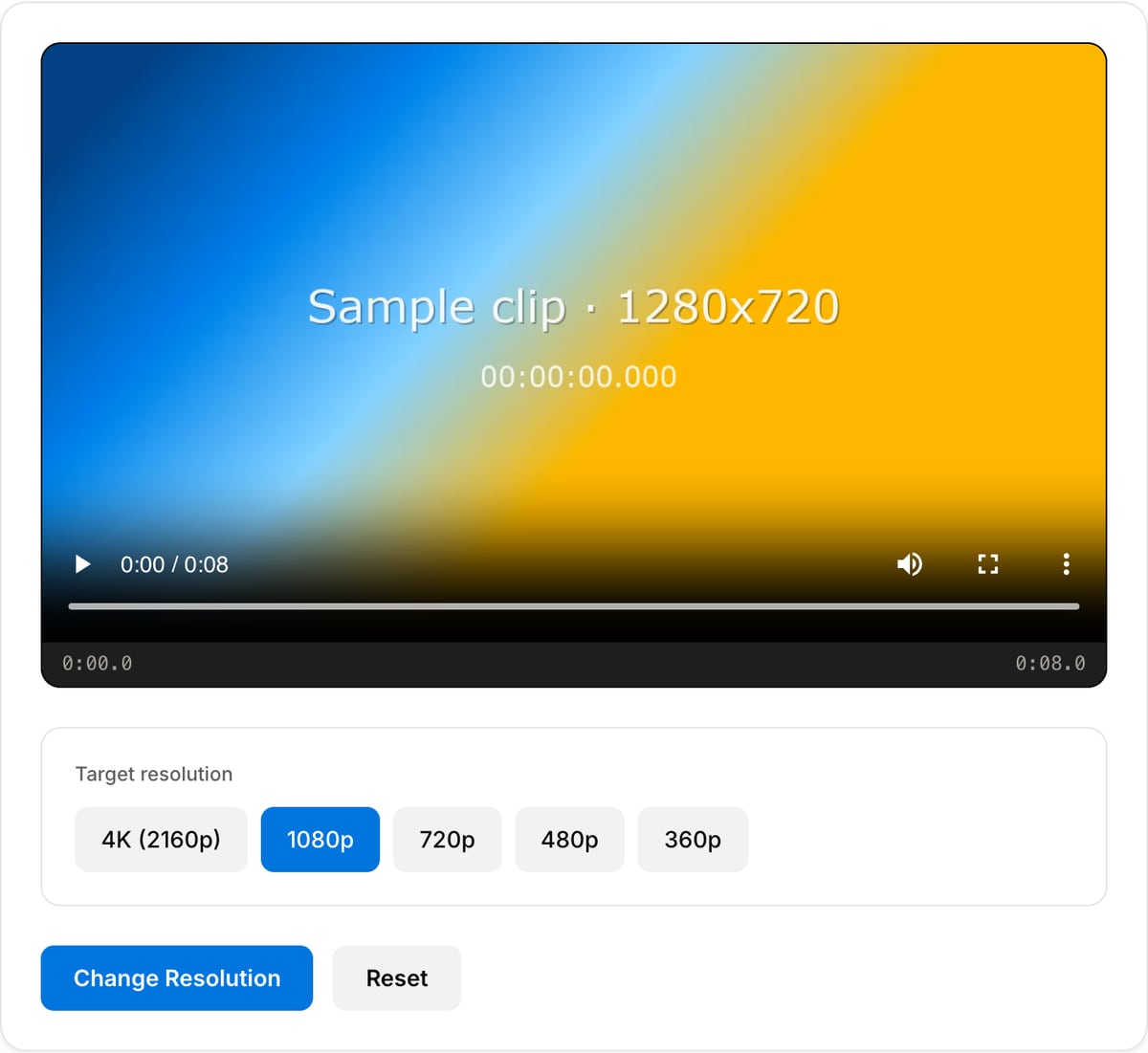
Select target resolution
Choose from presets (4K, 1080p, 720p, 480p) or enter a custom resolution. Aspect ratio is preserved automatically.
Resize and download
Click "Change Resolution" to process. The video is re-encoded at the new resolution. Download when complete.
What the tool looks like
Popular task presets
Best for / not for
Best for
- Changing pixel dimensions while keeping the same basic clip content and aspect ratio.
- Downscaling 4K to 1080p or 720p for faster upload, email, LMS, and client review.
- Making screen recordings, camera exports, and phone footage lighter before compression.
Not for
- Changing composition from horizontal to vertical. Use Video Crop or Video Resizer for aspect-ratio changes.
- Creating real detail from a blurry or low-resolution source.
- Platform-safe padding or crop decisions; those belong in the social resizer.
When to change video resolution
- Downscale a 4K export to 1080p for faster uploads without visible quality loss at normal viewing distances.
- Scale up a small clip to match the project resolution in your editor.
- Shrink a screen recording to make it lighter for documentation.
Supported formats & limits
| Input containers | MP4, MOV, WebM, MKV, AVI, FLV, WMV, M4V |
|---|---|
| Input codecs | H.264, H.265, VP8, VP9, MPEG-4, MJPEG. Not AV1 — this WebAssembly build has no software AV1 decoder. |
| Output container | MP4 (default) — interoperable with iOS, Android, YouTube, Instagram, X |
| Output codec | H.264 video + AAC audio |
| Max file size | Up to ~2 GB (limited by browser memory) |
| Max duration | No hard limit — depends on file size |
| Cost | Free for any use. No signup. No watermark. |
Video Resolution Changer vs. the usual alternatives
| Feature | This tool | VEED (free) | Kapwing (free) | CapCut Online |
|---|---|---|---|---|
| Processing model | Runs locally in your browser | Upload-based project editor | Upload-based project editor | Upload-based online editor |
| File limits | No upload cap; practical limit is browser memory | Plan-specific upload limits | Plan-specific upload and export limits | Feature- and account-specific limits |
| Watermark on output | No watermark added | Free exports include a VEED watermark | Free exports include a Kapwing watermark | Standard edits can be watermark-free; templates/assets may add branding |
| Signup / account | No account for tools | Workspace/account flow | Workspace/account flow | CapCut account flow |
| Works offline | Yes after cache, subject to browser support | No | No | No |
| Best for | Private one-step file operations | Full editor, templates, AI tools | Collaboration, templates, AI tools | Social templates and timeline editing |
Vendor plan limits were checked on April 29, 2026 and can change by region, account state, and export option. Verify critical limits on the vendor pricing/help page before relying on them.
Why resize online
- 100% private — your files never leave your browser, so nothing is uploaded to our servers.
- No watermark, no signup, no hidden limits. Completely free to use, for any purpose.
- Runs on top of FFmpeg compiled to WebAssembly, giving you the same results professionals get in the terminal.
- Works on desktop and mobile, on any OS — only a modern browser is required.
Task-focused FAQ
What resolution should I use for sharing?
Use 1080p for a clean review copy and 720p when attachment size or upload speed matters more.
Should I lower resolution before compression?
Usually yes. Downscaling first reduces the amount of detail the compressor has to encode.
Can upscaling improve an old video?
Upscaling only increases pixel dimensions. It cannot restore detail that was not present in the source.
Frequently Asked Questions
4K vs 1080p vs 720p — what should I choose?
4K for large displays and future-proofing. 1080p is the standard for most content — sharp up to 27-inch screens. 720p for mobile viewing and smaller file sizes.
Upscaling vs downscaling — which is better?
Downscaling (4K to 1080p) always looks great — you discard detail the smaller display cannot show. Upscaling (720p to 4K) cannot add real detail and may look softer. Always prefer downscaling.
Best resolution for social media?
YouTube: 1080p or 4K. Instagram/TikTok: 1080x1920 vertical. Twitter: 1280x720 minimum. For most platforms, 1080p is the best balance of quality and upload speed.
Is the aspect ratio preserved?
Yes. The tool maintains the original aspect ratio by default, preventing stretching. Use the Video Crop tool first if you need a different aspect ratio.