Change Video FPS Online Free — Frame Rate Converter
Change video frame rate — convert between 24fps, 30fps, 60fps, and custom rates. Match platform requirements or create smooth slow-motion from high-fps footage.
Drag & drop your video here, or click to browse
Max file size: ~2 GB (memory permitting)
How to Use — Change Video FPS Online Free — Frame Rate Converter
Upload your video
Drag and drop any video file (MP4, WebM, MOV, AVI) or click to browse. The file stays on your device.
Select target frame rate
24fps for cinematic look, 30fps for standard video, 60fps for ultra-smooth playback, or enter any custom FPS value.
Convert and download
Click "Change FPS" to re-encode at the new frame rate. Download the result when processing is complete.
What the tool looks like
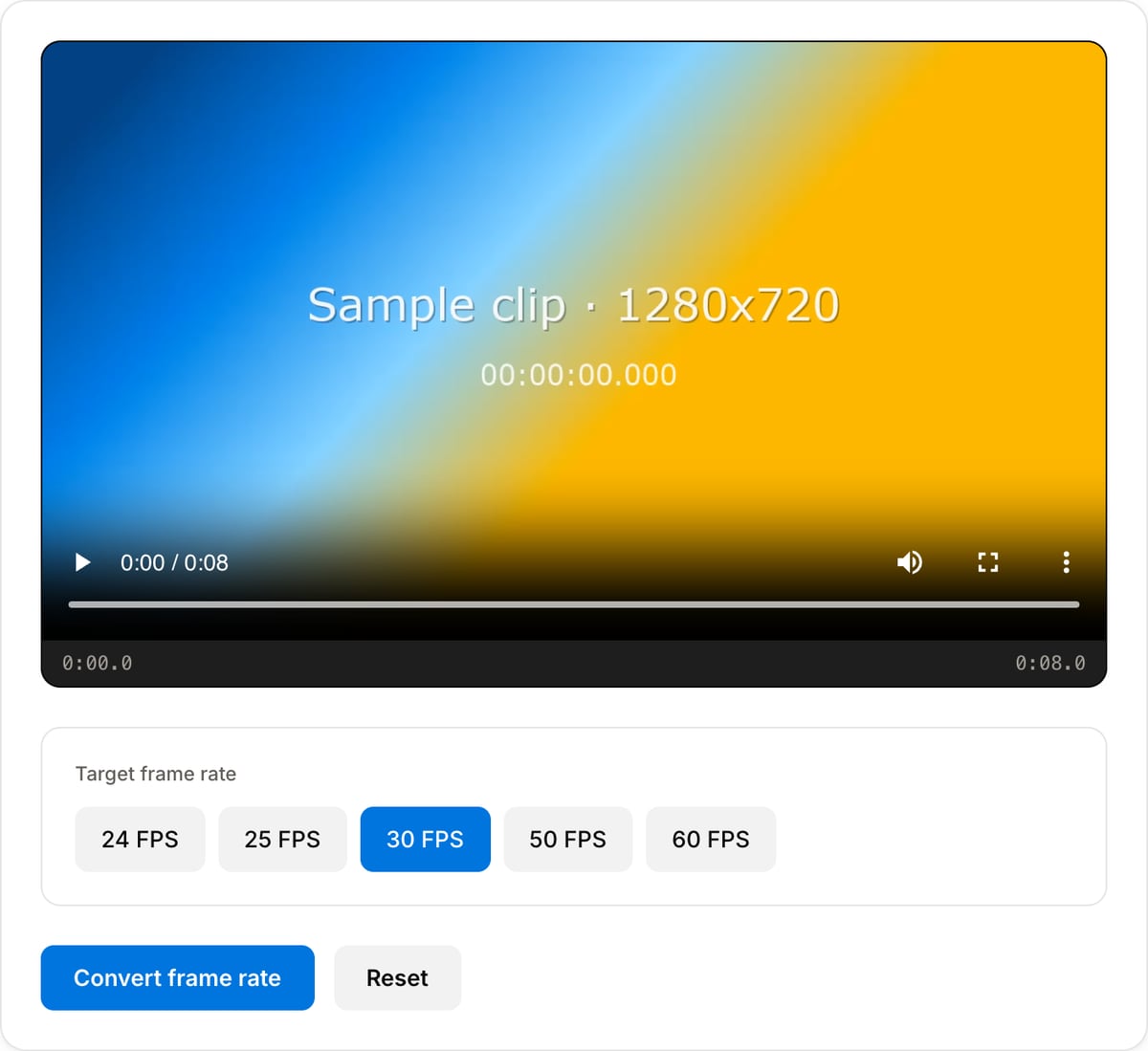
Popular task presets
Best for / not for
Best for
- Changing frame rate for upload compatibility, consistent playback, smaller files, or project matching.
- Converting screen recordings, phone clips, camera exports, and mixed-source footage to 24, 25, 30, or 60 fps.
- Preparing a simple file before importing into another editor.
Not for
- High-end motion interpolation or generating realistic new frames for slow motion.
- Broadcast compliance workflows requiring strict cadence checks.
- Fixing stutter caused by bad source footage or dropped frames.
Best use cases for FPS conversion
- Normalize a phone clip, screen recording, or camera export to 30 fps before posting or editing.
- Create a 24 fps or 25 fps copy to match an existing project timeline.
- Reduce 60 fps footage to 30 fps when file size and compatibility matter more than ultra-smooth motion.
Supported formats & limits
| Input containers | MP4, MOV, WebM, MKV, AVI, FLV, WMV, M4V |
|---|---|
| Input codecs | H.264, H.265, VP8, VP9, MPEG-4, MJPEG. Not AV1 — this WebAssembly build has no software AV1 decoder. |
| Output container | MP4 (default) — interoperable with iOS, Android, YouTube, Instagram, X |
| Output codec | H.264 video + AAC audio |
| Max file size | Up to ~2 GB (limited by browser memory) |
| Max duration | No hard limit — depends on file size |
| Cost | Free for any use. No signup. No watermark. |
FPS Converter vs. the usual alternatives
| Feature | This tool | VEED (free) | Kapwing (free) | CapCut Online |
|---|---|---|---|---|
| Processing model | Runs locally in your browser | Upload-based project editor | Upload-based project editor | Upload-based online editor |
| File limits | No upload cap; practical limit is browser memory | Plan-specific upload limits | Plan-specific upload and export limits | Feature- and account-specific limits |
| Watermark on output | No watermark added | Free exports include a VEED watermark | Free exports include a Kapwing watermark | Standard edits can be watermark-free; templates/assets may add branding |
| Signup / account | No account for tools | Workspace/account flow | Workspace/account flow | CapCut account flow |
| Works offline | Yes after cache, subject to browser support | No | No | No |
| Best for | Private one-step file operations | Full editor, templates, AI tools | Collaboration, templates, AI tools | Social templates and timeline editing |
Vendor plan limits were checked on April 29, 2026 and can change by region, account state, and export option. Verify critical limits on the vendor pricing/help page before relying on them.
Why this FPS converter is different
- Frame-rate targets are direct and practical instead of exposing a long FFmpeg filter chain.
- Useful before merging clips because mixed frame rates can create playback or sync surprises.
- No upload queue, watermark, or account requirement.
Task-focused FAQ
Should I use 30 fps or 60 fps?
Use 30 fps for broad sharing and smaller files. Use 60 fps when smooth motion matters, such as sports, gaming, or fast UI demos.
Does converting FPS make slow motion smoother?
Not by itself. This tool changes frame rate; it does not create high-quality interpolated slow-motion frames.
Can FPS conversion affect audio sync?
Standard frame-rate conversion should preserve duration, but always preview the export when working with long or variable-frame-rate sources.
Tutorials covering this tool
Frequently Asked Questions
24fps vs 30fps vs 60fps — which should I use?
24fps for cinematic, dreamy look. 30fps for vlogs, TV, and general online video. 60fps for sports, gaming, and fast action. Higher fps = smoother but larger files.
Does changing FPS affect quality?
Re-encoding introduces minimal loss. Dropping frames (60 to 30) is clean. Increasing FPS (24 to 60) duplicates frames and may cause slight stuttering in fast motion.
Can I get smooth slow-mo from 60fps footage?
Yes! Convert 60fps to 30fps or 24fps for 2x or 2.5x smooth slow-motion using real frames — much better than slowing down 30fps which needs frame duplication.
What FPS is best for YouTube?
YouTube supports 24, 25, 30, 48, 50, and 60fps. 30fps is the sweet spot for most content. Use 60fps for gaming/sports. 24fps for cinematic work.