Join Two Clips With a Transition
Cross-dissolve, wipe or slide between two clips, with the audio crossfading alongside. Both files are processed locally.
Drag & drop your video here, or click to browse
Max file size: ~2 GB (memory permitting)
How to Use — Join Two Clips With a Transition
Load the clip that plays first
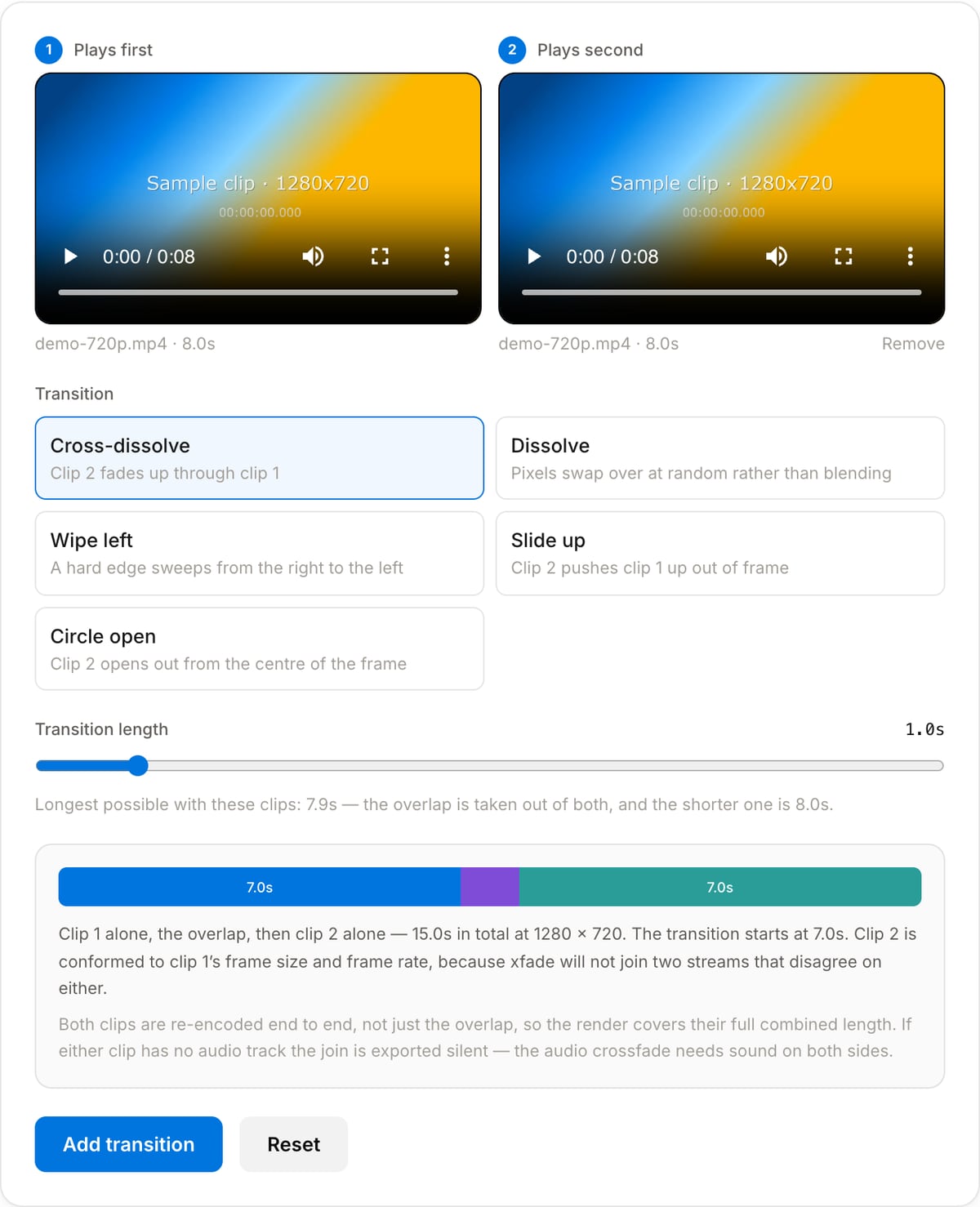
Drop in clip 1, then pick clip 2 underneath it. Order matters — the transition happens at the end of clip 1 and the start of clip 2. Both files stay on your device.
Pick a transition and its length
Cross-dissolve, dissolve, wipe left, slide up or circle open. The slider caps itself at the longest overlap the shorter clip can carry, and the bar underneath shows exactly where the transition lands.
Add transition and download
Clip 2 is fitted into clip 1’s frame and matched to its frame rate, the two are blended with xfade, and the audio is crossfaded over the same seconds. The result is one H.264 MP4.
What the tool looks like
Popular task presets
Best for / not for
Best for
- Joining two takes where a hard cut is too abrupt — an interview answer stitched to a reaction, a before shot into an after shot.
- Softening the seam between clips shot on different cameras, where a cut makes the change of colour and grain obvious.
- A one-off join you would otherwise open a timeline editor for: two files in, one MP4 out.
Not for
- More than two clips. Each run joins exactly one pair; a four-clip sequence means three runs, or the Video Merger for plain cuts.
- Placing the transition anywhere but the seam — it always overlaps the end of clip 1 with the start of clip 2.
- Clips shorter than 0.5 s, and overlaps longer than the shorter clip: the overlap is taken out of both files.
- Zooms, glitch effects, light leaks or anything animated on top of the join — the five xfade names are the whole list.
When to use a transition instead of a cut
- The two shots do not match — different camera, different white balance, different room. A dissolve reads as "time passed" where a cut reads as a mistake.
- Joining a talking head to B-roll, where a hard cut clips the speaker mid-breath and a half-second blend does not.
- Montages and travel edits, where the cross-dissolve is doing the pacing rather than the edit points.
- Anywhere the audio has to turn over with the picture: the sound is crossfaded across exactly the same seconds, not butted together.
Supported formats & limits
| Input containers | MP4, MOV, WebM, MKV, AVI, M4V — anything this build demuxes |
|---|---|
| Input codecs | H.264, H.265/HEVC, VP8, VP9, MPEG-4, MJPEG. Not AV1 — this build has no software AV1 decoder. |
| Output | MP4 — H.264 (veryfast, yuv420p) video with AAC audio |
| Output frame size & rate | Clip 1’s, rounded down to even numbers because x264 refuses odd dimensions. Clip 2 is scaled to fit inside that frame and padded with black, never stretched. |
| Transitions | fade, dissolve, wipeleft, slideup, circleopen — the five xfade names checked against this build’s own filter list |
| Transition length | 0.2 s up to a tenth of a second short of the shorter clip; clips under 0.5 s cannot carry a transition at all |
| Audio | Crossfaded with acrossfade only when both clips have an audio track. If either is silent the join is exported with no sound, because acrossfade fed a stream that does not exist aborts the render. |
| Speed | Both clips are re-encoded end to end, not just the overlap. Two 640×360 clips joined in 4.2 s here; cost scales with pixel count, so 1080p is roughly nine times that. |
| Max file size | Both clips sit in browser memory at once, so the practical ceiling is lower than for single-file tools — a few hundred MB per clip. |
| Cost | Free for any use. No signup. No watermark. |
Video Transition vs. the usual alternatives
| Feature | This tool | VEED (free) | Kapwing (free) | CapCut Online |
|---|---|---|---|---|
| Processing model | Runs locally in your browser | Upload-based project editor | Upload-based project editor | Upload-based online editor |
| File limits | No upload cap; practical limit is browser memory | Plan-specific upload limits | Plan-specific upload and export limits | Feature- and account-specific limits |
| Watermark on output | No watermark added | Free exports include a VEED watermark | Free exports include a Kapwing watermark | Standard edits can be watermark-free; templates/assets may add branding |
| Signup / account | No account for tools | Workspace/account flow | Workspace/account flow | CapCut account flow |
| Works offline | Yes after cache, subject to browser support | No | No | No |
| Best for | Private one-step file operations | Full editor, templates, AI tools | Collaboration, templates, AI tools | Social templates and timeline editing |
Vendor plan limits were checked on April 29, 2026 and can change by region, account state, and export option. Verify critical limits on the vendor pricing/help page before relying on them.
Why use this transition tool
- The slider caps itself at the real limit for the two files you loaded and prints the number, so you cannot set an overlap that fails halfway through a render.
- The bar under the controls shows clip 1 alone, the overlap and clip 2 alone before anything runs, so the length and the position of the join are visible up front.
- Clip 2 is fitted into clip 1’s frame and padded rather than squashed, so joining a portrait phone clip to landscape footage keeps both shapes.
- Both clips are checked for an audio track first. One of them silent, and the page says the join will be silent rather than failing with a stream-specifier error.
- Nothing is uploaded. Two video files — usually several hundred megabytes together — stay on your machine, and there is no upload wait before the work starts.
Task-focused FAQ
What transitions can I use?
Five, all from FFmpeg’s xfade filter: cross-dissolve (a smooth blend), dissolve (pixels swap over at random), wipe left (a hard edge sweeping right to left), slide up (clip 2 pushes clip 1 out of frame) and circle open (clip 2 opens out from the centre). They are the ones verified against the filter list in this browser build, rather than everything xfade offers on a desktop FFmpeg.
How long can the transition be?
Up to a tenth of a second short of the shorter clip. The overlap is taken out of both clips, so a 2 s clip cannot carry a 3 s dissolve. The slider caps itself at the real limit for the two files you loaded and prints the number, so you cannot set a length that will fail.
Do the two clips have to be the same size?
No. xfade does require it, so clip 2 is scaled to fit inside clip 1’s frame and padded with black rather than stretched to match — a portrait clip joined to landscape footage keeps its shape. Clip 1’s frame size and frame rate become the output’s.
What happens to the audio?
It is crossfaded over exactly the same seconds as the picture, with FFmpeg acrossfade, so the sound turns over on the same frame the image does. If either clip has no audio track at all the join is exported silent: a crossfade needs sound on both sides, and feeding acrossfade a stream that does not exist aborts the whole render.
Can I join more than two clips?
Not in one run. Each render takes exactly one pair, so a three-clip sequence means joining the first two, then feeding the result back in as clip 1. For plain cuts with no overlap, the Video Merger takes any number of files at once.
Why does it take longer than trimming or merging?
Both clips are decoded and re-encoded end to end, not just the overlapping seconds, because the two streams have to be put on one shared frame size, pixel aspect and frame rate before they can be blended. Two 640×360 clips joined in 4.2 s here; the cost scales with pixel count, so the same join at 1080p is roughly nine times that.
My clip has no preview and the length is blank — will it still work?
Usually yes. Browsers refuse to open some containers they cannot decode — MKV, AVI, HEVC in MOV — even though the engine here reads them fine, so the preview and the timeline bar stay empty. FFmpeg measures the clip itself during the render, and if it cannot read it either you get a message saying so instead of a silent failure.
Is anything uploaded?
No. Both files are read, decoded and re-encoded in the browser tab. Nothing is sent to a server, and there is no watermark or sign-in.
Frequently Asked Questions
What transitions can I use?
Five, all from FFmpeg’s xfade filter: cross-dissolve (a smooth blend), dissolve (pixels swap over at random), wipe left (a hard edge sweeping right to left), slide up (clip 2 pushes clip 1 out of frame) and circle open (clip 2 opens out from the centre). They are the ones verified against the filter list in this browser build, rather than everything xfade offers on a desktop FFmpeg.
How long can the transition be?
Up to a tenth of a second short of the shorter clip. The overlap is taken out of both clips, so a 2 s clip cannot carry a 3 s dissolve. The slider caps itself at the real limit for the two files you loaded and prints the number, so you cannot set a length that will fail.
Do the two clips have to be the same size?
No. xfade does require it, so clip 2 is scaled to fit inside clip 1’s frame and padded with black rather than stretched to match — a portrait clip joined to landscape footage keeps its shape. Clip 1’s frame size and frame rate become the output’s.
What happens to the audio?
It is crossfaded over exactly the same seconds as the picture, with FFmpeg acrossfade, so the sound turns over on the same frame the image does. If either clip has no audio track at all the join is exported silent: a crossfade needs sound on both sides, and feeding acrossfade a stream that does not exist aborts the whole render.
Can I join more than two clips?
Not in one run. Each render takes exactly one pair, so a three-clip sequence means joining the first two, then feeding the result back in as clip 1. For plain cuts with no overlap, the Video Merger takes any number of files at once.
Why does it take longer than trimming or merging?
Both clips are decoded and re-encoded end to end, not just the overlapping seconds, because the two streams have to be put on one shared frame size, pixel aspect and frame rate before they can be blended. Two 640×360 clips joined in 4.2 s here; the cost scales with pixel count, so the same join at 1080p is roughly nine times that.
My clip has no preview and the length is blank — will it still work?
Usually yes. Browsers refuse to open some containers they cannot decode — MKV, AVI, HEVC in MOV — even though the engine here reads them fine, so the preview and the timeline bar stay empty. FFmpeg measures the clip itself during the render, and if it cannot read it either you get a message saying so instead of a silent failure.
Is anything uploaded?
No. Both files are read, decoded and re-encoded in the browser tab. Nothing is sent to a server, and there is no watermark or sign-in.