FFmpeg Command Generator
Build complex FFmpeg commands without memorizing syntax. Choose an operation — trim, convert, resize, extract audio, compress — and get a copy-paste-ready command line.
ffmpeg -i input.mp4 -ss 00:00:00 -to 00:00:10 -c copy input_output.mp4
How to Use — FFmpeg Command Generator
Select operation
Choose the FFmpeg operation you need — trim, convert, compress, extract audio, resize, and more.
Fill parameters
Enter the required parameters such as file names, time codes, resolution, or codec settings for your specific use case.
Copy generated command
Review the generated FFmpeg command and click the copy button to copy it to your clipboard instantly.
Run in terminal
Paste the command into your terminal or command prompt and execute it. FFmpeg handles the rest.
What the tool looks like
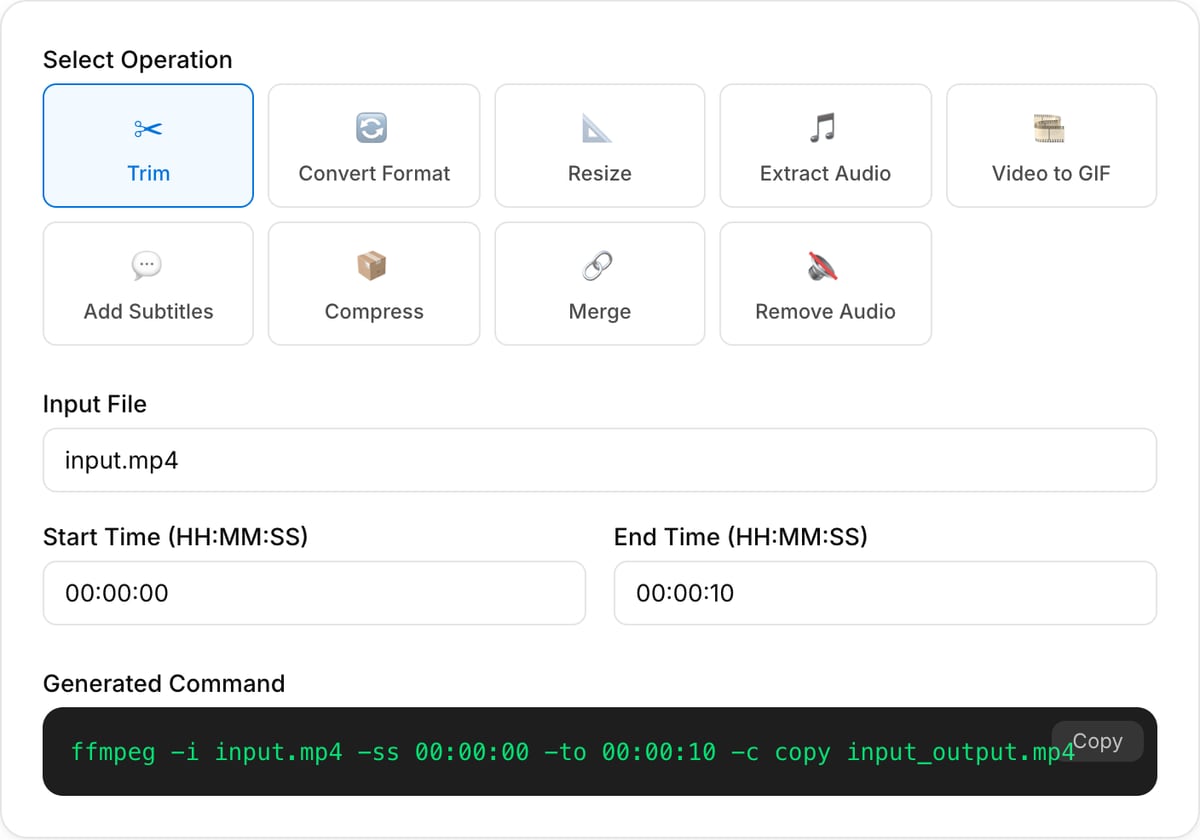
Popular task presets
Best for / not for
Best for
- Building FFmpeg commands for common tasks without memorizing flags.
- Trim, convert, resize, compress, extract audio, GIF, metadata, and format workflows.
- Learning what a UI tool is doing under the hood before automating it locally.
Not for
- Every advanced FFmpeg filtergraph, stream map, hardware encoder, or broadcast workflow.
- Executing commands on the server. This page generates commands for you to run locally.
- Repairing broken source files automatically.
Best use cases for FFmpeg command generation
- Create a command for trimming, converting, resizing, compressing, extracting audio, or making a GIF.
- Move from a browser workflow to a repeatable local terminal command for batch work.
- Teach teammates or documentation readers the exact FFmpeg command behind a media operation.
Command-generation scope
| Runs where | Commands are meant for your local terminal after installing FFmpeg. |
|---|---|
| File names | Review paths and quoting before running a generated command on real files. |
| Advanced use | Complex filtergraphs, hardware acceleration, subtitles, and stream mapping may need manual edits. |
| Best next step | Use UI tools for one-off jobs and FFmpeg commands for repeatable or batch jobs. |
Why this FFmpeg generator is different
- It targets common editor jobs instead of dumping every possible FFmpeg flag into one form.
- It helps users graduate from one-off browser edits to repeatable local automation.
- The generated command is transparent, editable, and easy to document.
Task-focused FAQ
Does the generator run FFmpeg for me?
No. It creates a command you can copy and run on your own machine.
Can I use it for batch processing?
Use the generated command as a starting point, then wrap it in a shell loop or script for batches.
Why use a browser tool instead of FFmpeg?
Use browser tools for visual one-off tasks. Use FFmpeg commands when you need repeatability or automation.
Frequently Asked Questions
What is FFmpeg?
FFmpeg is a free, open-source command-line tool for processing video and audio files. It can convert formats, trim clips, extract audio, compress files, and much more.
How do I trim a video with FFmpeg?
Use: ffmpeg -i input.mp4 -ss 00:00:10 -to 00:00:30 -c copy output.mp4. The -ss flag sets the start time, -to sets the end time, and -c copy avoids re-encoding.
How do I convert a video format with FFmpeg?
Use: ffmpeg -i input.avi output.mp4. FFmpeg automatically selects appropriate codecs. You can specify codecs with -c:v (video) and -c:a (audio).
What are the most common FFmpeg commands?
Common commands include trimming (-ss/-to), format conversion, compression (-crf), extracting audio (-vn), resizing (-vf scale=), and changing playback speed (-filter:v setpts).