Green Screen Video Editor — Chroma Key Online Free
Key out a green or blue backdrop and put your subject on an image, another video, a solid colour — or export a transparent WebM. Adjustable similarity, edge blend and spill removal.
Drag & drop your video here, or click to browse
MP4, MOV, WebM, MKV
How to Use — Green Screen Video Editor — Chroma Key Online Free
Upload the green-screen clip
Any MP4, MOV, WebM or MKV shot against a green or blue backdrop. The footage is keyed locally with FFmpeg WebAssembly — nothing is uploaded.
Tune the key
Pick Green or Blue (or the exact colour of your backdrop). Raise similarity until the backdrop disappears, keep blend around 0.1 for soft hair edges, and leave despill on to remove the green tint from skin and clothes.
Choose a background and export
Drop in a background image or video, pick a solid colour, or export a transparent WebM / ProRes 4444 for use in Premiere, Resolve or CapCut. Download the keyed file when it finishes.
What the tool looks like
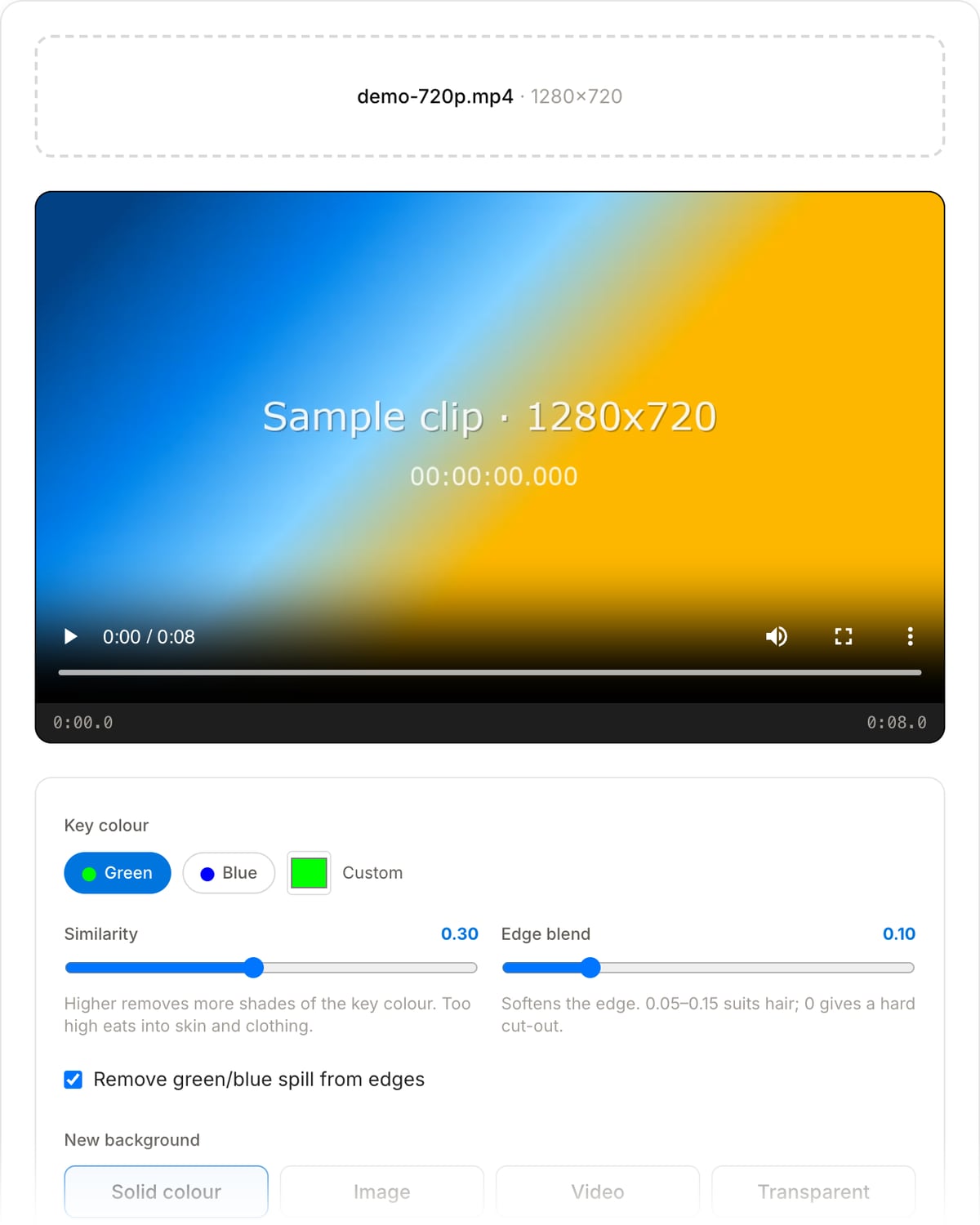
Best use cases for the green screen tool
- Put a talking-head clip on a branded background, a product shot or B-roll without opening Premiere.
- Key out the green backdrop on stream overlays, reaction cams and VTuber-style webcam footage.
- Export a transparent WebM of a presenter to layer in CapCut, Canva Video, DaVinci Resolve or a web page.
- Replace the blue screen behind a weather-style explainer with a map or slide.
- Composite a subject shot on a cheap fabric backdrop into a virtual set for a course intro.
Supported formats & limits
| Foreground | MP4, MOV, WebM, MKV — any resolution, frame rate is preserved |
|---|---|
| Background | Solid colour, any image (PNG, JPG, WebP, scaled and cropped to fit) or any video (looped to the foreground length) |
| Key colour | Green, blue or any custom colour; similarity 0.05–0.6, edge blend 0–0.5, optional spill removal |
| Output | MP4 (H.264 CRF 20, AAC) — or, for "Transparent", WebM (VP8 alpha + Opus) or ProRes 4444 MOV (10-bit alpha + PCM) |
| Max file size | Up to ~2 GB (limited by browser memory); alpha WebM export is slower than MP4 |
| Cost | Free for any use. No signup. No watermark. |
Green Screen tool vs. the usual alternatives
| Feature | This tool | Kapwing | VEED | CapCut Online |
|---|---|---|---|---|
| Processing model | Local FFmpeg chroma key in your browser | Upload, AI or chroma key | Upload, chroma key | Upload, AI background removal |
| Transparent export | WebM (VP8 alpha) or ProRes 4444 | Paid tiers | Paid tiers | Limited |
| Watermark on free plan | None | Yes | Yes | Depends on assets used |
| Video background | Yes, looped automatically | Yes | Yes | Yes |
| File limits | Browser memory only | Plan-based | Plan-based | Account-based |
| Best for | Private, evenly lit green/blue screens | Footage without a screen (AI) | Team editing | Social templates |
Chroma key needs an actual coloured backdrop. For footage without one, AI segmentation tools are the right choice — at the cost of uploading the video.
Why this green screen tool is different
- The clip never leaves your browser — the key runs on FFmpeg WebAssembly, so unreleased footage and client work stay private.
- Real controls (similarity, blend, spill) instead of a single slider, so you can save a badly lit screen.
- Transparent WebM and ProRes 4444 export are free — most online editors lock alpha export behind a subscription.
- The background inherits the foreground frame rate; no dropped or duplicated frames from a mismatch.
Task-focused FAQ
Green or blue — which screen is better?
Green needs less light and digital sensors resolve it best, so it is the default. Blue is better when the subject wears green, or for night scenes where green spill would look unnatural.
Why is the edge flickering?
Usually noise from a high ISO or a compressed source. Raise blend to 0.15–0.2 to soften the key, and if you can, re-export the source at a higher bitrate before keying.
Can I key a photo?
For stills use the Image Background Remover — it needs no coloured backdrop at all. This tool is for video.
Tutorials covering this tool
Frequently Asked Questions
Does this work with any green screen, even a bedsheet?
Yes, as long as the backdrop is one reasonably even colour and lit separately from the subject. Wrinkles and shadows show up as darker greens — raise similarity a little to include them, or lower it if the key starts eating into the subject.
What do similarity and blend actually do?
Similarity is how far a pixel can be from the key colour and still be removed — 0.3 is a good start, 0.4–0.5 for unevenly lit screens. Blend feathers the edge: 0 is a hard cut-out, 0.1–0.15 keeps fine hair and motion blur looking natural.
Can I get a transparent video out?
Yes. Choose "Transparent" as the background and the tool exports either a WebM (VP8 with alpha) or a ProRes 4444 MOV. MP4/H.264 cannot store transparency, which is why the format switches. Browsers, CapCut and Canva read the WebM; Premiere, DaVinci Resolve and Final Cut prefer the ProRes file.
My subject is wearing green — what now?
Chroma key removes every pixel close to the key colour, so green clothing will vanish. Switch to a blue backdrop when you shoot, or key on blue if the outfit is green. For everything else there is no way around it without rotoscoping in a desktop editor.
Why is there a green fringe around hair?
That is colour spill — light bouncing off the screen onto the subject. Keep "remove green spill" enabled; it neutralises the tint on the edges. If a halo remains, nudge blend up to 0.15 and similarity down slightly.
Does the background video need to be the same length?
No. A shorter background loops automatically until the foreground ends, and a longer one is cut to match. Images are held for the whole clip.