Replace Audio in Video Online Free
Replace the audio track in your video with a new audio file. Keep the original video quality while swapping music, voiceover, or sound effects.
Drop your video here, or click to browse
Drop the replacement audio here, or click to browse
How to Use — Replace Audio in Video Online Free
Upload your video
Drag and drop any video file (MP4, WebM, MOV, AVI) or click to browse. Your video stays on your device.
Add replacement audio
Upload your new audio file — MP3, WAV, AAC, OGG, or FLAC. This will replace the existing audio track entirely.
Replace and download
Click "Replace Audio" to swap tracks. Video quality is preserved (stream copy). Download the result when done.
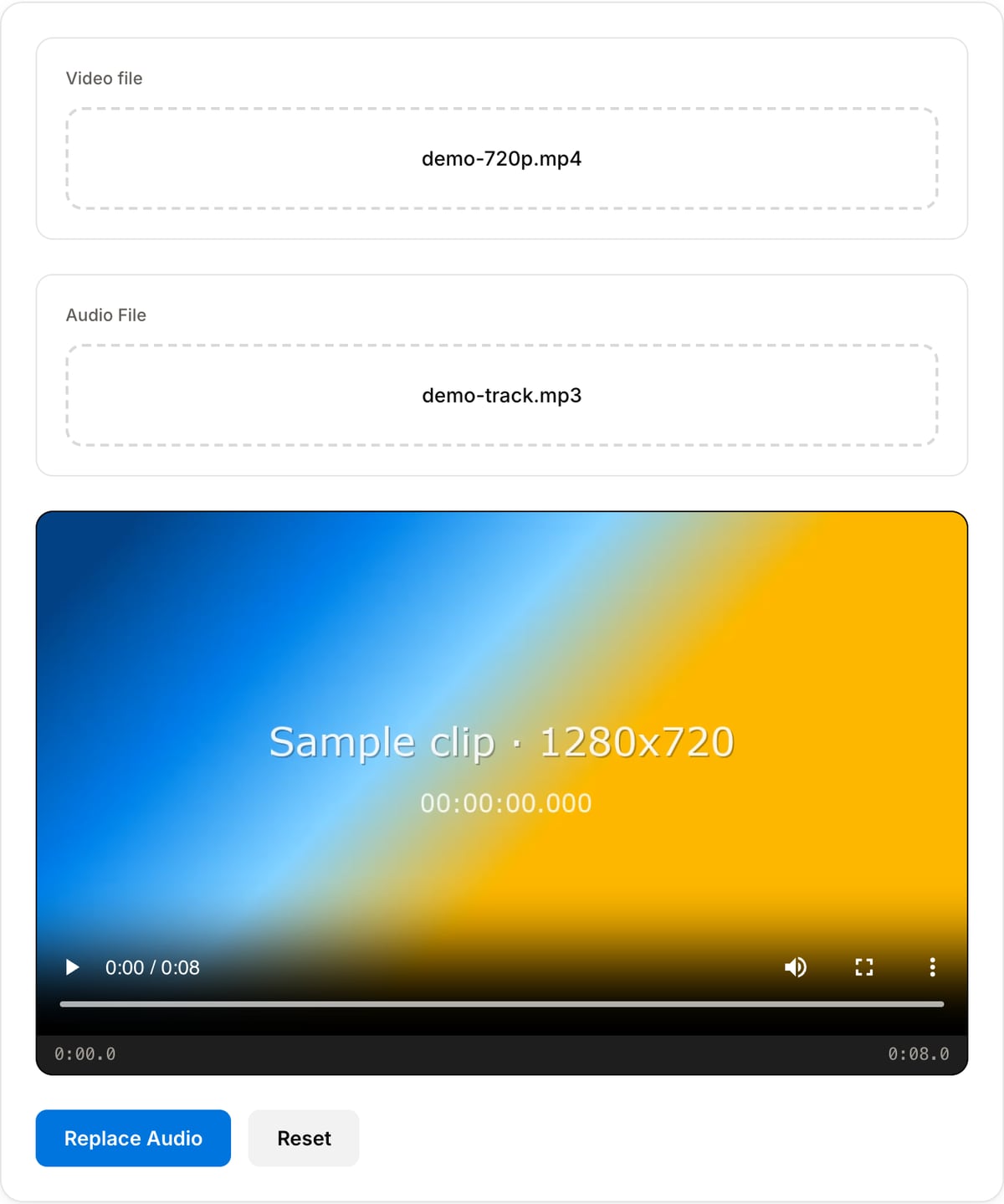
What the tool looks like
Popular task presets
Best for / not for
Best for
- Replacing noisy camera audio with a clean voiceover, podcast mix, music bed, or translated track.
- Adding finished audio to slideshows, demos, ads, course videos, and social clips.
- Simple one-track replacement where the new audio should start at the beginning.
Not for
- Multi-track mixing, ducking, fades, keyframes, or precise music editing.
- Automatic lip-sync repair or transcript-based dubbing.
- Fixing an audio track that is out of sync before replacement.
Best use cases for replacing video audio
- Swap a noisy camera mic for a cleaned voiceover, podcast track, or recorded narration.
- Add background music to a silent product demo, slideshow, tutorial, or social clip.
- Replace the original language track with a dubbed or translated audio file.
Supported formats & limits
| Input formats | MP3, WAV, AAC/M4A, OGG, FLAC, Opus, WebM — any codec FFmpeg understands |
|---|---|
| Output formats | MP3 (192/320 kbps), AAC (192/256 kbps), WAV (lossless), OGG Vorbis, FLAC (lossless) |
| Max file size | Up to ~2 GB (limited by browser memory) |
| Max duration | No hard limit — multi-hour files work fine |
| Cost | Free for any use. No signup. No watermark on output. |
Audio Replacer vs. the usual alternatives
| Feature | This tool | VEED (free) | Kapwing (free) | CapCut Online |
|---|---|---|---|---|
| Processing model | Runs locally in your browser | Upload-based project editor | Upload-based project editor | Upload-based online editor |
| File limits | No upload cap; practical limit is browser memory | Plan-specific upload limits | Plan-specific upload and export limits | Feature- and account-specific limits |
| Watermark on output | No watermark added | Free exports include a VEED watermark | Free exports include a Kapwing watermark | Standard edits can be watermark-free; templates/assets may add branding |
| Signup / account | No account for tools | Workspace/account flow | Workspace/account flow | CapCut account flow |
| Works offline | Yes after cache, subject to browser support | No | No | No |
| Best for | Private one-step file operations | Full editor, templates, AI tools | Collaboration, templates, AI tools | Social templates and timeline editing |
Vendor plan limits were checked on April 29, 2026 and can change by region, account state, and export option. Verify critical limits on the vendor pricing/help page before relying on them.
Why this audio replacer is different
- Focused on one job: attach the chosen audio track to the video without timeline setup.
- Works well with the muter and normalizer, so you can remove the original sound and level the replacement first.
- Private browser processing keeps unreleased demos, lessons, and client footage local.
Task-focused FAQ
What audio formats can I use?
MP3, WAV, AAC/M4A, OGG, FLAC, Opus, and WebM audio are practical inputs as long as the browser/FFmpeg can decode them.
What happens if the audio is longer than the video?
The output is typically limited to the video duration so extra audio does not continue after the picture ends.
Should I normalize audio before replacing it?
Yes when the new track is too quiet, too loud, or inconsistent. Normalize first, then replace the video audio.
Tutorials covering this tool
Frequently Asked Questions
What audio formats can I use?
MP3, WAV, AAC, OGG, FLAC, and M4A. MP3 and AAC are the most common and compatible with all video containers.
Will video quality change?
No. The tool uses stream copy for the video track — no re-encoding. Your video quality remains pixel-perfect; only the audio track is swapped.
Can I sync audio timing?
The replacement audio starts at the beginning of the video. If audio is longer, it gets trimmed. If shorter, remaining video has silence. Pre-trim your audio for precise timing.
What formats are supported?
Video: MP4, WebM, MOV, AVI. Audio: MP3, WAV, AAC, OGG, FLAC, M4A. All processing happens in your browser.