Add Text to Video Online Free — Title, Caption, Watermark Text
Overlay styled text on video. Adjustable size, color, position, background box. Runs in-browser — no upload.
Drag & drop your video here, or click to browse
Max file size: ~2 GB (memory permitting)
What the tool looks like
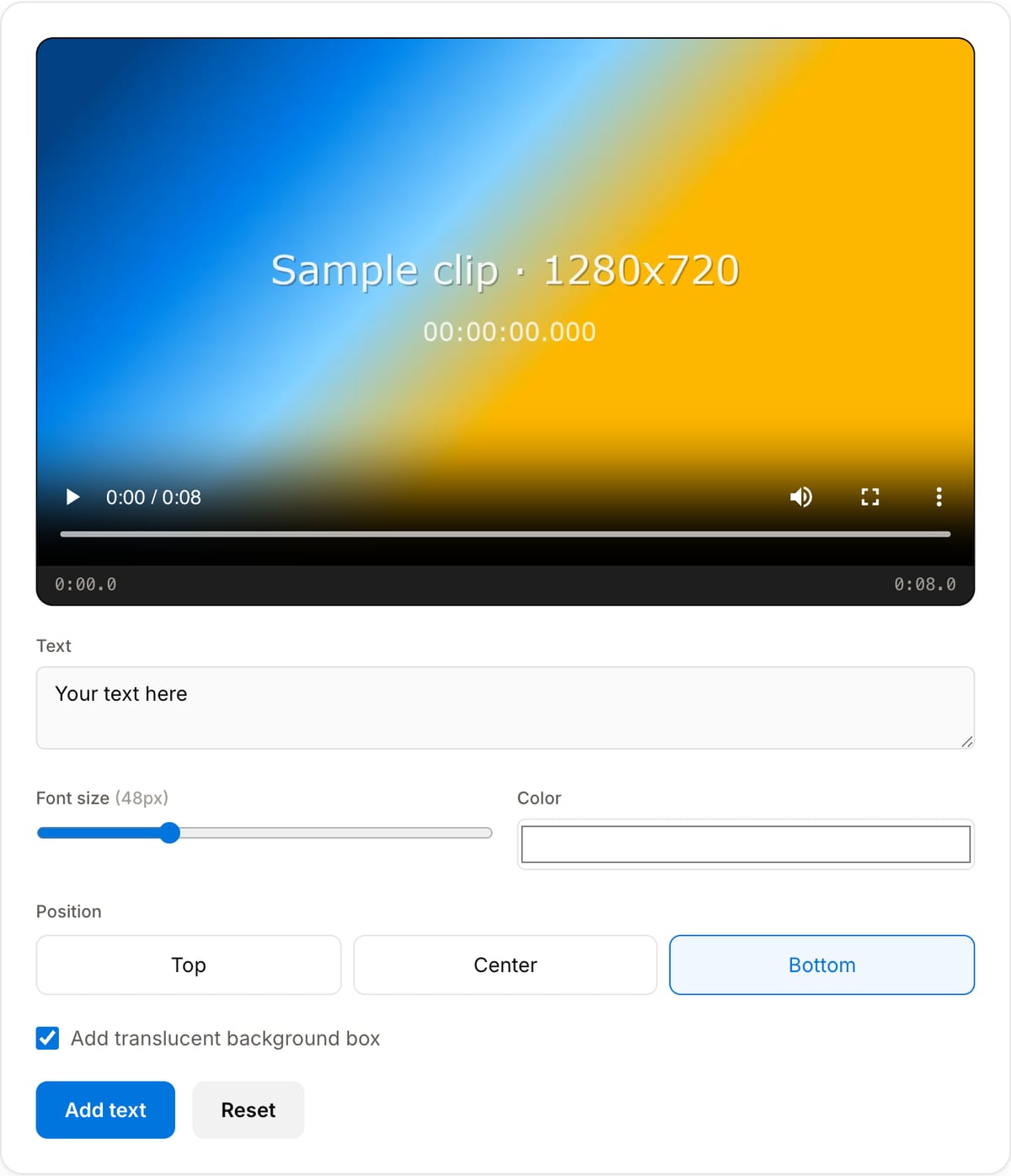
Popular task presets
Best for / not for
Best for
- Static text overlays such as titles, labels, disclaimers, timestamps, handles, and short calls to action.
- Product demos, course clips, tutorials, social posts, and internal review videos.
- Simple positioned text where a full motion-graphics editor would be overkill.
Not for
- Timed subtitle tracks with many lines. Use Subtitle Burner for caption workflows.
- Animated typography, lower-thirds templates, motion tracking, or keyframed text.
- Replacing a full design tool for complex thumbnail or ad layouts.
Best use cases for text overlays
- Add a title, step label, warning, product name, chapter marker, or social handle directly onto the video.
- Mark a draft with review text before sending it to a client or teammate.
- Create quick instructional overlays for screen recordings, demos, and course clips.
Supported formats & limits
| Input containers | MP4, MOV, WebM, MKV, AVI, FLV, WMV, M4V |
|---|---|
| Input codecs | H.264, H.265, VP8, VP9, MPEG-4, MJPEG. Not AV1 — this WebAssembly build has no software AV1 decoder. |
| Output container | MP4 (default) — interoperable with iOS, Android, YouTube, Instagram, X |
| Output codec | H.264 video + AAC audio |
| Max file size | Up to ~2 GB (limited by browser memory) |
| Max duration | No hard limit — depends on file size |
| Cost | Free for any use. No signup. No watermark. |
Text Overlay Tool vs. the usual alternatives
| Feature | This tool | VEED (free) | Kapwing (free) | CapCut Online |
|---|---|---|---|---|
| Processing model | Runs locally in your browser | Upload-based project editor | Upload-based project editor | Upload-based online editor |
| File limits | No upload cap; practical limit is browser memory | Plan-specific upload limits | Plan-specific upload and export limits | Feature- and account-specific limits |
| Watermark on output | No watermark added | Free exports include a VEED watermark | Free exports include a Kapwing watermark | Standard edits can be watermark-free; templates/assets may add branding |
| Signup / account | No account for tools | Workspace/account flow | Workspace/account flow | CapCut account flow |
| Works offline | Yes after cache, subject to browser support | No | No | No |
| Best for | Private one-step file operations | Full editor, templates, AI tools | Collaboration, templates, AI tools | Social templates and timeline editing |
Vendor plan limits were checked on April 29, 2026 and can change by region, account state, and export option. Verify critical limits on the vendor pricing/help page before relying on them.
Why this text overlay tool is different
- It is tuned for quick static overlays: type the text, choose placement and style, export.
- The overlay is rendered into the final video, so the text remains visible after upload.
- Local processing keeps internal demos, draft lessons, and client footage off upload-based editors.
Task-focused FAQ
Should I use text overlay or subtitles?
Use text overlay for static labels and calls to action. Use subtitles when the text needs timing across many lines.
Can I add a draft or preview label?
Yes. Use a centered or corner text overlay with lower opacity for draft review copies.
Will the text be editable later?
No. The text is burned into the pixels, so keep the original source if you may need changes.
Tutorials covering this tool
Frequently Asked Questions
Can I add text only to part of the video?
Not in this tool — the text shows for the full duration. For time-ranged captions author an SRT in any plain-text editor and burn it in with the Subtitle Burner tool.
Does it support emoji and non-Latin characters?
Partial — FFmpeg drawtext uses the embedded default font which covers Latin/Cyrillic/Greek. Chinese/Japanese/Korean/Arabic and emoji are unlikely to render. For those, use the Subtitle Burner with an ASS file specifying a font that supports your script.
Is it the same as a watermark?
Functionally similar (persistent overlay) but the Watermark tool is optimised for logos and corner placement. Use this tool for text-focused overlays (titles, call-to-action, disclaimers).
Will the quality change?
Video is re-encoded at CRF 23 (visually lossless). Audio is stream-copied — untouched.