Stabilize Shaky Video Online Free — No Watermark
Smooth out camera shake in the browser. Three strength levels that each run the correction another time, plus an edge trim that hides the smearing stabilisation leaves at the borders. Nothing is uploaded.
Drag & drop your video here, or click to browse
Max file size: ~2 GB (memory permitting)
How to Use — Stabilize Shaky Video Online Free — No Watermark
Upload your shaky video
Drag and drop any video file (MP4, WebM, MOV). The video loads locally — nothing is uploaded to any server.
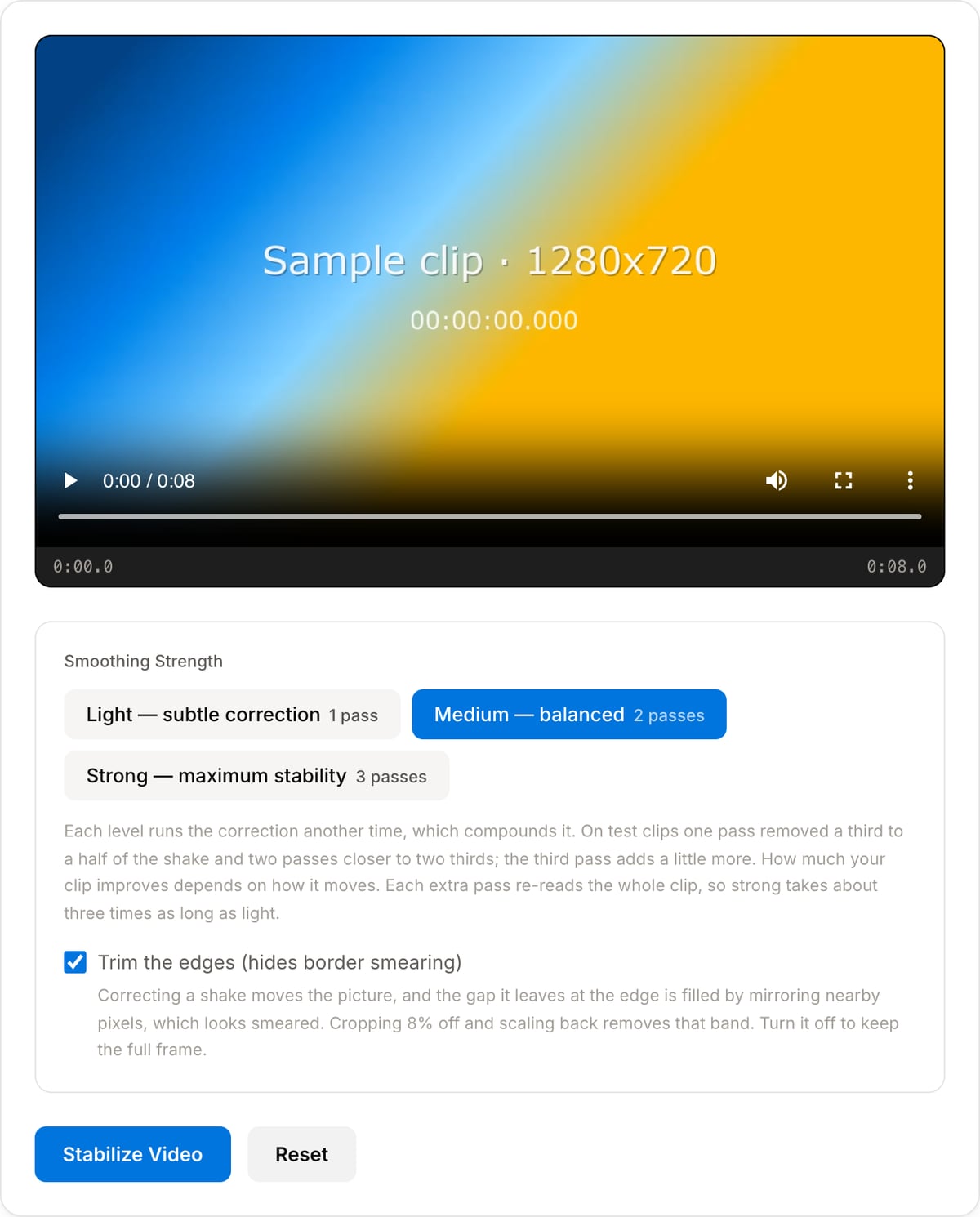
Choose smoothing strength
Light for subtle correction (keeps natural camera movement), Medium for balanced results (best for most footage), or Strong for maximum stability.
Process the footage
Click "Stabilize Video". FFmpeg runs the deshake filter frame-by-frame, shifting each frame to compensate for camera shake. Expect roughly 1-2× video duration depending on resolution and smoothing strength.
Preview and download
Preview the stabilized result, compare with the original, and download your smooth video. No watermark, no quality loss beyond stabilization cropping.
What the tool looks like
Popular task presets
Best for / not for
Best for
- Mild handheld shake from phone, action-cam, drone, walking, event, and travel footage.
- Short clips where a browser-side stabilization pass is practical.
- Prepping shaky footage before trimming, cropping, compressing, or publishing.
Not for
- Severe motion blur, rolling-shutter wobble, fast pans, or footage with no stable reference points.
- Professional shot matching or warp stabilization with detailed tuning.
- Very long 4K files on low-memory devices.
Best use cases for video stabilization
- Smooth a handheld phone clip, walking shot, product demo, travel moment, or action-cam segment.
- Make classroom, event, interview, and behind-the-scenes footage easier to watch before publishing.
- Stabilize first, then crop slightly if the corrected frame reveals moving edges.
Supported formats & limits
| Input containers | MP4, MOV, WebM, MKV, AVI, FLV, WMV, M4V |
|---|---|
| Input codecs | H.264, H.265, VP8, VP9, MPEG-4, MJPEG. Not AV1 — this WebAssembly build has no software AV1 decoder. |
| Output container | MP4 (default) — interoperable with iOS, Android, YouTube, Instagram, X |
| Output codec | H.264 video + AAC audio |
| Max file size | Up to ~2 GB (limited by browser memory) |
| Max duration | No hard limit — depends on file size |
| Cost | Free for any use. No signup. No watermark. |
Video Stabilizer vs. the usual alternatives
| Feature | This tool | VEED (free) | Kapwing (free) | CapCut Online |
|---|---|---|---|---|
| Processing model | Runs locally in your browser | Upload-based project editor | Upload-based project editor | Upload-based online editor |
| File limits | No upload cap; practical limit is browser memory | Plan-specific upload limits | Plan-specific upload and export limits | Feature- and account-specific limits |
| Watermark on output | No watermark added | Free exports include a VEED watermark | Free exports include a Kapwing watermark | Standard edits can be watermark-free; templates/assets may add branding |
| Signup / account | No account for tools | Workspace/account flow | Workspace/account flow | CapCut account flow |
| Works offline | Yes after cache, subject to browser support | No | No | No |
| Best for | Private one-step file operations | Full editor, templates, AI tools | Collaboration, templates, AI tools | Social templates and timeline editing |
Vendor plan limits were checked on April 29, 2026 and can change by region, account state, and export option. Verify critical limits on the vendor pricing/help page before relying on them.
Why this stabilizer is different
- Designed for the common case: one shaky clip that needs a quick smoothing pass before sharing.
- Keeps the workflow local, which helps with client, school, event, and unreleased footage.
- Pairs with crop and compression tools so the stabilized output can be cleaned up immediately.
Task-focused FAQ
Can stabilization fix motion blur?
No. Stabilization can reduce camera movement, but frames that are already blurred will stay blurred.
Why do edges move after stabilization?
The stabilizer shifts frames to smooth motion, which can expose edges. Crop in slightly after stabilizing.
Should I stabilize before or after trimming?
Trim first if only one section matters. Stabilize before final crop/compression so later steps work on the corrected clip.
Frequently Asked Questions
How does browser-based stabilization work?
It uses FFmpeg WebAssembly’s deshake filter. For each frame, deshake searches the previous frame for the best matching position within a fixed radius and shifts the frame back by that amount. All of it runs locally — nothing is uploaded.
Is this really free with no watermark?
Yes. Processing runs in your browser using WebAssembly, so there are no server costs. No watermark, no signup, no file limits beyond browser memory.
What smoothing strength should I use?
Medium is the default and suits most handheld footage. All three levels search the same maximum radius; they differ in how many times the correction is applied, so Light keeps more of the original camera movement and Strong flattens the most. Each level re-reads the clip, so Strong takes about three times as long as Light.
How much shake will it actually remove?
That depends on how the clip moves. On test clips with synthetic shake, one pass cut the frame-to-frame movement by a third to a half and two passes by closer to two thirds. Footage that drifts slowly improves less than footage that jitters.
Why is stabilization slower than trimming?
Every frame is searched against the one before it, which is far more work than copying frames through. Expect roughly one to two times the clip length per pass, so a two-pass Medium run on a one-minute clip is a few minutes.
Will it crop my video?
Only if you leave the edge trim on, which takes 8% off each side and scales back to the original size to hide the smeared band that shifting frames leaves at the borders. Turn it off to keep the full frame and accept the smearing. Either way, shooting a little wider than you need gives the stabilizer room to work.
Is this the same as vidstab or warp stabilizer?
No. Those analyse the whole clip and build a smoothed camera path, which gives better results but needs a build of FFmpeg that includes vidstab, or a desktop editor. This corrects frame to frame, which is what can run in a browser without an upload.